
You can manually or automatically mark tickets as spam or delete them. This helps keep unwanted tickets out of your agents' ticket lists and ensures they don't affect your reports and analytics.
Understand why tickets are marked as spam
A ticket can be marked as spam in the following ways:
- Manually: An agent marks the ticket as spam.
- Through automation: A ticket creation or ticket update automation rule marks the ticket as spam.
- Automatically: Freshdesk marks tickets from contacts in the Deleted contacts list as spam.
Manually mark tickets as spam or delete them
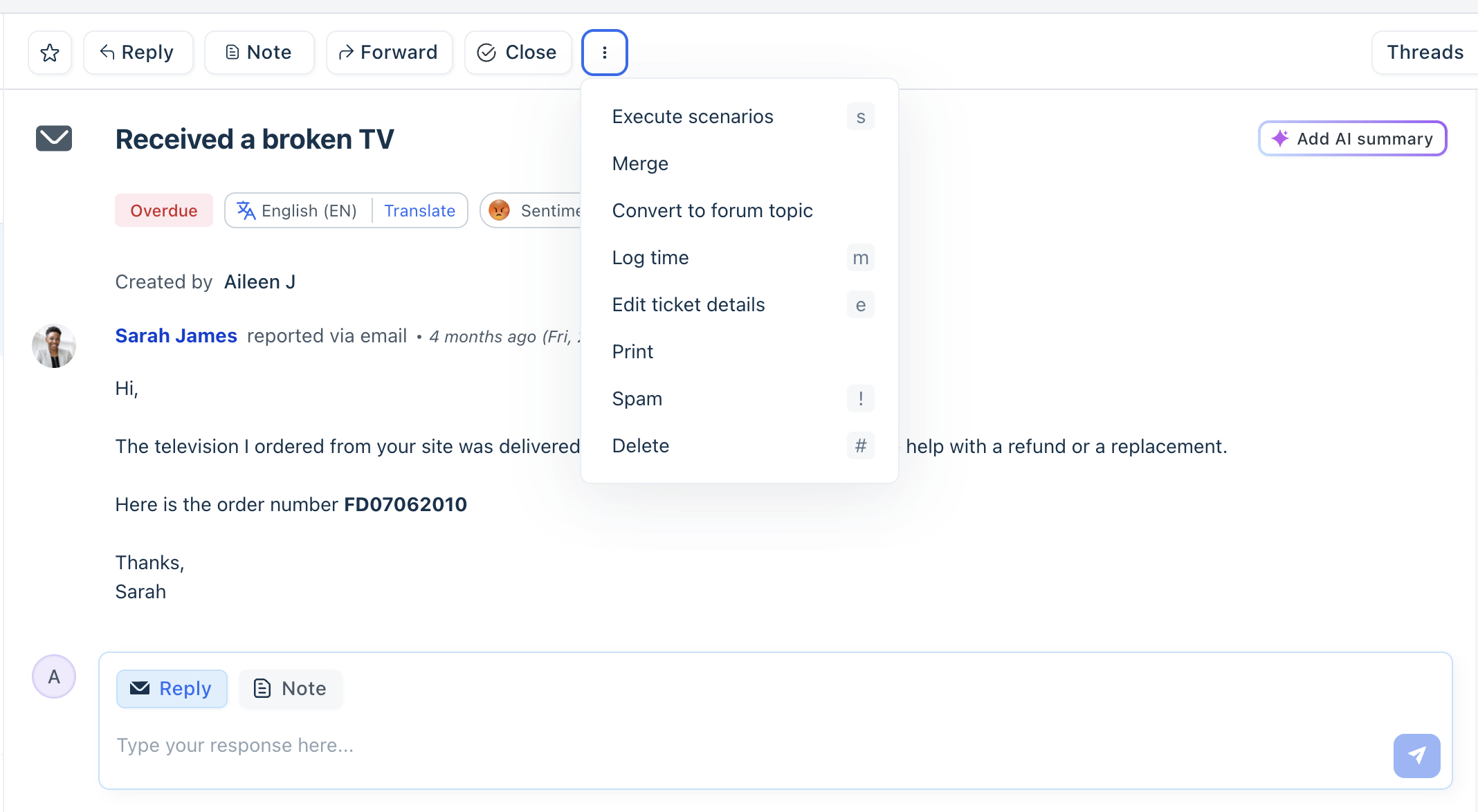
To mark a ticket as spam or delete:
- Open the ticket
- Click on the more actions (three dots) icon.
- Click Spam or Delete from the actions available above the ticket.
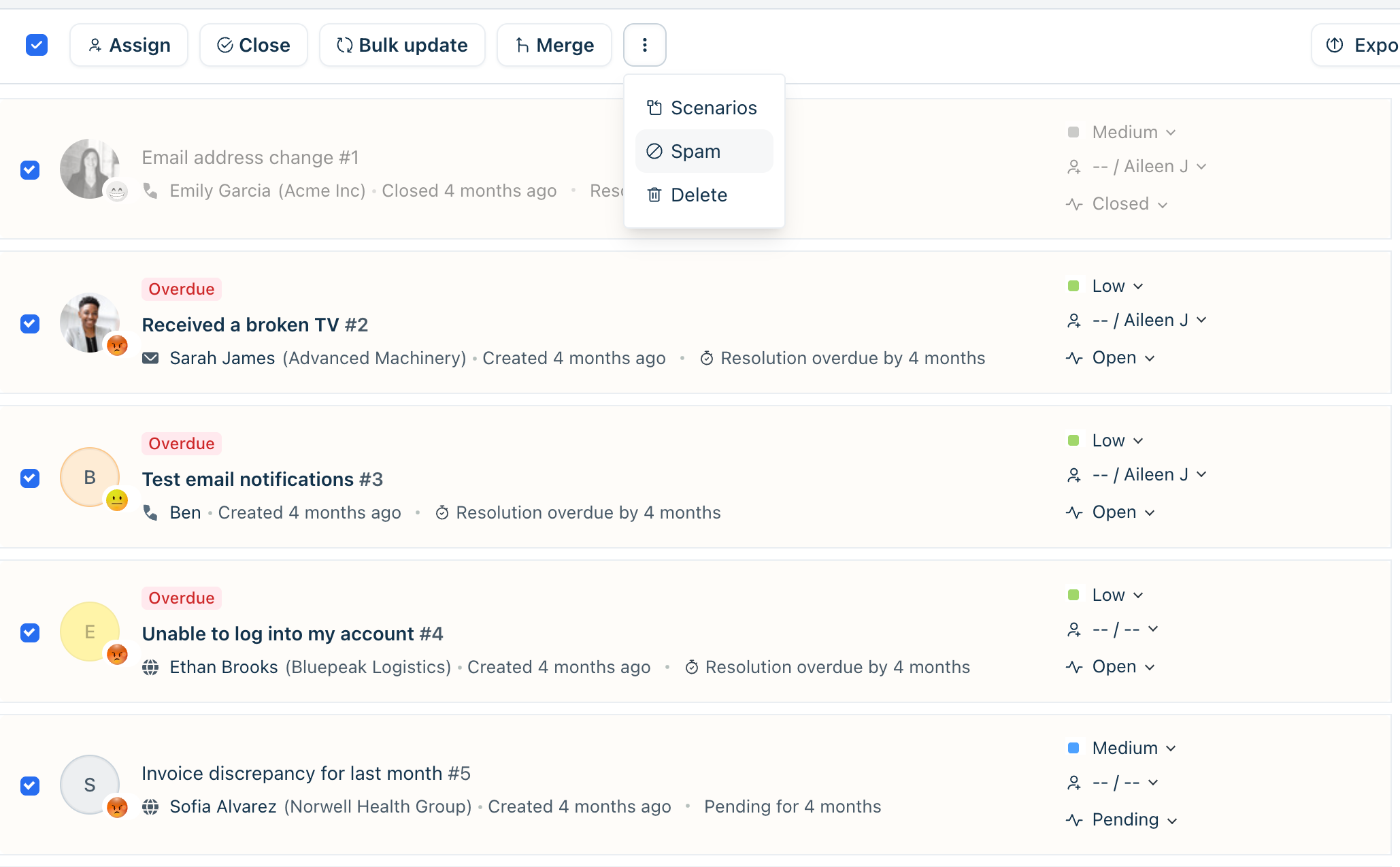
To perform these actions on multiple tickets:
- Go to the ticket list and select the tickets you want to manage.
- Click on the more actions (three dots) icon.
- Click Spam or Delete.
Tip: When you manually mark a ticket as spam, you can also choose to block the contact who sent it. If you block the contact, their subsequent tickets are automatically marked as spam. Blocked contacts appear in the Deleted contacts list on the Contacts page. You can restore a contact from this list if needed.
Automatically mark tickets as spam or delete them
You can use ticket creation automation rules to automatically mark tickets as spam or delete them based on specified conditions. For example, you can delete incoming auto-replies or mark tickets from a specific contact as spam.
To configure an automation rule:
- Go to Admin > Automations > Ticket Creation.
- Click New Rule.
- Configure the event and conditions based on your requirements.
- In the action section, select Delete the Ticket or Mark as Spam.
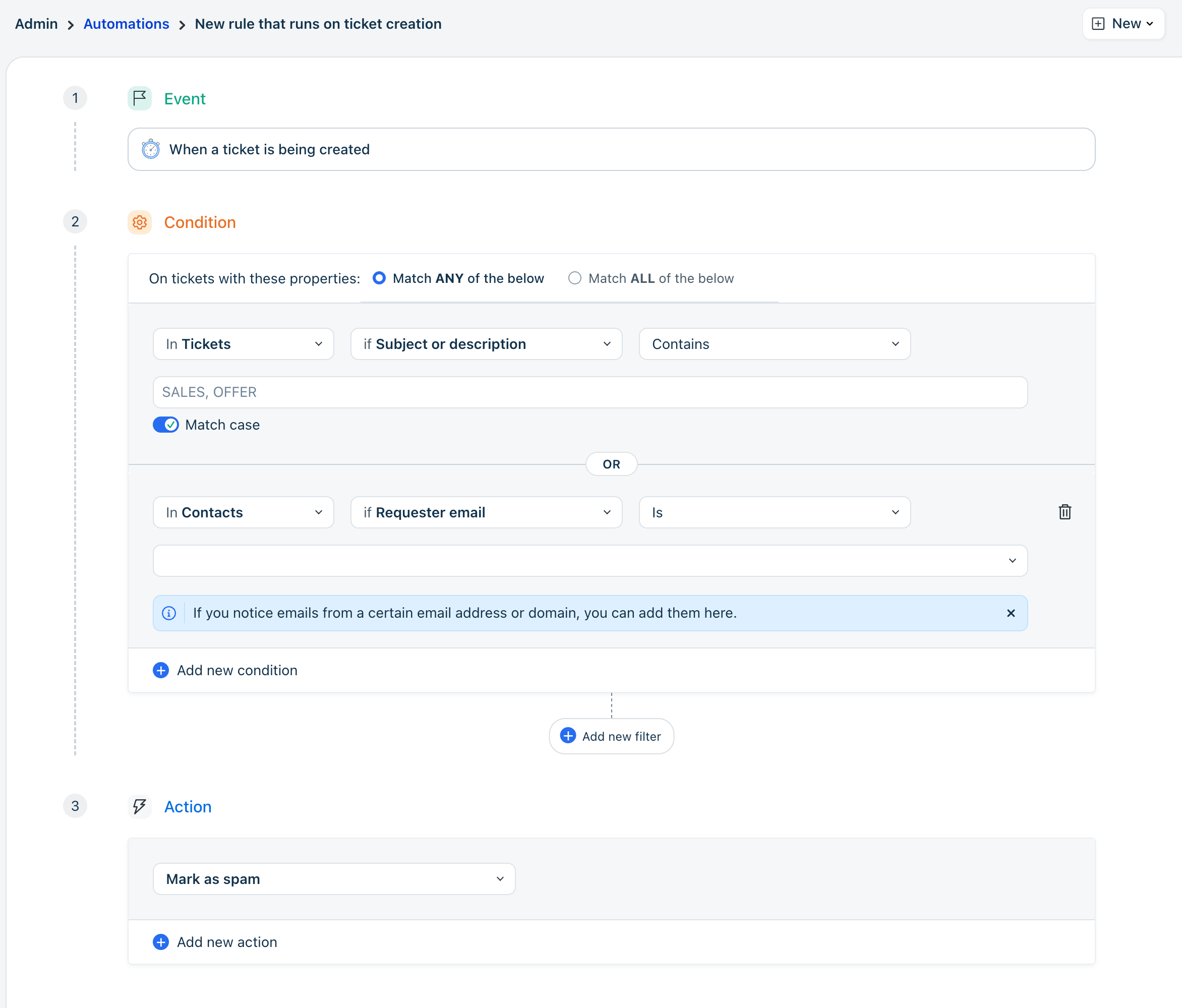
- Save the rule.
Manage span or deleted tickets
Tickets remain in the Spam or Trash view for 30 days. After this period, Freshdesk permanently deletes them. You can restore tickets from Trash or remove them from Spam before the 30-day period expires.
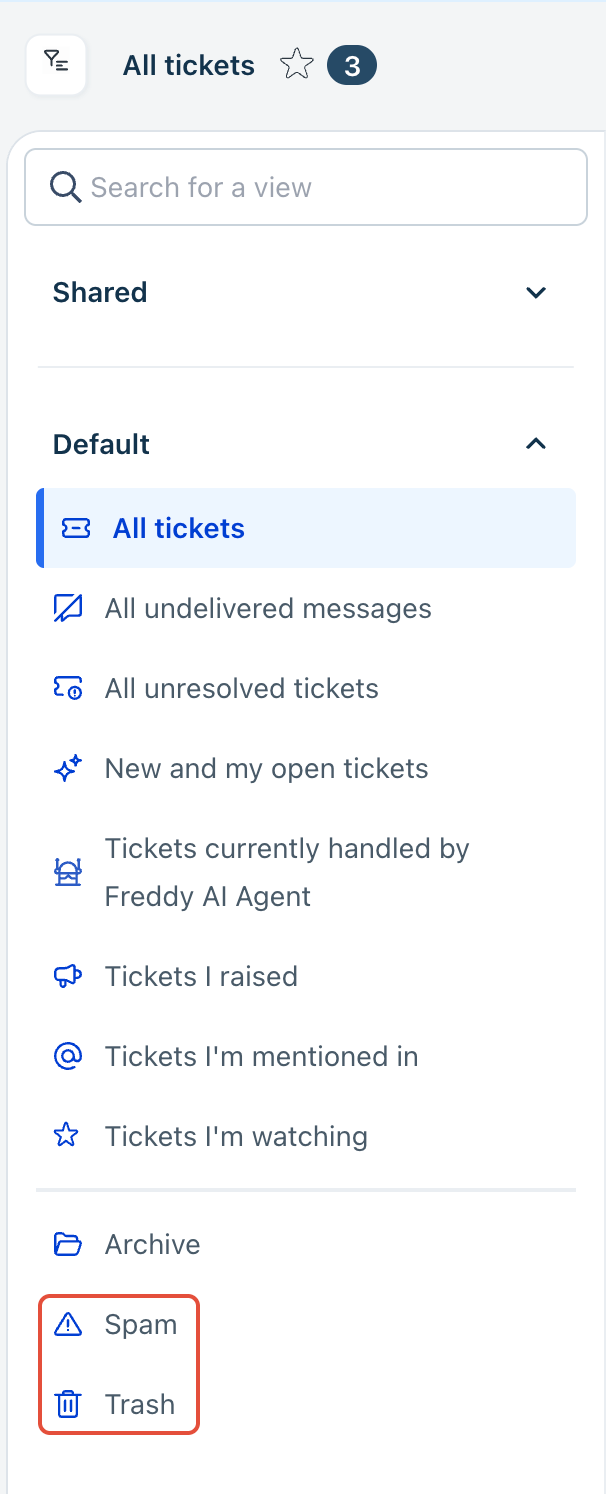
You can access tickets marked as spam or deleted (trash) from their respective ticket views.
Restore a valid ticket marked as spam
If a valid ticket is incorrectly marked as spam, you can restore it and check why it was marked as spam.
- Go to Tickets > Ticket views > Spam.
- Open the ticket and click Not spam. You can also perform this action on multiple tickets.
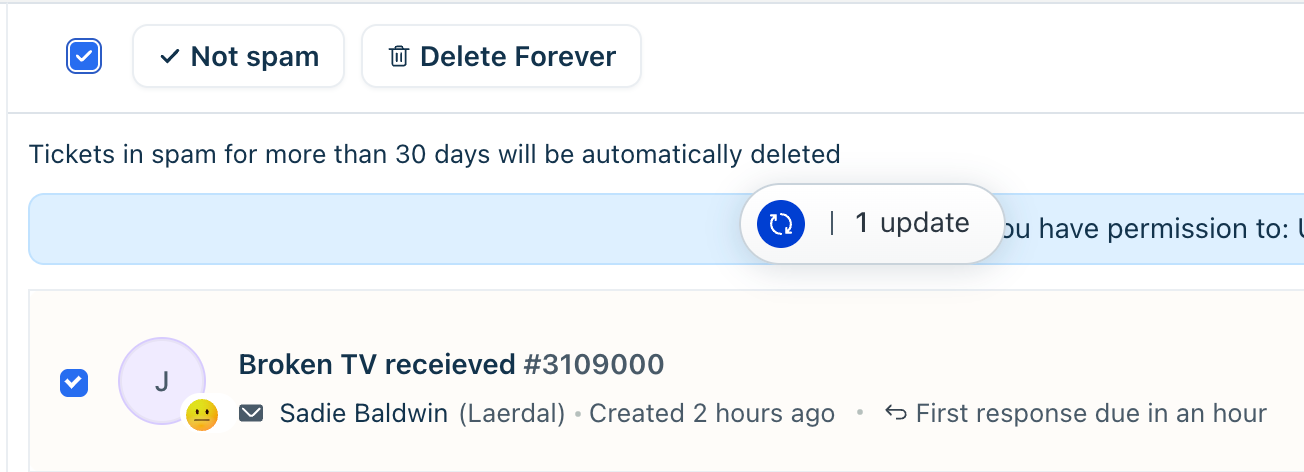
- Once restored, slick Activities to view the ticket's activity history and identify whether an agent or an automation rule marked it as spam.
Restore a contact whose tickets are marked as spam
If a valid ticket was submitted by a contact in the Deleted contacts list, restore the contact to prevent their future tickets from being automatically marked as spam.
- Go to Contacts > Contact views.
- Find and open the contact in the Deleted list.
- Click Restore.
Permanently delete trash or spam tickets
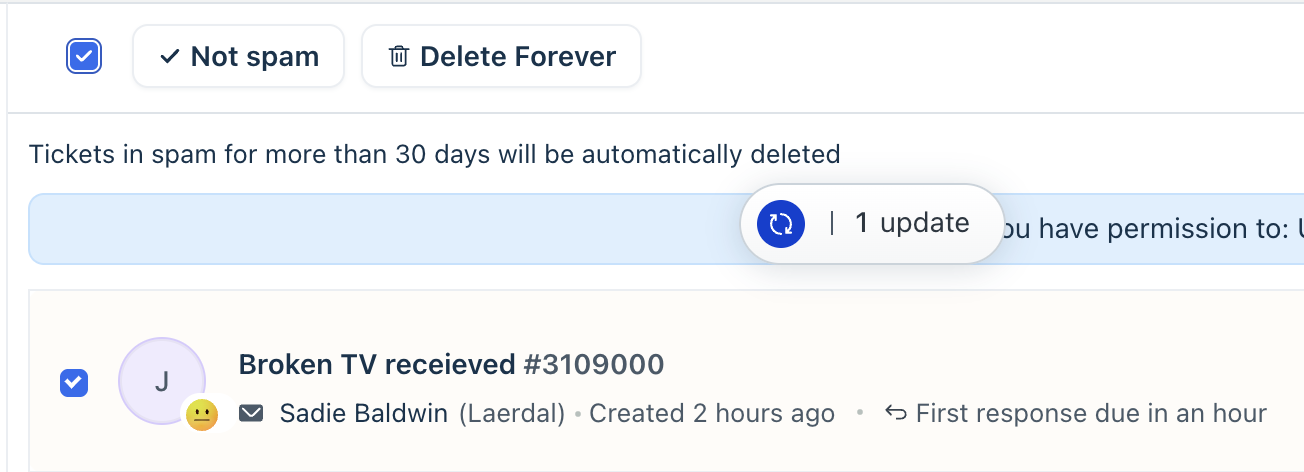
- Click on the Spam or Trash view.
- Select the tickets and click Delete forever.
Note: Tickets in Spam and Trash are excluded from reports and analytics metrics.