
Note: Effective January 1, 2026, Shopify store owners must use the Shopify Dev Dashboard to create and manage new custom apps, as legacy custom app creation will cease. Existing store connections remain unaffected, but new store connections to Freshdesk must follow the steps outlined in this article.
The Shopify app for Freshdesk lets you support multiple stores to bring all your customers' order information from Shopify to your support helpdesk. The app fetches customers’ details from the connected Shopify stores and provides instant access to their recent orders, payment status, and shipping information right within Freshdesk. This gives you more context when dealing with customer support tickets related to their purchases.
With the Shopify app, you can perform the following tasks within your Freshdesk widget:
View customers’ current and past orders
View order status
Issue refund
Cancel order
View shipping information
Use canned responses specific to Shopify
TABLE OF CONTENTS
- Installing Shopify
- Connect additional store to Freshdesk
- Using the Shopify app
- Canceling Orders
- Refund Processing
- Using Shopify content placeholders in canned responses
Installing Shopify
The installation process requires creating a private, custom app in the Shopify store, which is then used for authentication in Freshdesk.
Step 1: Create a custom app in the Shopify dev dashboard
Prerequisites:
Full access to create and manage custom apps (Store owner access)
Staff must be granted permission to create, edit, or delete custom apps (Go to App development > Develop permission to grant permissions)
Follow the steps below to create a custom app in the Shopify dev dashboard:
Access App Development Settings
Log in to your Shopify Admin Panel.
In the navigation bar, go to Settings > Apps.
Click Develop apps (or App development) > Build apps in Dev Dashboard.
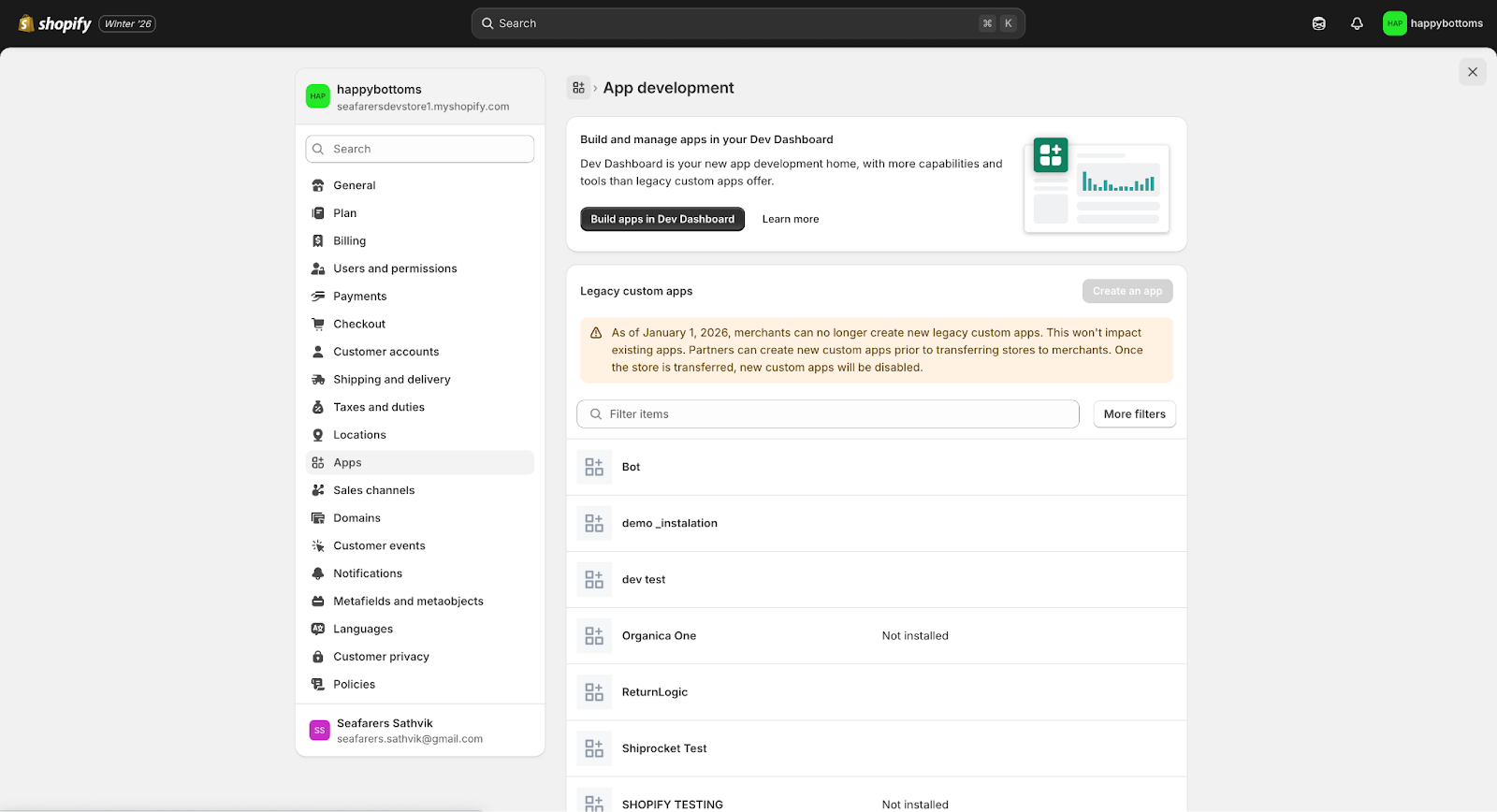
Create a New App
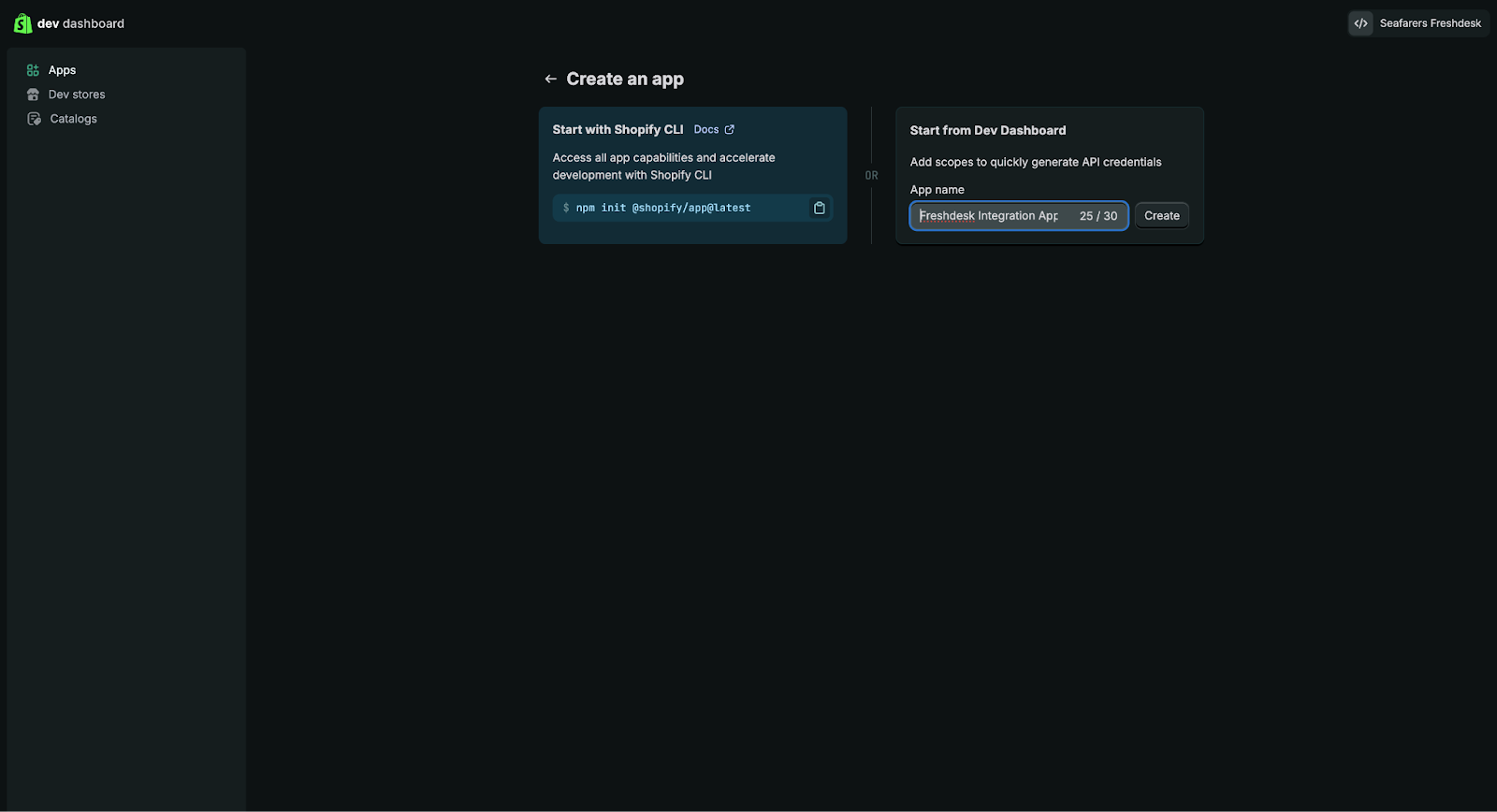
In the dev dashboard that appears, click Create an app.
Click Start from Dev Dashboard.
Enter an App name (e.g., Freshdesk Integration App).
Click Create
Create a Version
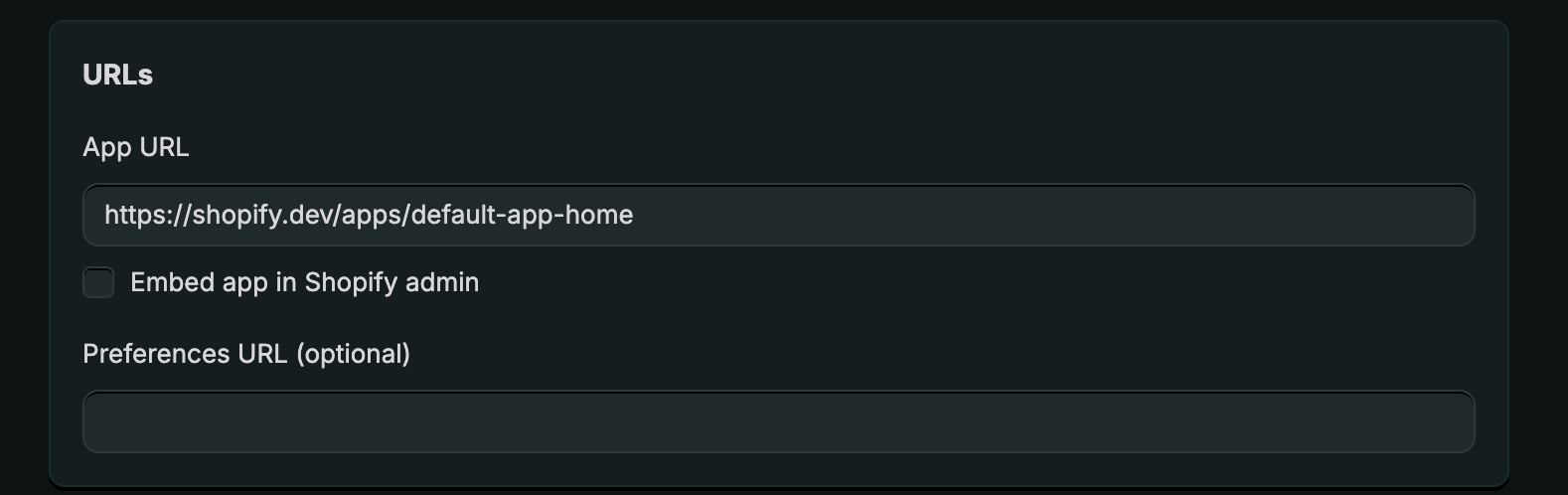
In the Versions tab, create a version for your app by following the steps below:
Use the default URL: https://shopify.dev/apps/default-app-home
Disable Embed app in Shopify admin
Ensure the Webhooks API version is set to the latest stable version

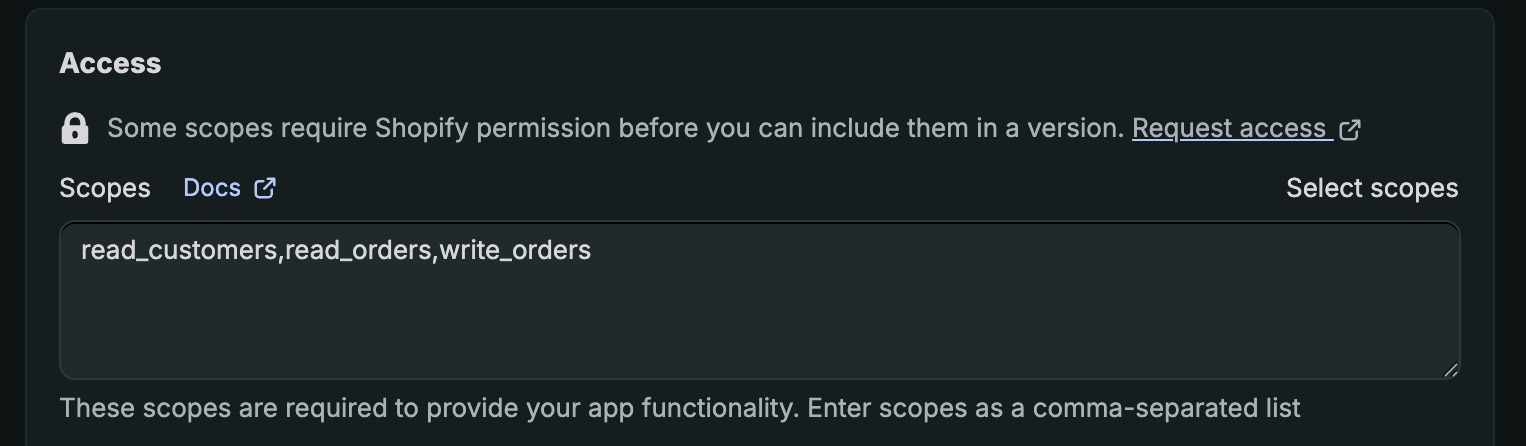
Under the Access > Scopes, enable the following permissions required for Freshdesk to function:
Customers: Check read_customers
Orders: Check read_orders and write_orders
Click Release and confirm.
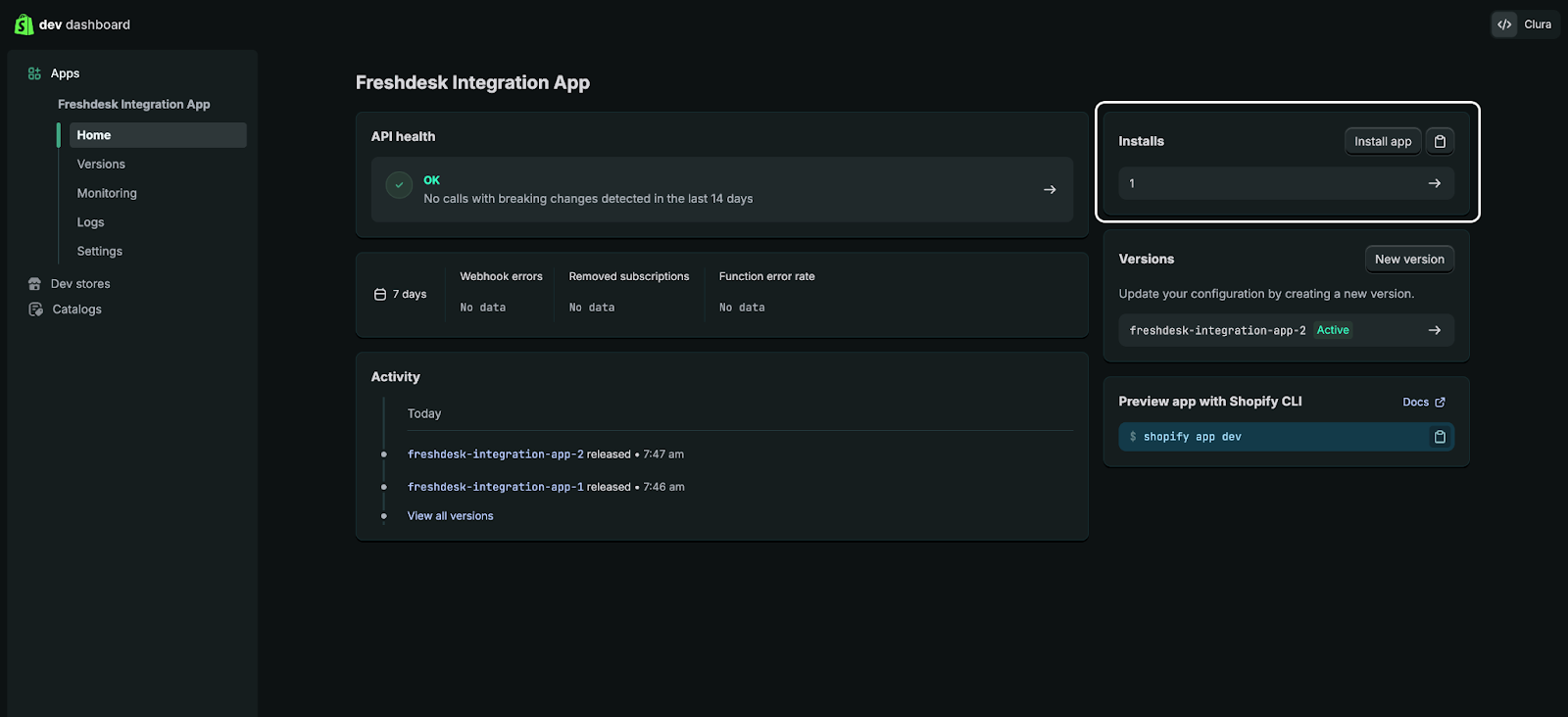
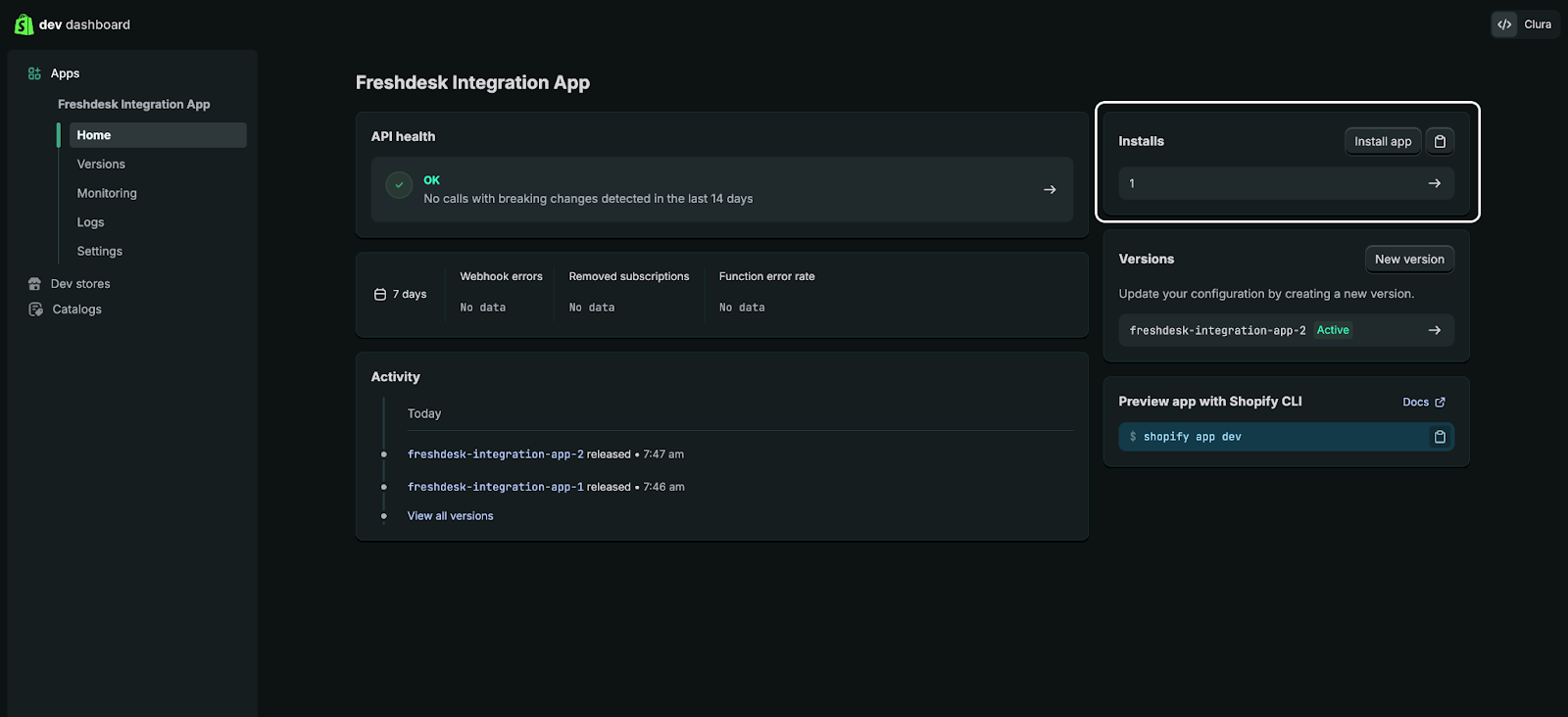
Go to the App Home page and look for the ‘Installs’ section. Click on ‘Install app’
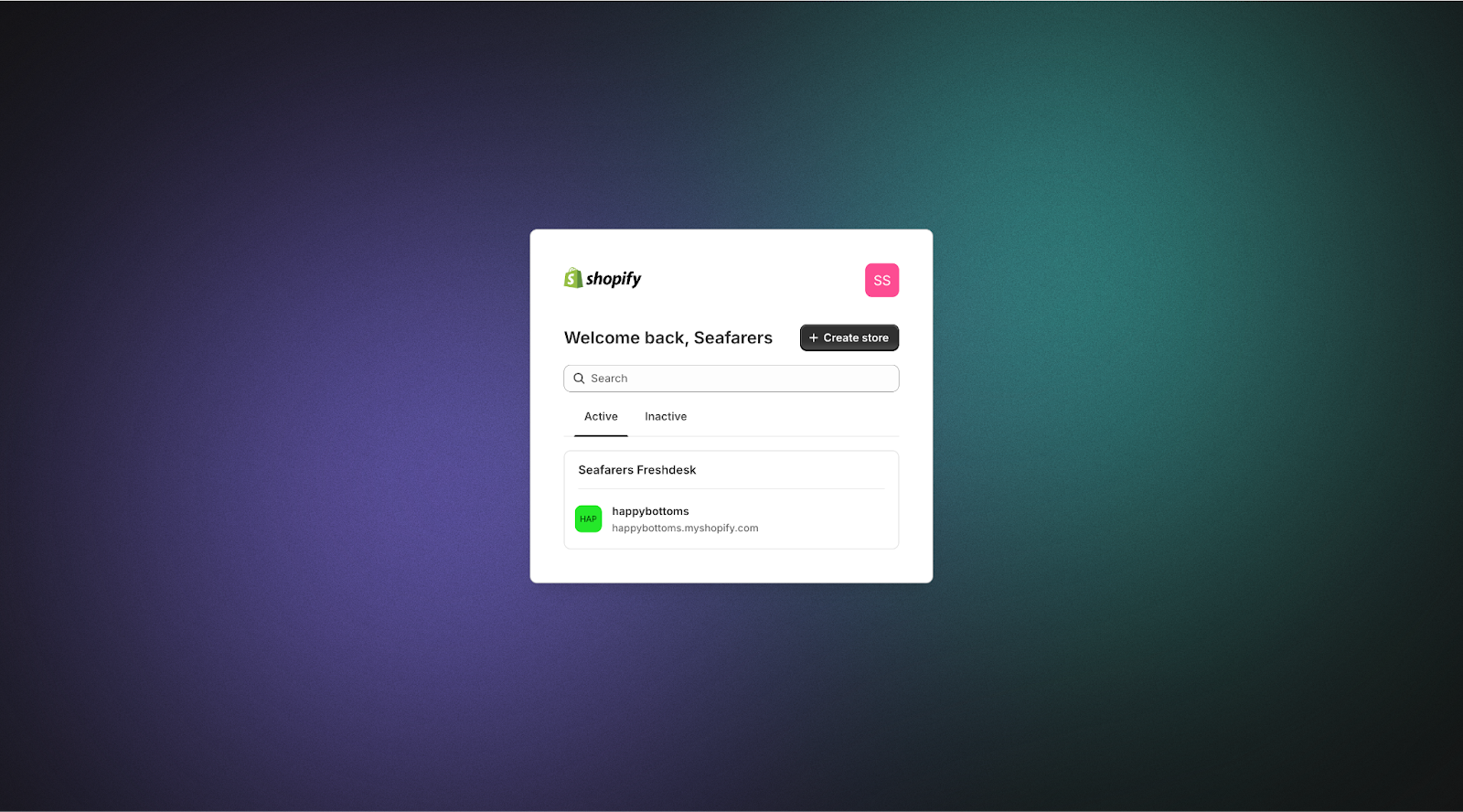
This link will take you to the Shopify installation page for your custom app.
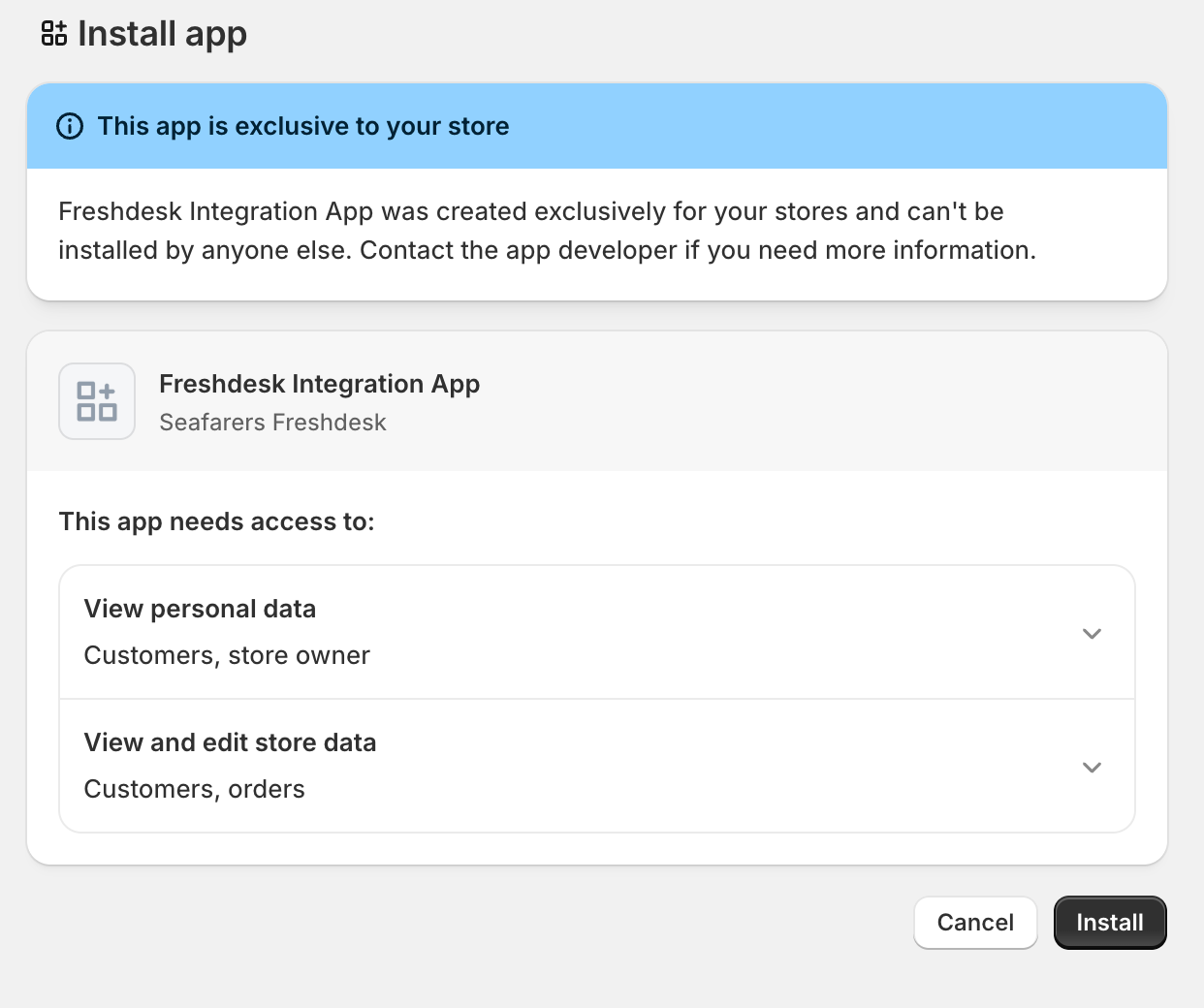
On the Install app page that appears, select the Shopify store and click Install.
You will see a confirmation that the app has been successfully installed on your store.
Select the custom app (e.g., "Freshdesk Integration App") created in Step 2 from the Shopify developer dashboard.
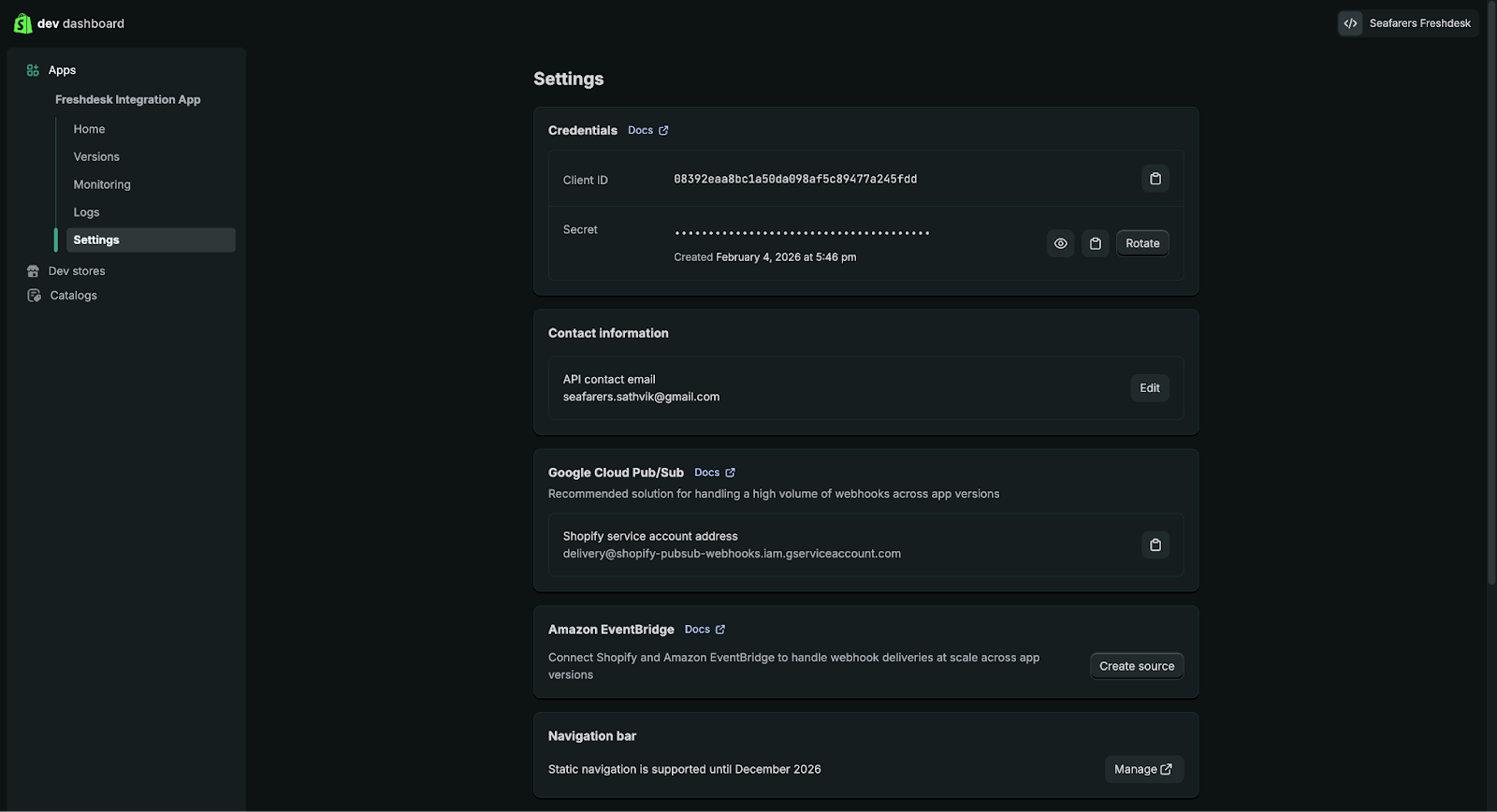
In the navigation bar, click Settings.
In the Credentials section (at the top of the page), there will be two values:
Client ID: An extended alphanumeric identifier (e.g., ce5cd59e3abdd0f8255883...)
Secret: Concealed for security (••••••••••••••••••)
Copy your credentials and keep them secure
Step 2: Install and Authenticate the App in Freshdesk
Prerequisites: Freshdesk admin role to install and configure apps from Freshdesk Marketplace
Install the Shopify App from Freshdesk Marketplace:
Log in to Freshdesk as an administrator.
In the top-right corner, click Apps > Explore Marketplace Apps. Alternatively, go to Admin > Apps.
Search for Shopify. In the Shopify page that appears, click Install.
Configure and Authenticate:
Enter your store URL in Shopify (e.g., redfox-shoes.myshopify.com).
Enter the Client ID and Client Secret
Client ID: Paste the Client ID from the Shopify app.
Client Secret: Paste the Client Secret from the Shopify app.
Click Authenticate account
Once successfully authenticated, the store is listed under Connected stores
Click Save Changes
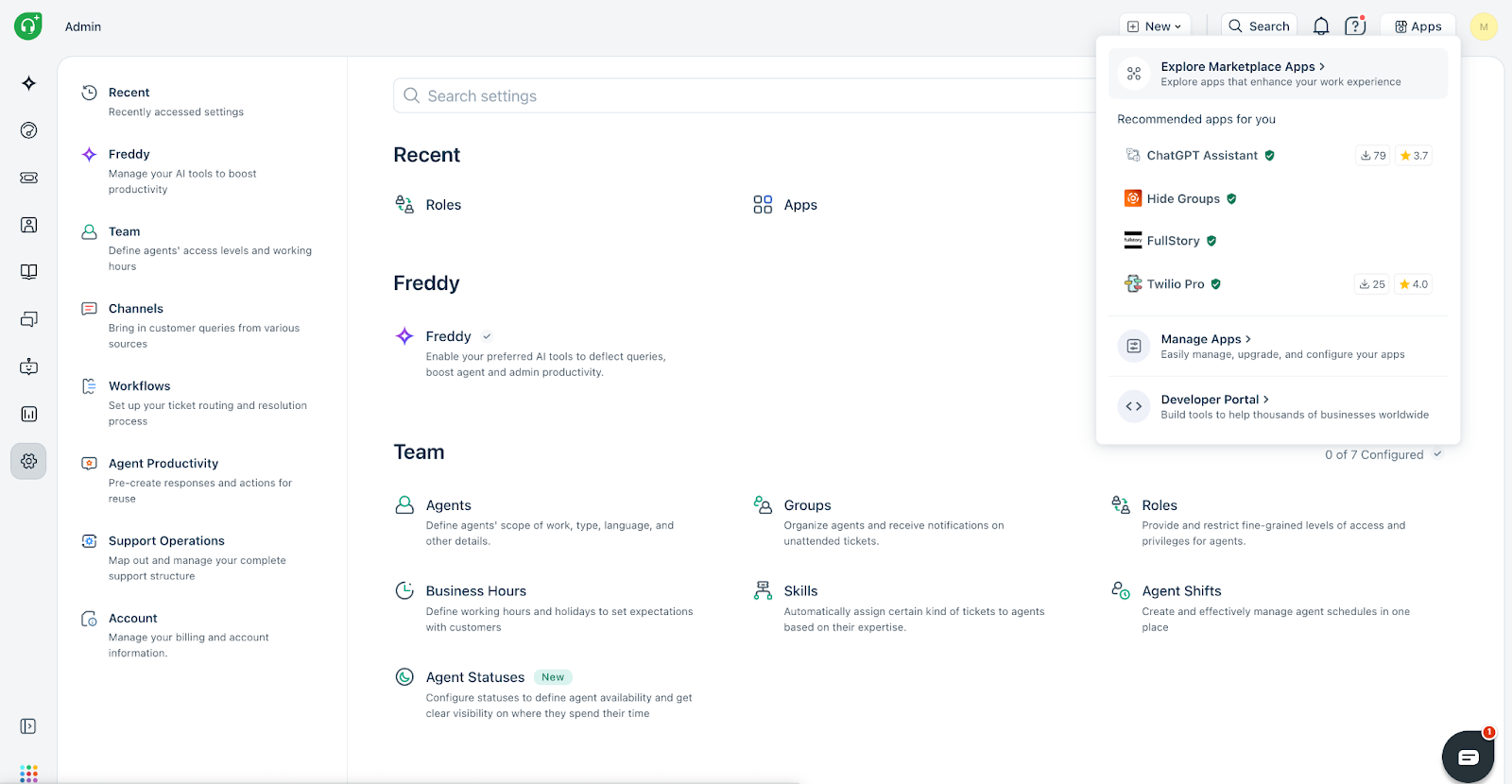
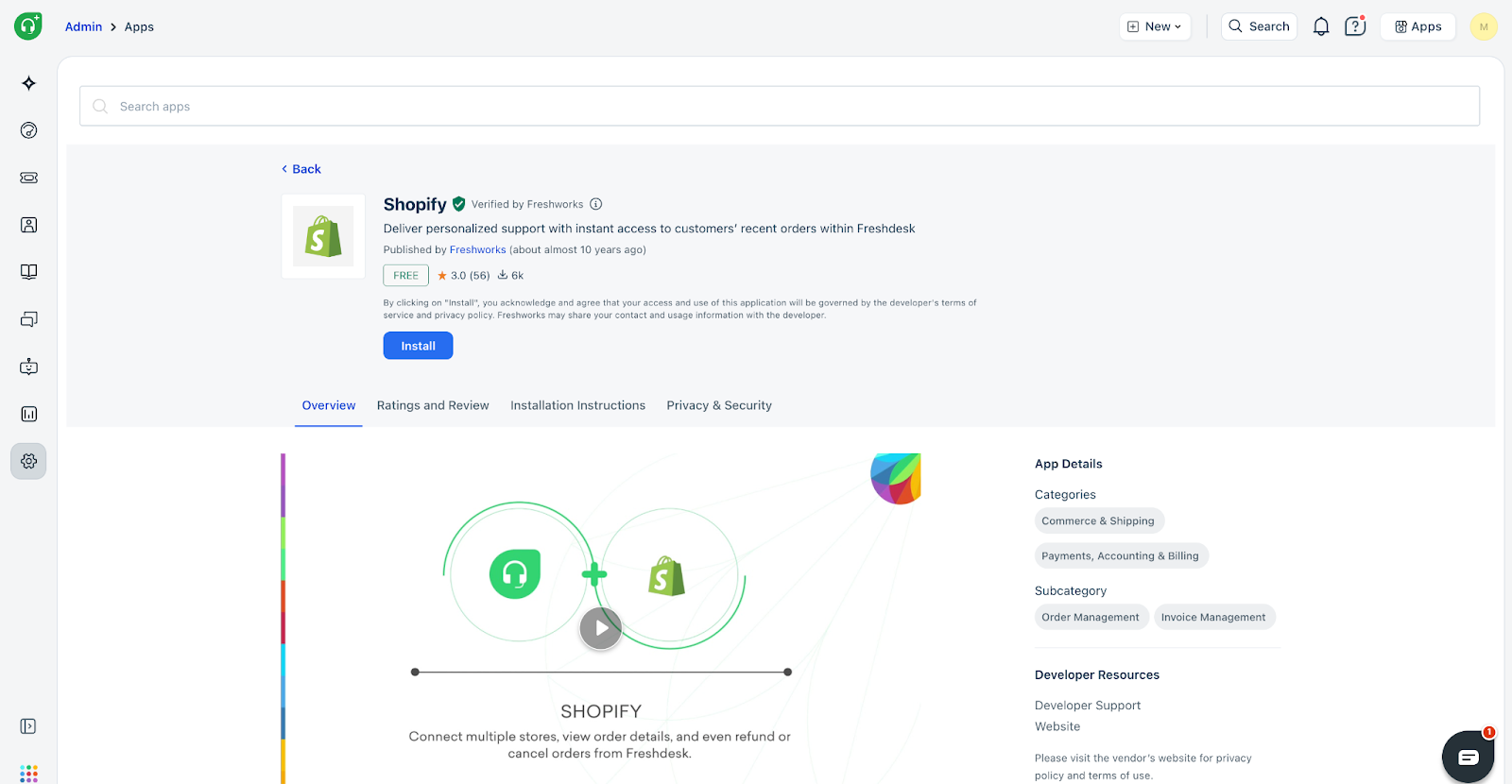
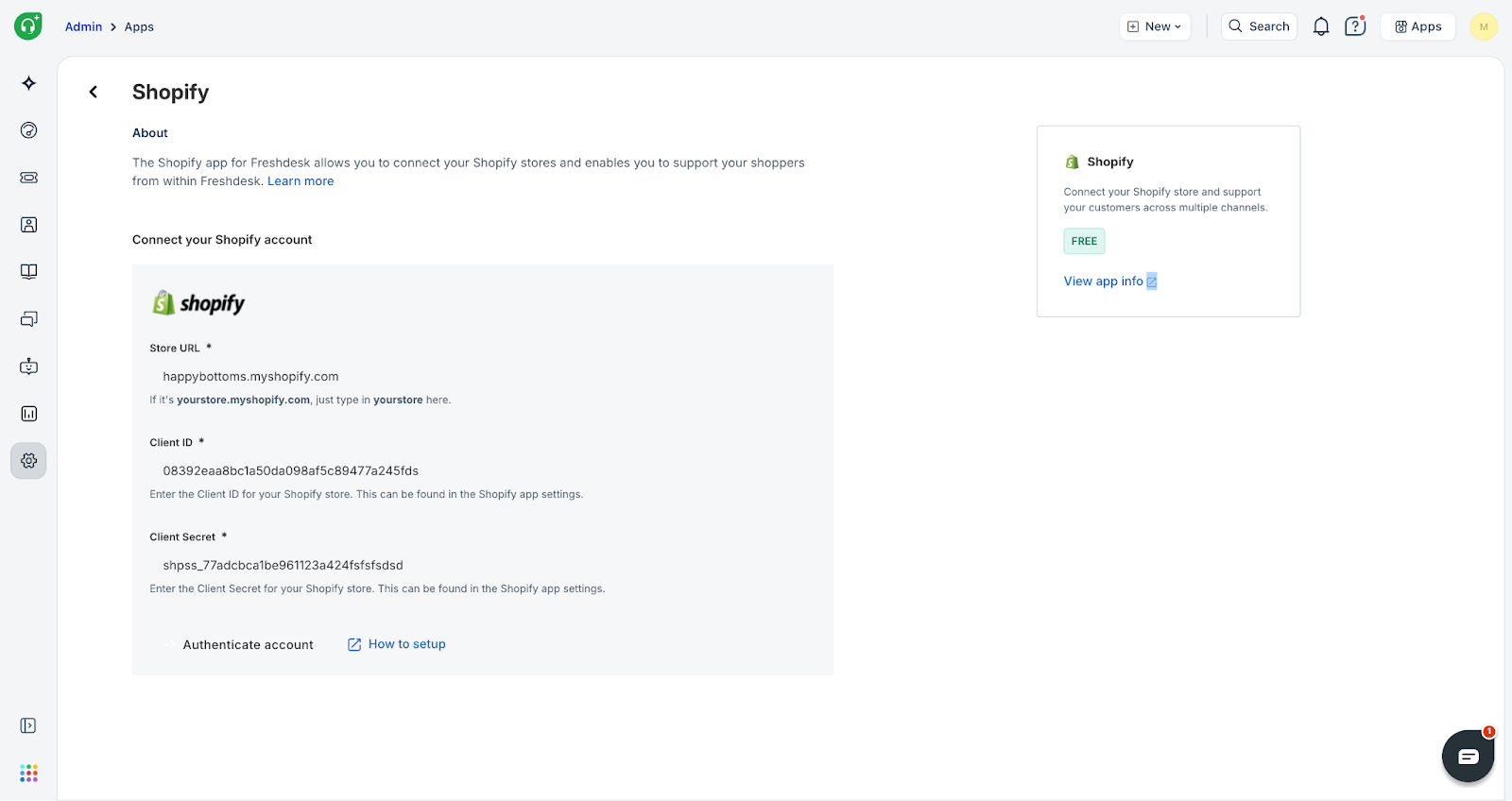
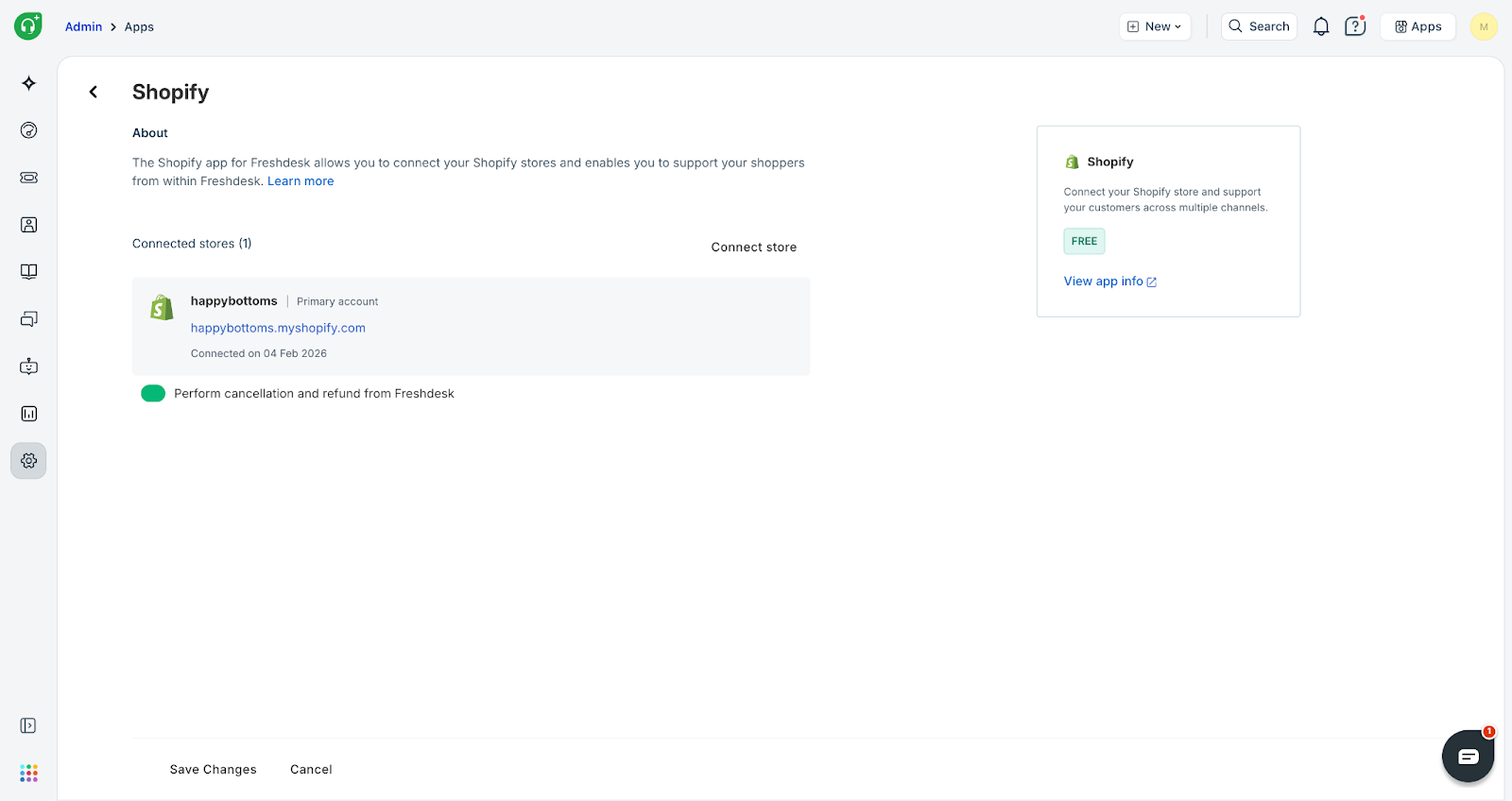
Your Shopify store will now be connected to your Freshdesk account. You can optionally connect multiple stores or configure the options to allow agents to perform cancellations and refunds directly from the Freshdesk widget.
Connect additional store to Freshdesk
Connecting an additional Shopify store to your existing Freshdesk Shopify integration requires two steps:
Installing your custom app on the new Shopify store
Authenticating the new store within Freshdesk
Step 1: Install the Shopify Custom App on the New Store
This step uses the existing custom app created in the Shopify Dev Dashboard to grant the necessary permissions on the new store.
Access the Custom Install Link:
Go to the Shopify Dev Dashboard (https://dev.shopify.com/dashboard/).
Select the custom app you created for the Freshdesk integration (e.g., "Freshdesk Integration App").
In the left sidebar, navigate to the Home tab.
Look for the ‘Installs’ section and click on ‘Install app’ button
Install the App on the New Store:
The link will take you to the Shopify installation page.
When prompted, select the new Shopify store you wish to connect (e.g., secondstore.myshopify.com).
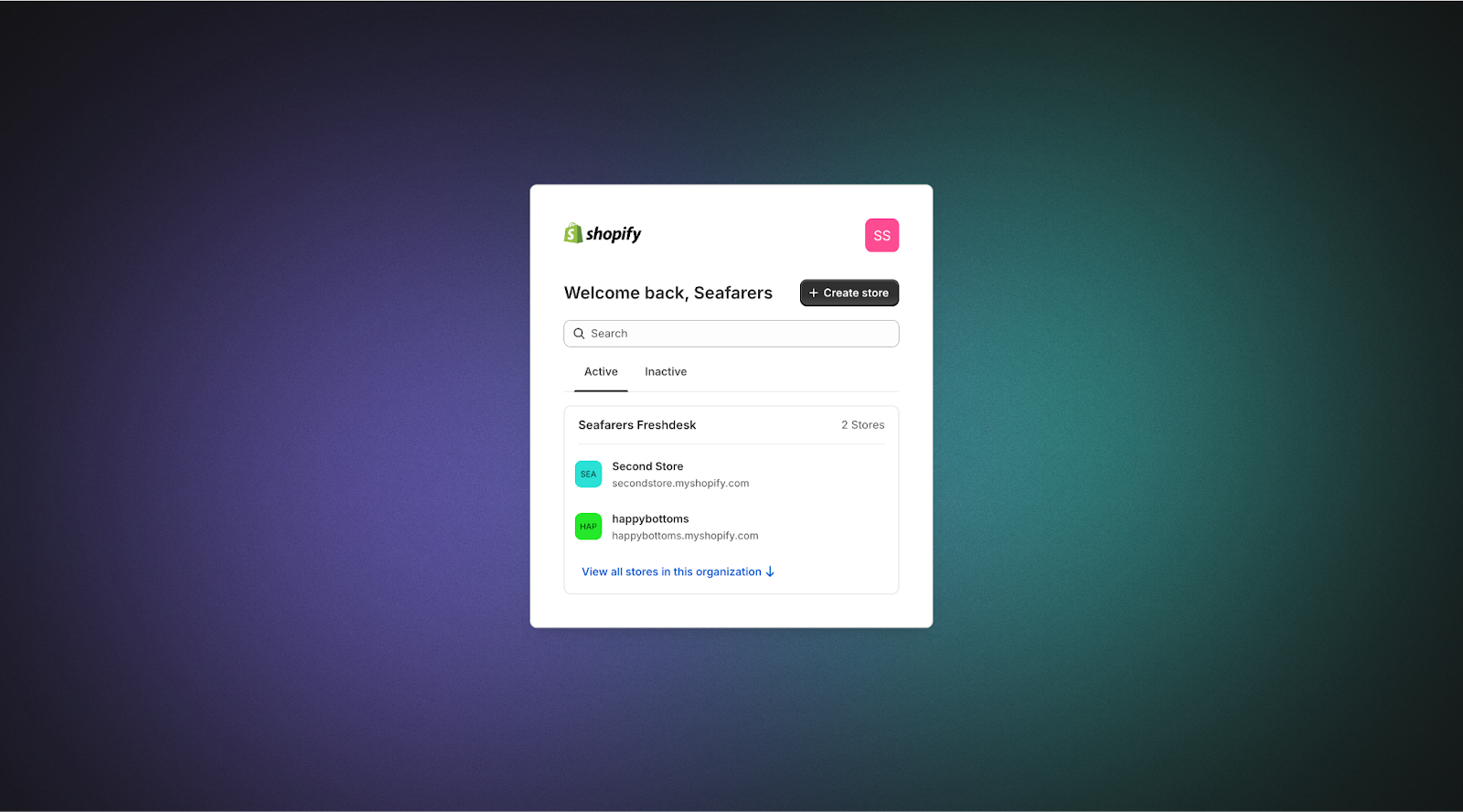
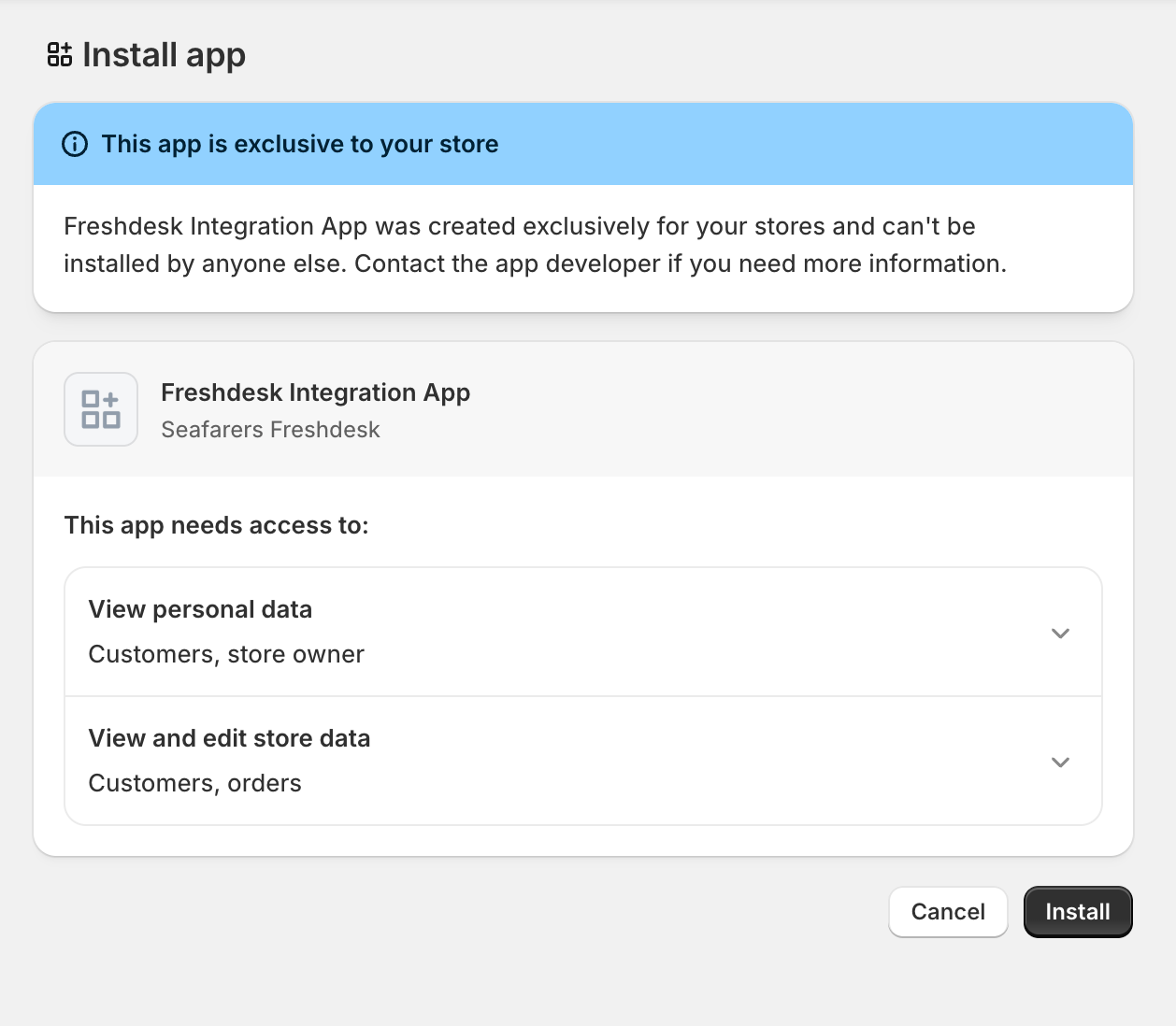
A confirmation will appear, indicating the custom app has been successfully installed on the new store.
Retrieve Credentials for the New Store:
Since you used the same custom app, the Client ID and Client Secret will be the same as the ones you used for the first store. If you need to retrieve them again:
Go back to the Dev Dashboard and select your app.
Navigate to Settings > Credentials.
Copy the Client ID and Secret.
Step 2: Connect the New Store from the Freshdesk Shopify App
Navigate to Freshdesk App Settings:
Log into your Freshdesk account as an administrator.
Navigate to Admin > Apps.
Find the Shopify app and click the Edit Settings button
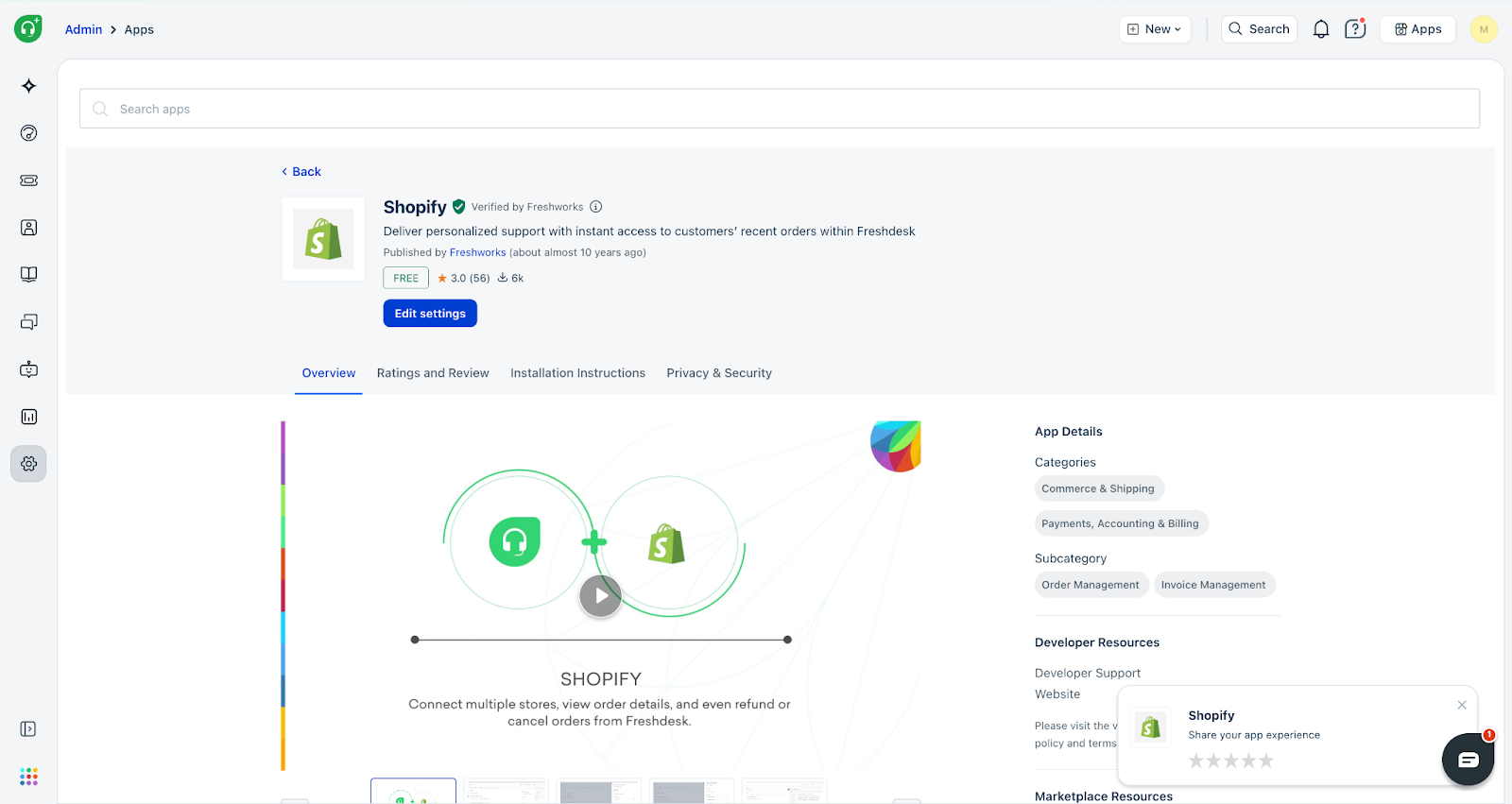
Connect the New Store:
In the Shopify App settings page, view the list of Connected stores.
Click Connect Store
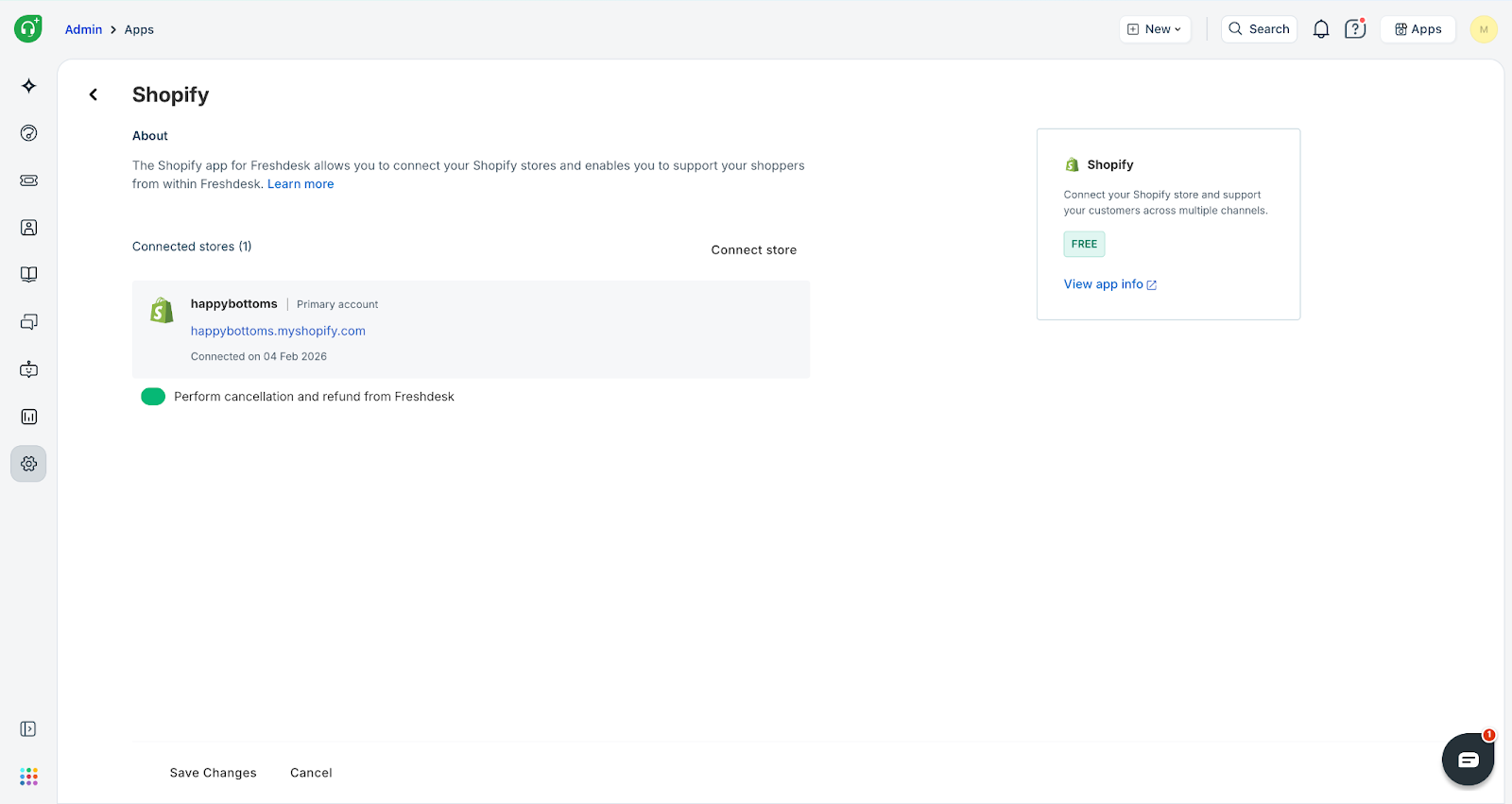
Enter Store Details and Authenticate:
A new configuration panel will appear. Enter the following details:
Store URL: Enter the new store's URL (e.g., second-store.myshopify.com).
Client ID: Paste the Client ID you retrieved in Step 1.
Client Secret: Paste the Client Secret you retrieved in Step 1.
Click Authenticate Account.
Verify and Save
Once authentication is successful, the new store's URL will appear in the Connected stores list.
Click Save Changes at the bottom of the Freshdesk App settings page.
The additional Shopify store is now successfully connected to your Freshdesk account.
Using the Shopify app
After successful installation, the Shopify widget appears in the ticket details page in Freshdesk.
Note: You can also view the Shopify widget from the contacts page when you click on each customer contact.
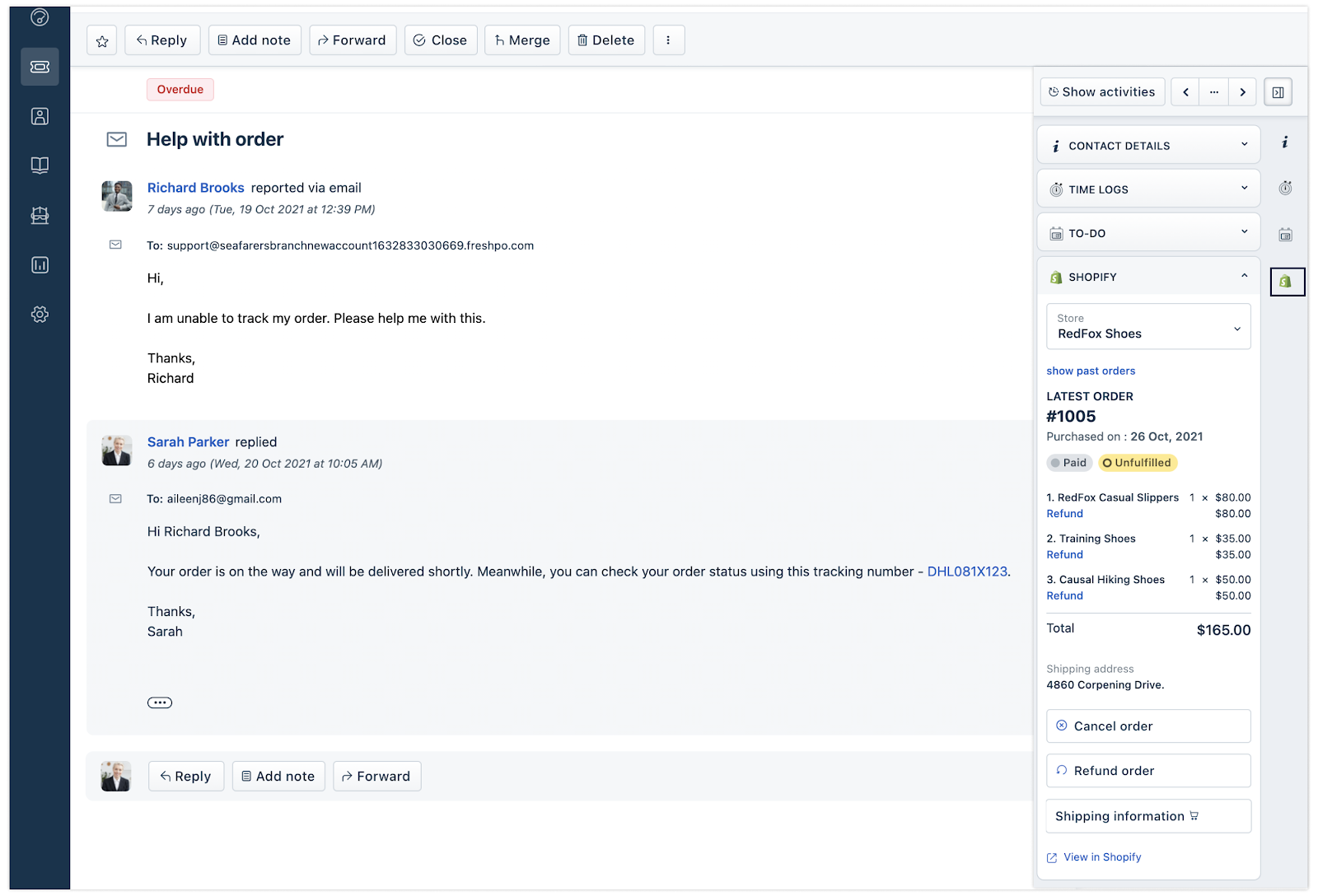
Click the Shopify app to view the customer’s current order details, such as:
Order number
Purchase date
Order status (paid/unfulfilled)
Products purchased
Shipping details
To view past orders, click Show past orders.
Click Shipping Information to view shipping details such as the shipping address, shipping date, carrier name, and tracking number. Click the tracking number to view details directly on the Carrier’s website.
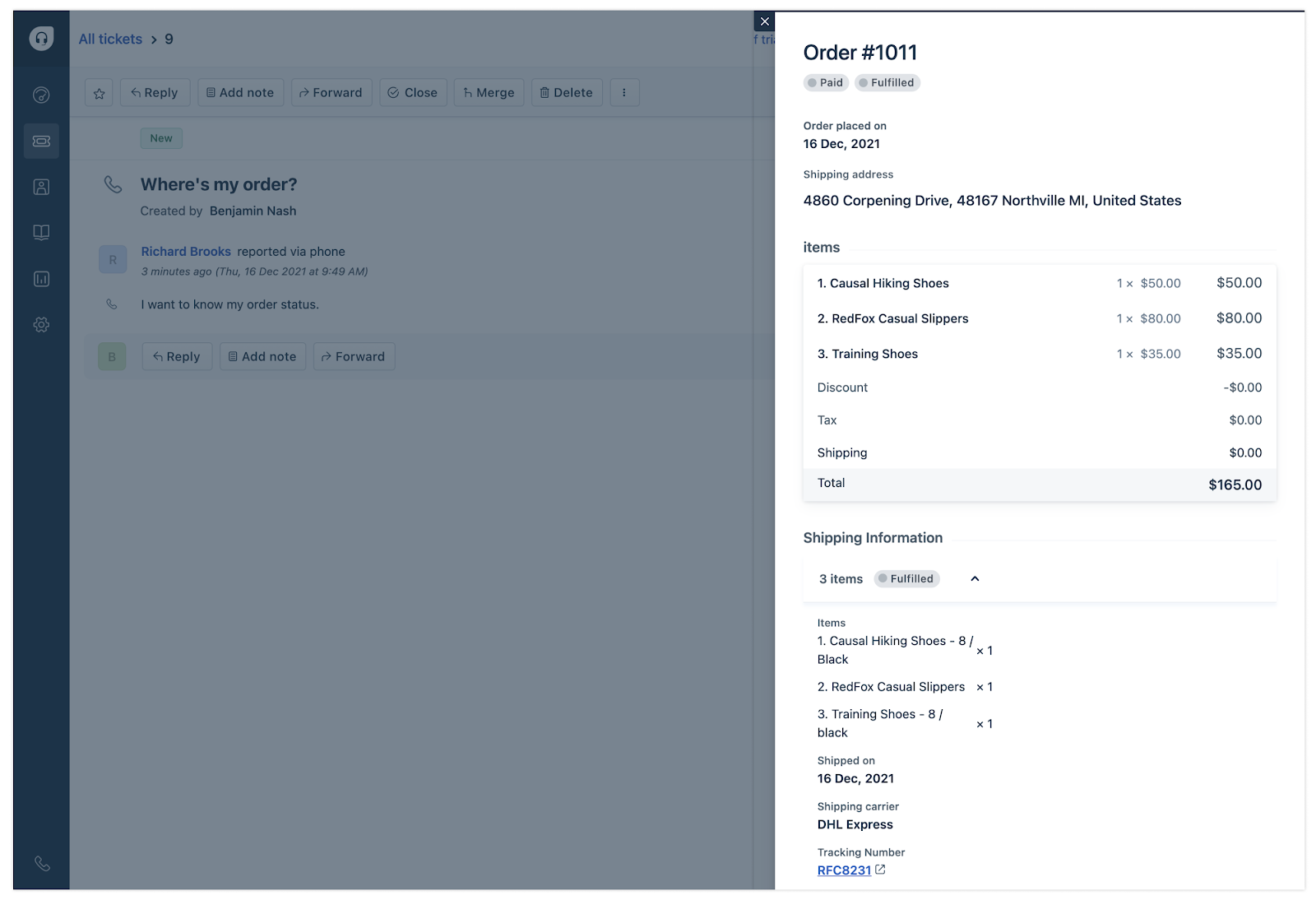
Note: If your customer's purchased items are not yet shipped, you will not see the shipping information. You can view all the order details directly on the Shopify website, using the View in Shopify link at the bottom of the widget.Canceling orders
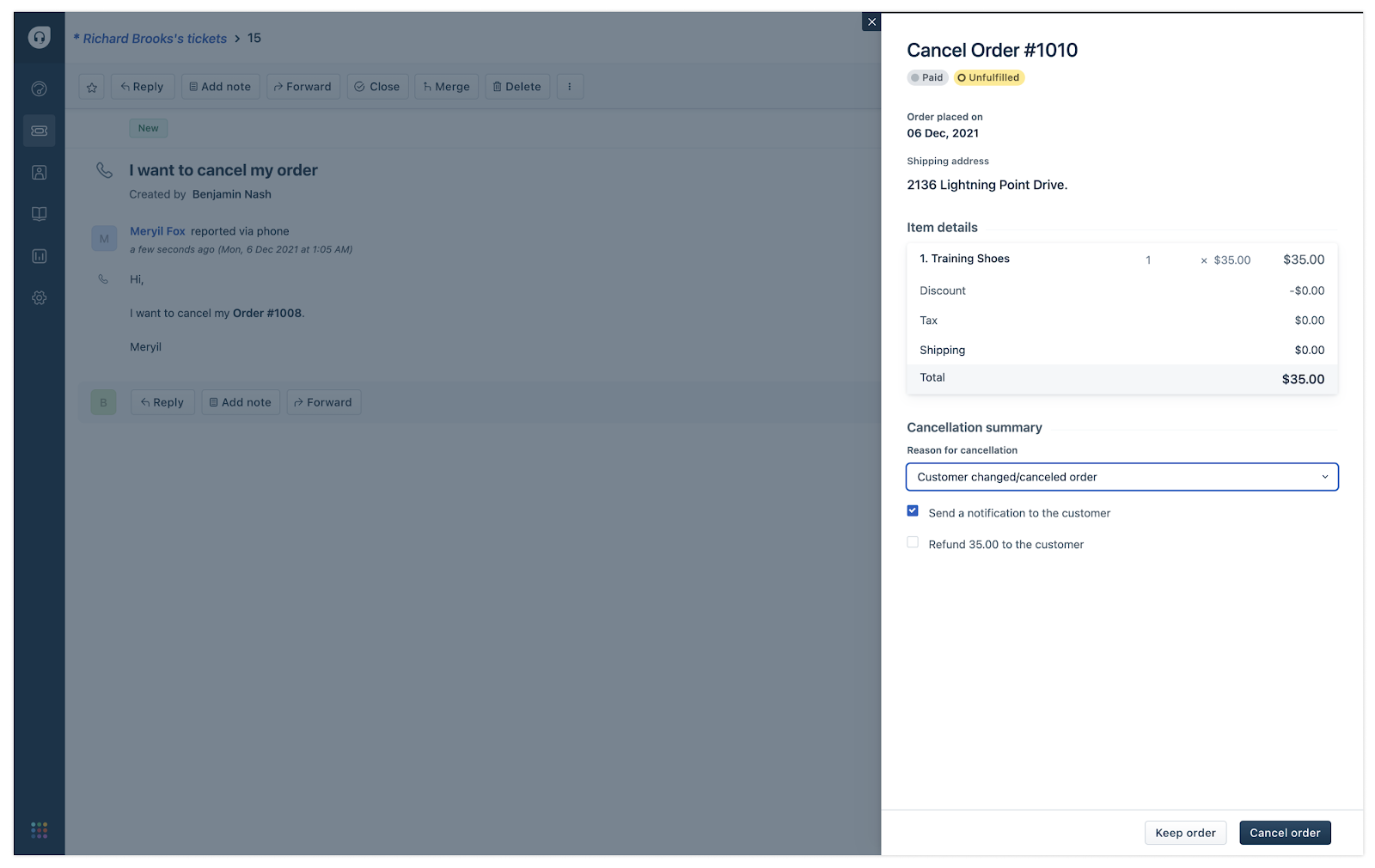
With Shopify's advanced app integration, cancel and refund customer orders directly from Freshdesk and easily select the cancellation reason. However, orders can be canceled only if:
Customers have not made the payment yet
Customers have made the payment, but the purchased items are not ready for shipping
In other cases, once the customer has made payment and the order has been shipped/fulfilled, you cannot cancel the order. So, the cancel option will be disabled.
To cancel orders:
On the Shopify widget, click Cancel Order
Select the reason for cancellation.
Choose to refund the amount to customers if applicable. Enable Send a notification to the customer if customers need to be notified about the cancellation.
Click Cancel order.
Refund processing
The Shopify app allows for full or partial refunds, depending on the company's policy. For example, excluding shipping charges and refunding the balance.
To refund orders:
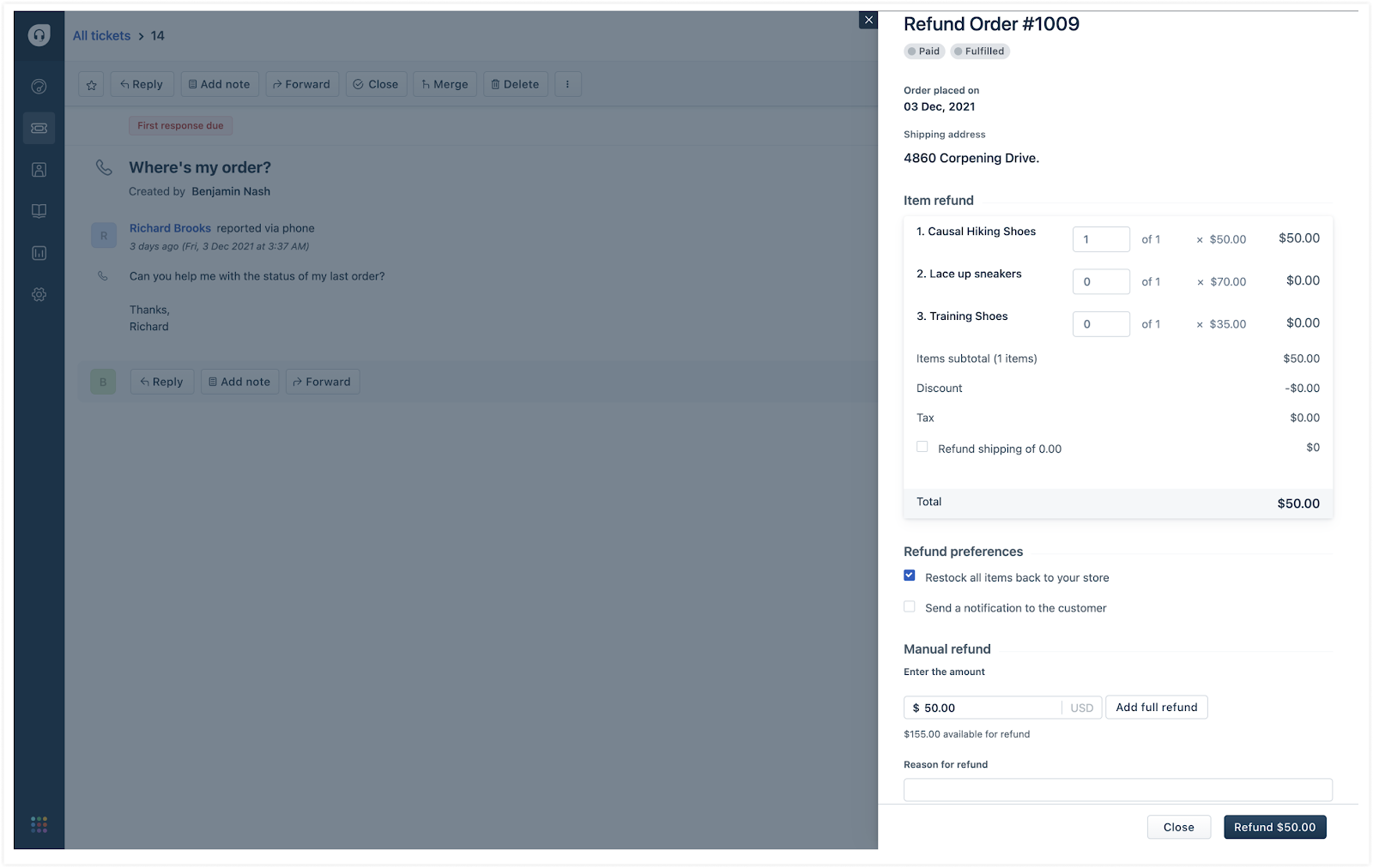
On the Shopify widget, click Refund
Select or change the quantity of the item to be refunded.
Note: You can also view the taxes, shipping charges, and discount applied to the purchased items. Based on this, you can choose to make a partial or full refund.Under Refund Preferences, you can:
Choose to restock the items back to inventory
Send a refund notification to the customer
Alternatively, manually enter the refund amount and select the refund reason.
Select the reason for the refund and click Refund.
Using Shopify content placeholders in canned responses
In addition to the existing dynamic content placeholders, you can now use Shopify-specific placeholders while creating canned responses. Agents can quickly use these canned responses to include the customer's last order details, such as the order number or shipping status, when responding to their order-related queries.
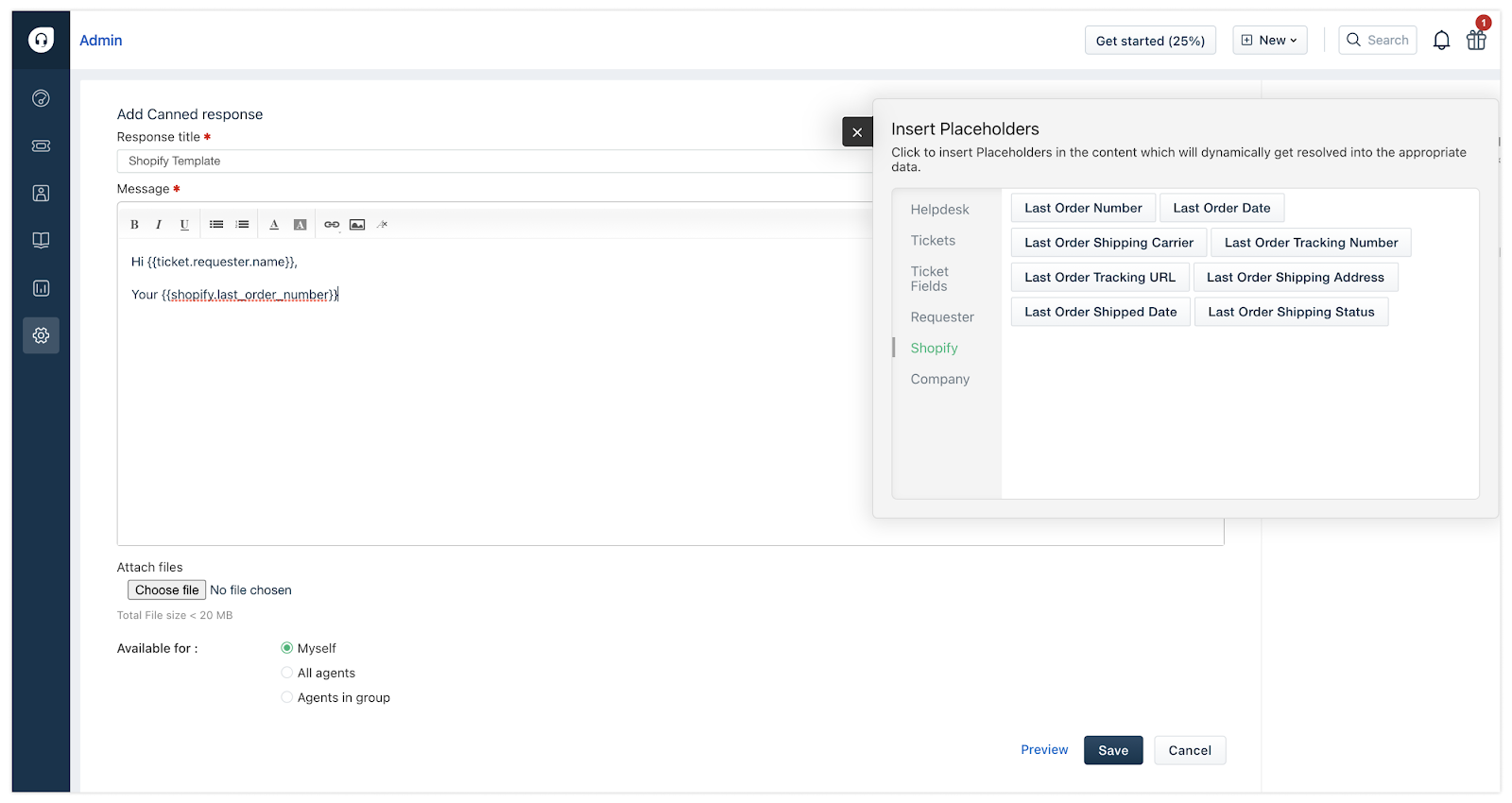
The list of Shopify-specific content placeholders is:
Last order number
Last order date
Last order shipping carrier
Last order tracking number
Last order tracking URL
Last order shipping address
Last shipped date
Last order shipping status
For more details on each placeholder, read Understanding dynamic content and placeholders.
To add a Shopify-specific placeholder in canned response:
On the Add canned response page, click Insert Placeholder.
Click on the Shopify tab.
Insert the placeholders you want to add.
Choose the visibility for this canned response. You can choose to make this available to all agents, agents in a specific group, or to yourself.
Click Save.
Note:
Agents can use this canned response in the ticket. To set up the help widget on your Shopify site, which allows you to embed a contact form and solution articles, please refer to the following solution article for step-by-step instructions: Shopify: Embedding the Knowledge Base and a contact form.
