
This app integrates Freshdesk with QuickBooks Online only, not the on-premise version. All references to QuickBooks in this document pertain to the QuickBooks Online version.
The integration enables the following key functionalities:
Access Customer Details: View customer information (Bill-To name, Address, Email ID, Phone numbers) from QuickBooks directly in the Freshdesk ticket Requester Info section or on the contacts details page.
Time tracking: Track time spent on tickets in Freshdesk and log them as billable "Time Charge" sales transactions against the appropriate customer in QuickBooks.
Create Invoices: Agents can view the five most recent invoices from the ticket requester using the QuickBooks widget. They can also create invoices in Quickbooks from Freshdesk.
2. Feature Availability
3. Installation Procedure
To install and link your QuickBooks account with your Freshdesk helpdesk, you must have Admin access in Freshdesk.
Sign into your Freshdesk account.
Go to Admin > Support Operations > Apps > Get More Apps > Search ‘QuickBooks’.
You will find two apps listed on the marketplace
Quickbooks: This app is to connect QuickBooks production instances
Quickbooks (for Sandbox only): This app is to connect QuickBooks sandbox instances
Click Install on ‘Quickbooks’ app. This will redirect you to the QuickBooks Authorization page.
Sign in to your Intuit QuickBooks Online account with your username and password.
QuickBooks will prompt you to authorize data sharing with Freshdesk. Click the Authorize button to enable secure data transfer
Verify Freshdesk domain and API key in the App
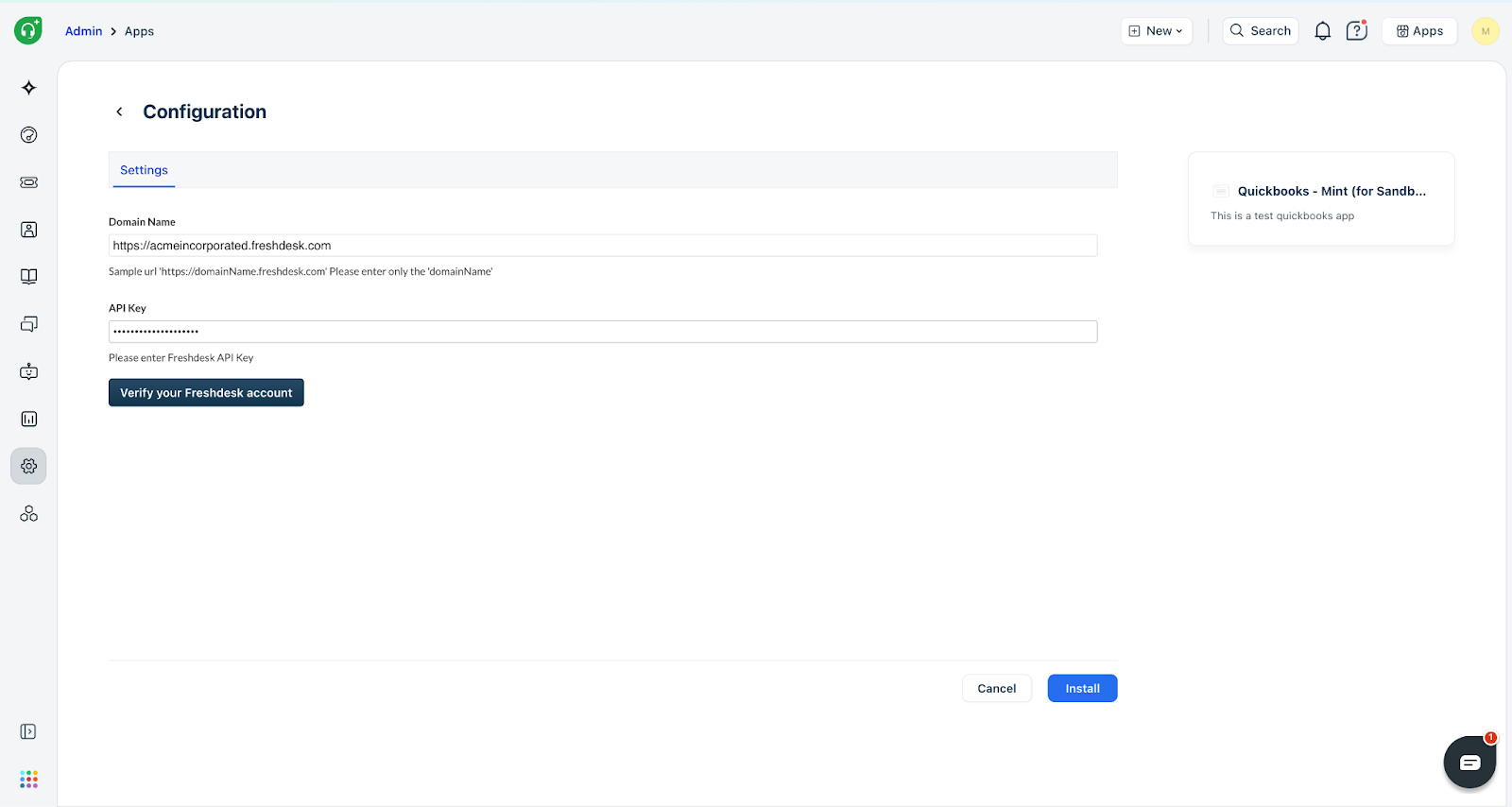
4. App Settings:
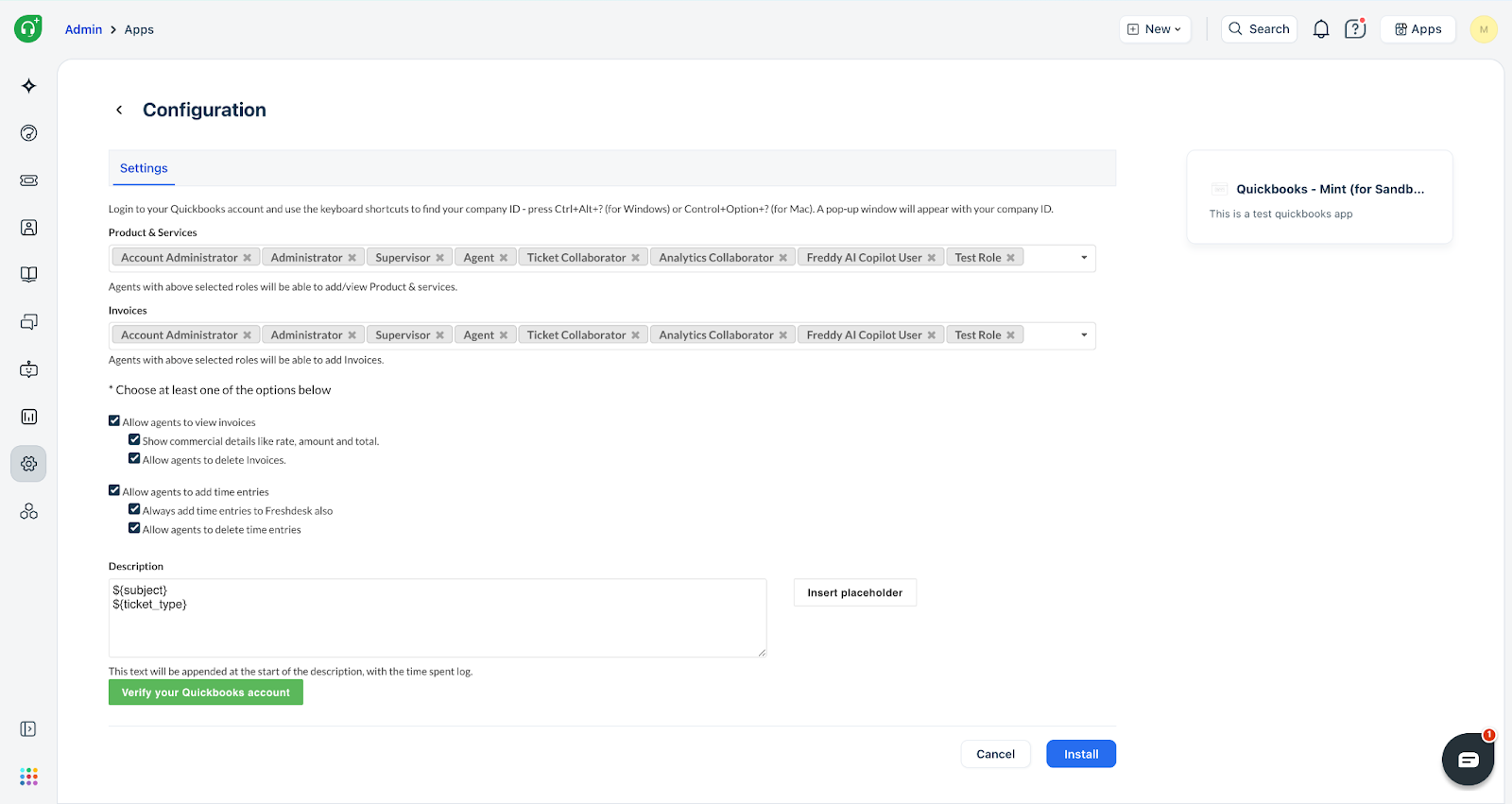
Company ID: This ID can be retrieved from your QuickBooks account.
Windows: Press Ctrl+Alt+?
Mac: Press Control+Option+?
A pop-up will then display your Company ID.
Agent Role Access: Select the specific agent roles permitted to access the following functionalities:
Products & Services
Invoices
Additional Settings: Configure any additional settings as needed.
Allow agents to view invoices
Show commercial details like rate, amount, and total
Allow agents to delete invoices
Allow agents to add time entries
Always add time entries to Freshdesk
Description: Select ticket placeholders that will be appended to the description in the time log
Click ‘Verify Quickbooks account’. Your company ID must be verified for the integration to work.
5. Troubleshooting: If you are having trouble verifying the QuickBooks company ID, please check the following:
Company ID Mismatch: Ensure the company ID you entered in the app settings matches the company you authenticated during the app installation process.
Environment Mismatch: Verify that you have not incorrectly entered a QuickBooks Sandbox ID in the production app settings, or vice versa.
If the issue continues:
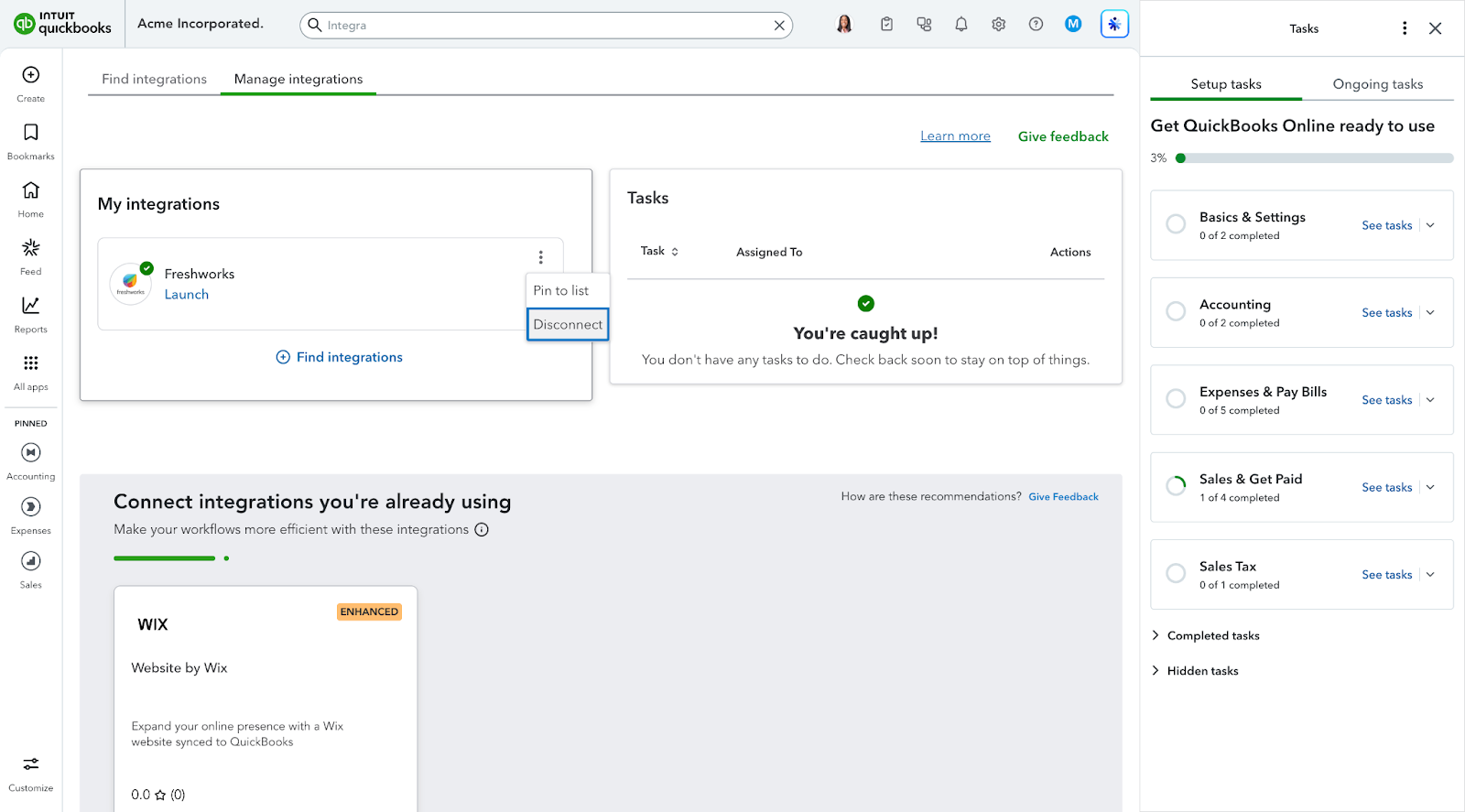
Go to QuickBooks, navigate to My Integrations, then Manage Integrations, find Freshworks, and select Disconnect.
This action revokes the authentication provided during the initial app setup.
You can then restart the app installation, making sure to select the correct company and input that same company's ID into the app settings.
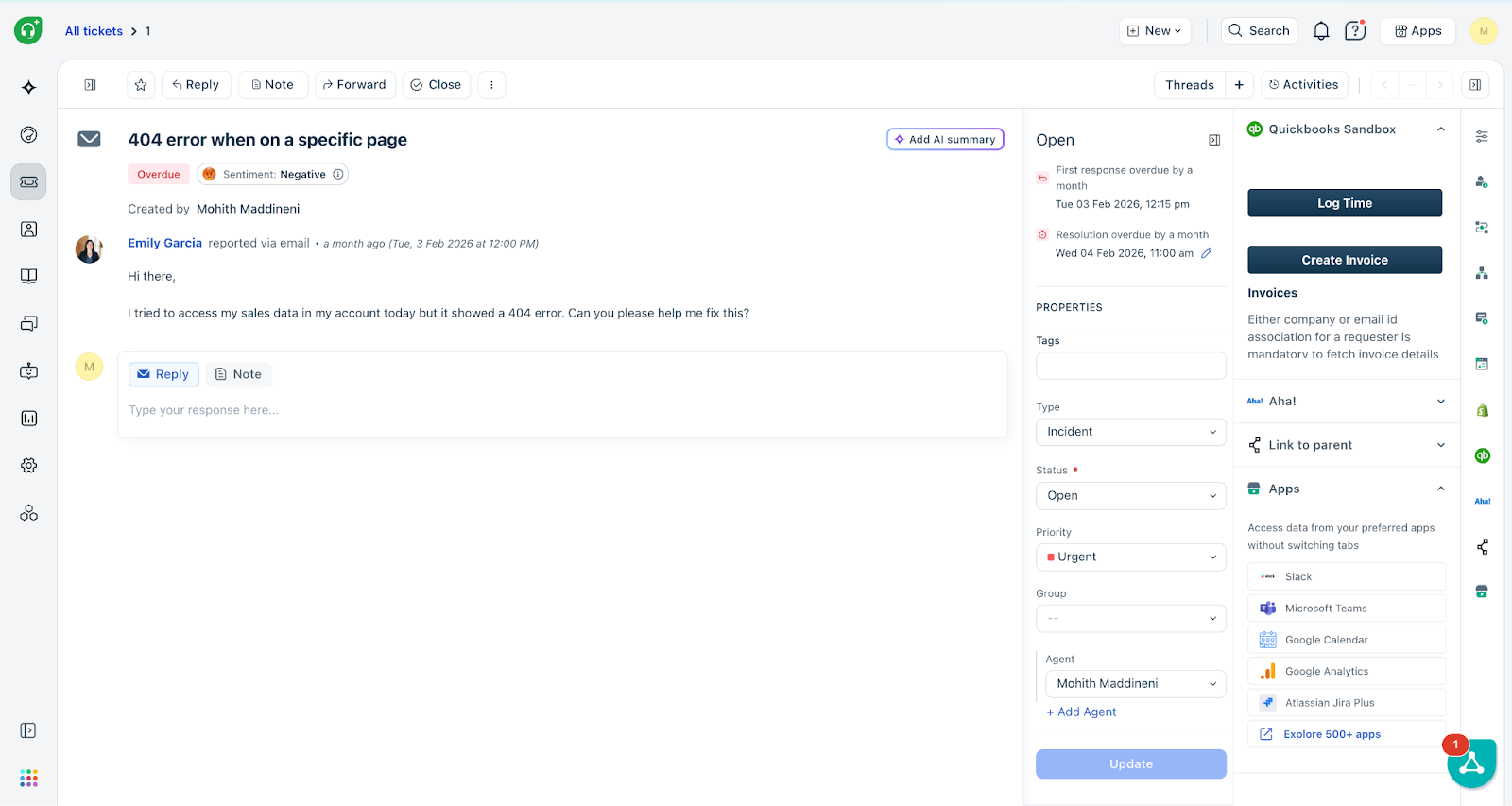
6. Agent Feature Usage: Once installed, agents can utilize the following features on the Freshdesk platform > Tickets page.
A Quickbooks app is displayed on the Ticket details page with the following options
Log Time
Create Invoice
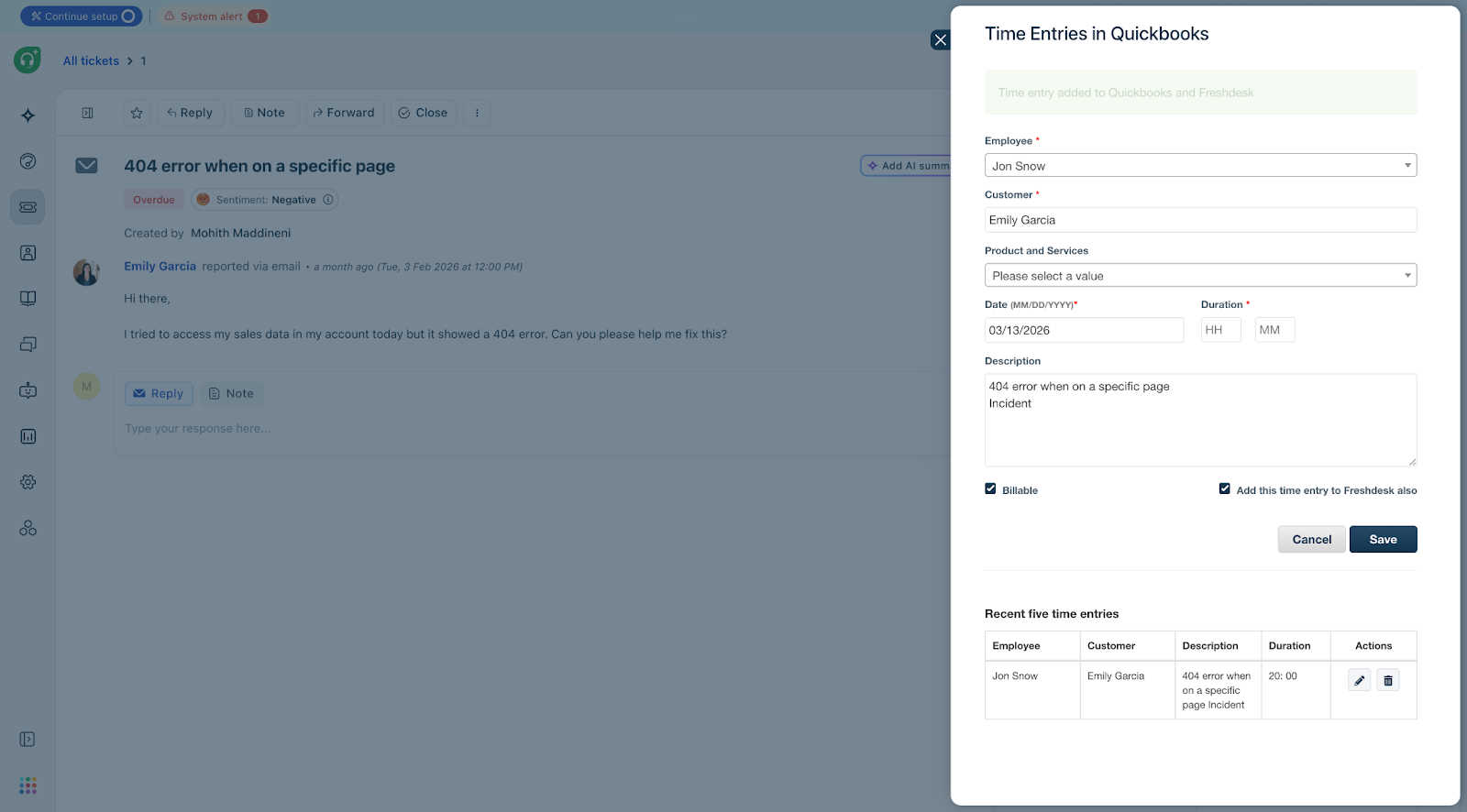
Logging Time: Agents can log time against a ticket in QuickBooks using the following details:
Employee: Selected from the QuickBooks employee list.
Customer: Automatically populated based on the company name and email address. If not, the Agent must manually enter the full name and press 'Enter' to search.
Date and Duration of the time log.
Description: Auto-populated using placeholders defined in the App settings.
Billable: A checkbox option.
Add this time entry to Freshdesk: A checkbox to simultaneously log the time in Freshdesk.
Additionally, Agents can view, edit, and delete previously logged time entries displayed below the input form.
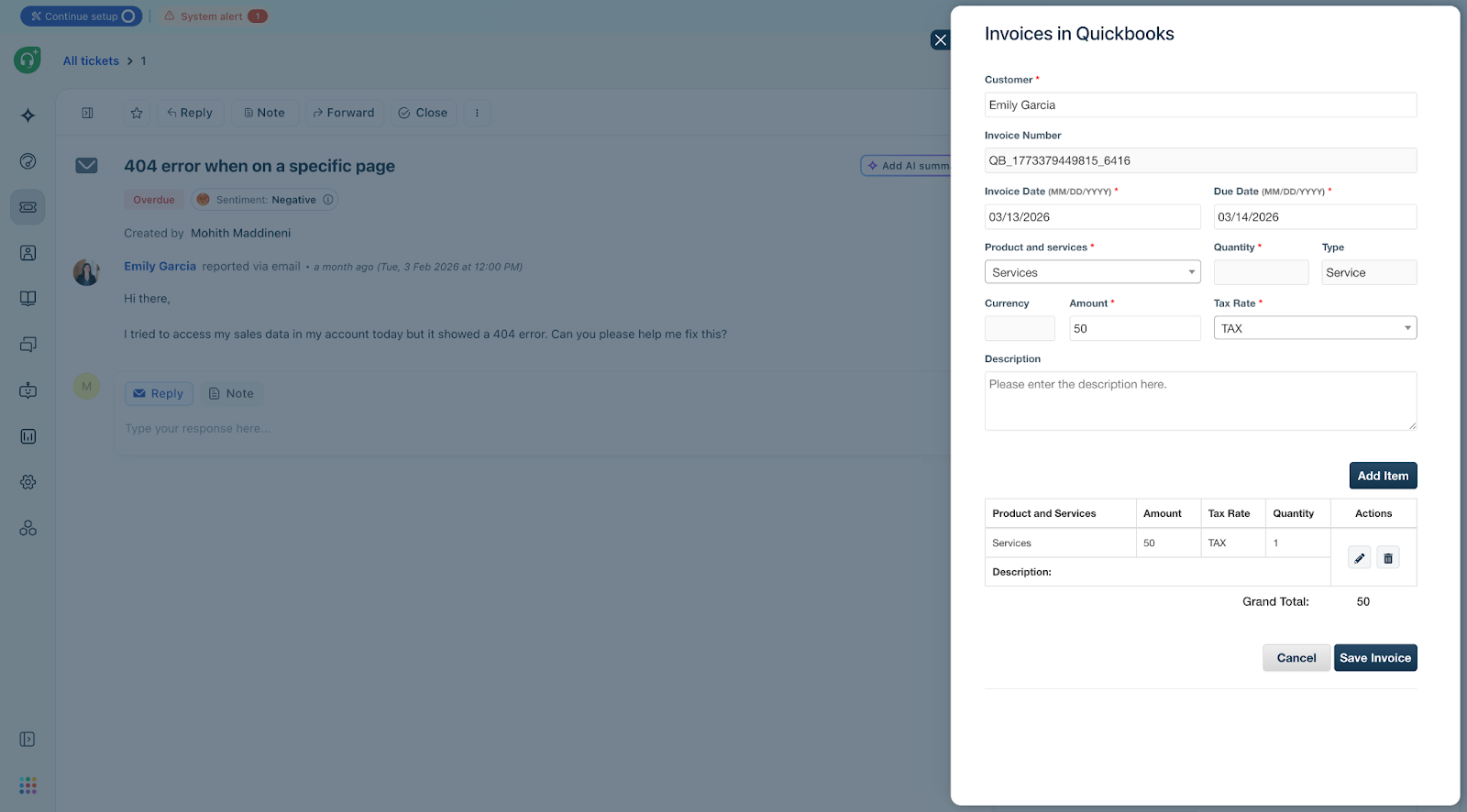
Create Invoice: The QuickBooks widget allows agents to efficiently manage customer invoicing. Agents can view the five latest invoices for the ticket requester directly through the widget. To create a new invoice, the agent must provide the following details:
Customer: Automatically populated using the company name and email address. Else, the agent can input the Customer name in full and click ‘Enter’ to search.
Dates:
Invoice Date
Due Date
Products and Services: Selected directly from the QuickBooks catalog, including:
Product/Service Selection
Quantity
Amount
Tax Rate
Description
After entering the necessary details, the agent can add the item and save the invoice to QuickBooks.
6. Frequently Asked Questions (FAQs)
Requirements and Data Display
What are the basic requirements to use this app?
You must have a Freshdesk account and a QuickBooks Online account.
The time tracking feature specifically requires a QuickBooks Online “Essentials” plan or above.
Why am I unable to view data from QuickBooks?
Requester Info is fetched only if the "Company" name in Freshdesk matches the "Display name" of a customer in QuickBooks.
If the "Display Name" does not match, data is fetched by matching the ticket requester’s email ID in Freshdesk with a customer email ID in QuickBooks.
Timesheet and Billing
Is it possible to bill a different entity than the customer I am supporting?
Yes. When logging Timesheet entries in Freshdesk, agents have the option to specify both the Company they wish to bill and the agent who logged the entry.
I received an error when updating a Timesheet entry. What should I do?
An API error may have occurred. Any data change you made is saved on Freshdesk, but was not updated on QuickBooks.
Wait a few moments, then try updating the entry again. Since the data is saved in Freshdesk, you only need to push the “Update” button in the Timesheet window a second time to push it to QuickBooks.
Invoice Customization
Can I prevent support agents from viewing commercial details like "Price per Unit" and "Invoice Total"?
Yes. Go to Admin → Support Operations → Apps → QuickBooks → Edit.
On the app configuration page, uncheck the “Show commercial details like cost, amount, total” check box.
Invoices will then only display the item description and quantity, omitting "Item rates," "Staff Rates," and "Total Charges."
Can Dynamic Placeholders be used in the "Item description" of a draft invoice?
Yes. Dynamic Placeholders, such as the Ticket Number, can be used to automatically include information in the description of a line item.
NOTE: The following placeholders cannot be used as a description for the line item:
Ticket URL
Public Ticket URL
Product specific ticket URL
Description
Product description
Last Public Comment
Satisfaction Survey