
With an Email AI Agent handling incoming tickets, you can automate based on action performed by the AI agent, such as a handover to a human, a successful resolution, or a timeout — making it easier to manage workflows without manual intervention. For more details on the Email AI Agent, please visit this link.
Automations continue to execute on ticket events when a ticket is assigned to an Email AI agent. However, automatic emails that trigger when a ticket is created should an Email AI Agent be mapped to a ticket. This way, your customers don’t get multiple emails from your team.
In this article, we’ll discuss details on
- Automations based on Email AI Agent events
- How Automations and the AI Agent work together
- How automated emails are suppressed when a ticket is with AI Agent
| Note: These events are specific to the Email AI Agent. If you also use a Chat AI Agent, it will appear as a separate option when setting up automation rules. |
A) Automations based on Email AI Agent events
When setting up a rule on ticket update, select AI Agent as the actor under Action performed by, then choose Email AI Agent. Three events are available:
| Event | When it fires | Available "because" reasons |
| Ticket is handed over | The Email AI Agent transfers the ticket to a human agent because it cannot resolve the query. | Any reason, Doesn't have an answer, Negative feedback, Non-actionable |
| Ticket is resolved | The Email AI Agent successfully resolves the ticket without human involvement. | Any reason, Positive feedback, Non-actionable, Inactivity |
| Ticket has timed out | The Email AI Agent did not receive a customer response within the expected window and the interaction lapsed. | (No reason filter — fires on all timeouts) |
| Note: The "because" dropdown lets you narrow the event to a specific reason. For example, you can trigger an automation only when a ticket is handed over because of Negative feedback, rather than for any handover reason. |
Setting Up an Automation Rule
To create an automation rule that responds to an Email AI Agent event:
- Go to Admin > Workflows > Automations
Select the Rules on Ticket Update tab and click New Rule. - Under the Event section, set Action performed by to AI Agent.
A dropdown will appear. Select Email AI Agent. - Choose the event from the second dropdown.
Select one of: Ticket is handed over, Ticket is resolved, or Ticket has timed out. - Add any ticket property conditions under the Condition section (optional).
Use Match ANY or Match ALL to combine multiple conditions. - Define the actions to perform under the Action section.
For example: set priority, add a tag, assign to a group, send an email notification. - Save and activate the rule.
Use Case Examples
Raise Priority When the Agent Hands Over Due to Negative Feedback
When a customer expresses dissatisfaction during an Email AI Agent conversation, the agent hands the ticket over to a human. These tickets often need urgent attention. You can automatically escalate the priority the moment the handover happens.
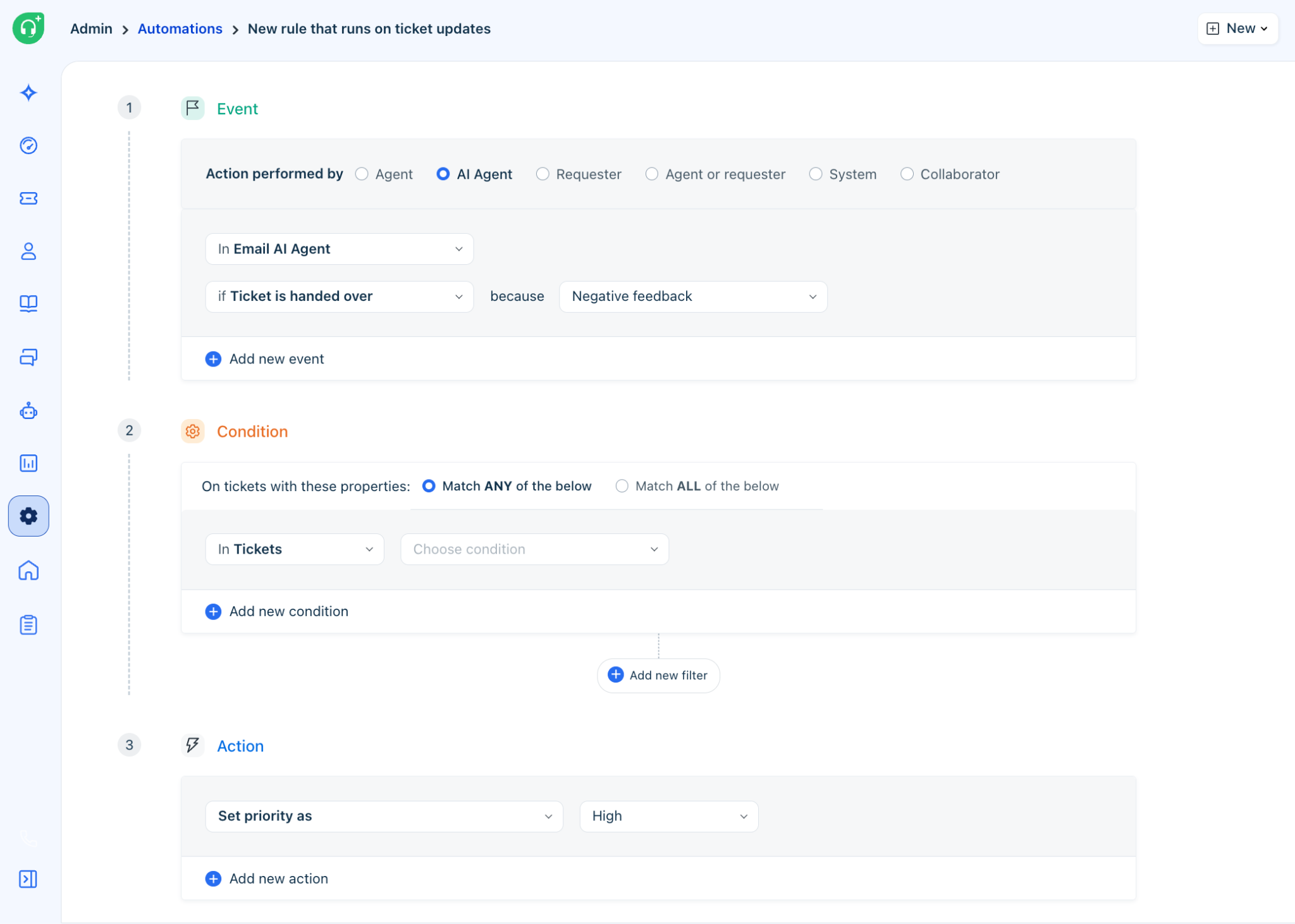
| Example: A customer replies saying they are frustrated and have been waiting for two days. The Email AI Agent hands over the ticket. This rule immediately sets the priority to Urgent so a human agent picks it up right away. |
Tag Tickets Handed Over Due to Spam Detection
When the Email AI Agent's spam settings flag a ticket, it triggers a handover for manual review. Since not every flagged ticket is actually spam, tagging these tickets lets your team filter and review them in bulk rather than having them sit unattended.
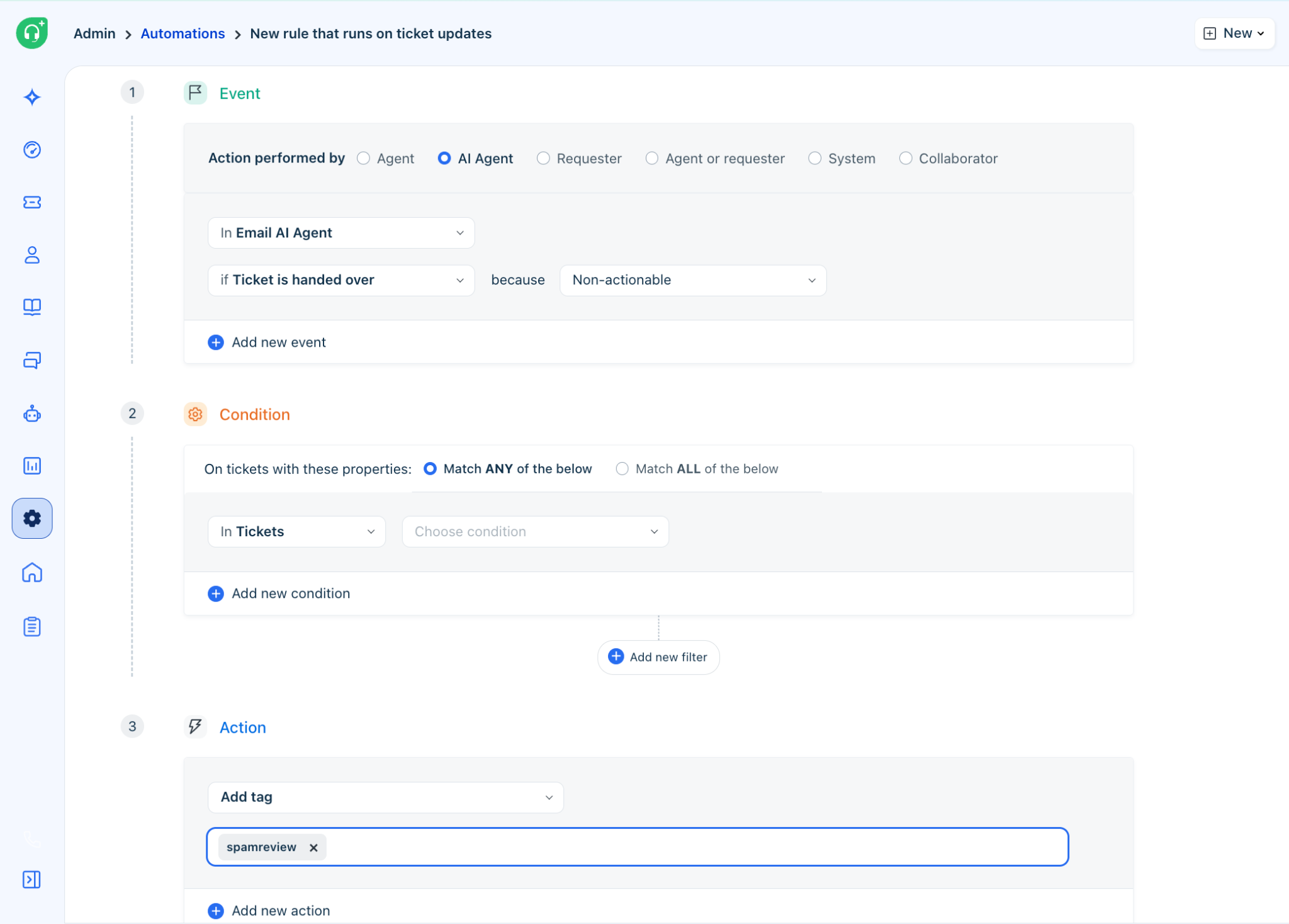
| ℹ | Tip: Use a consistent tagging convention like ai-spam-review so your team can build a dedicated Freshdesk view to monitor and manually clear these tickets regularly. |
More Automation Ideas
| Event | Because (optional) | Suggested Action | Purpose |
| Ticket is resolved | Any reason | Send a CSAT survey | Collect satisfaction ratings on AI-resolved tickets |
| Ticket is resolved | Any reason | Add tag: ai-resolved | Track AI resolution volume and trends |
| Ticket is resolved | Positive feedback | Add tag: ai-resolved-positive | Identify high-quality AI interactions for review |
| Ticket has timed out | (all timeouts) | Send follow-up email to customer | Re-engage customers who didn't respond |
| Ticket has timed out | (all timeouts) | Set ticket status to Pending | Keep ticket visible for agent review |
The "Assigned to AI Agent" Ticket Status
When a ticket is assigned to an Email AI Agent or a Chat AI Agent, Freshdesk automatically sets the ticket status to Assigned to AI Agent. This status is specific to AI agent interactions and is distinct from the standard Open, Pending, or Resolved statuses.
| Note: The Assigned to AI Agent status applies to both the Email AI Agent and the Chat AI Agent. Any ticket actively being handled by either agent will carry this status. |
B) Excluding AI Agent Tickets from Existing Automations
Because tickets with AI agents are in an active, automated workflow, you may not want your existing automation rules to interfere while the agent is working on them. A common example is preventing a ticket from being reopened when the customer replies — an action that makes sense for human-handled tickets but can disrupt the AI agent's flow.
To prevent an existing automation from running on tickets currently assigned to an AI agent, add the following condition to that rule:
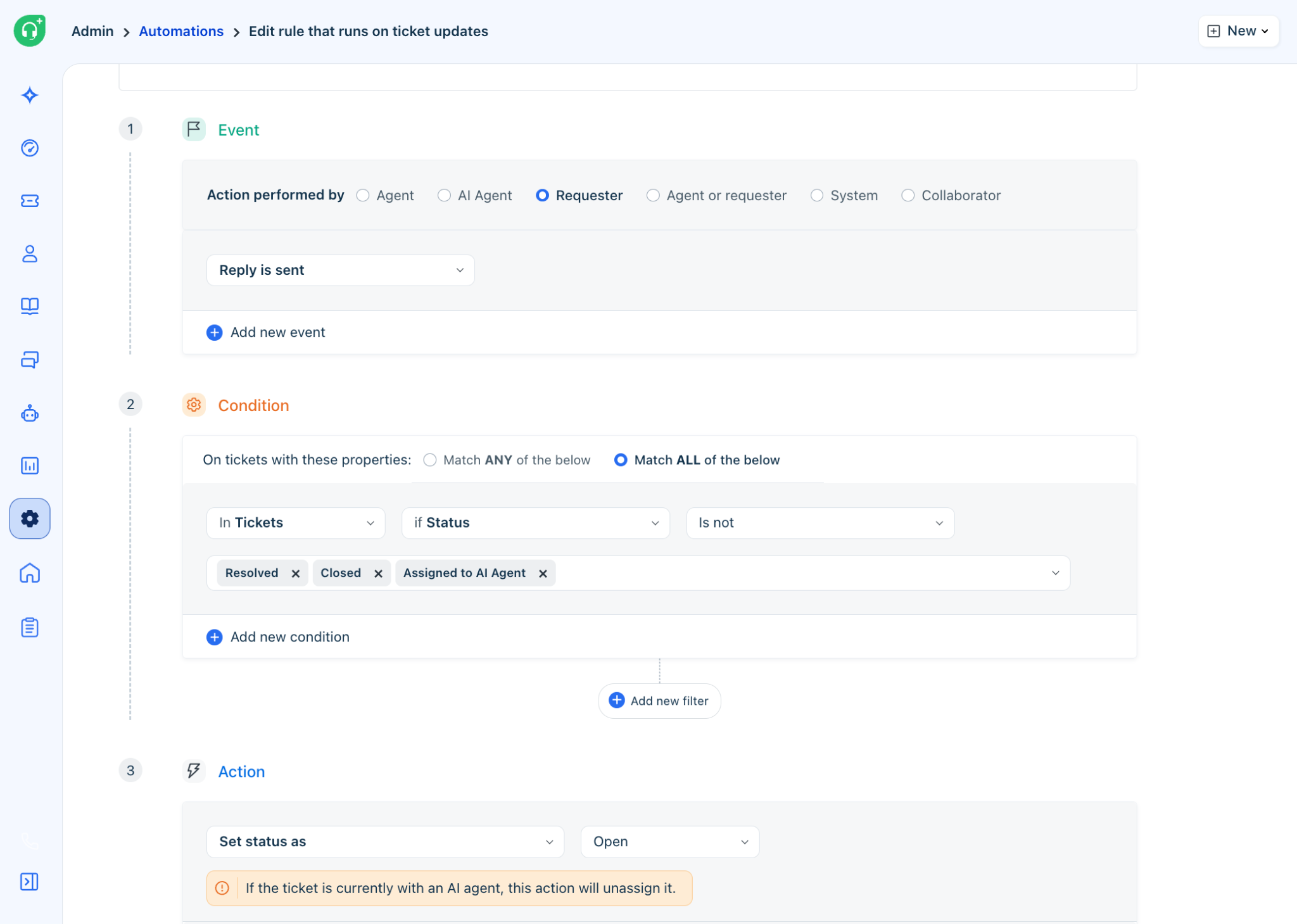
| Example: You have an automation that reopens a ticket and sets it to Open when a customer replies. To prevent this from triggering while the Email AI Agent is handling the ticket, add the condition: Status is not Assigned to AI Agent. |
| Important: Review any automation rules that act on customer replies or ticket updates and consider adding this exclusion condition. Without it, your automations may fire on tickets that the Email AI Agent is actively managing, potentially conflicting with the agent's workflow. |
C) Email Notifications and Automation Emails While the Email AI Agent Is Active
When an Email AI Agent is mapped to a ticket and sends a reply to the customer, Freshdesk automatically suppresses other outbound emails for that ticket. This means email notification rules and automation-triggered emails will not send to the customer while the agent is actively responding — preventing the customer from receiving duplicate or conflicting messages from your company.
| Note: This suppression applies only when the Email AI Agent has sent a reply. If the agent has not replied — for example, because it does not have an answer — suppression does not apply and other email rules will behave normally. |
What Happens When the Email AI Agent Has No Answer
If the Email AI Agent cannot answer the customer's query, it will not send a reply. In this case, email notifications and automation emails are not suppressed. The fallback message configured in the Email AI Agent's settings will be sent to the customer instead. This ensures the customer still receives an acknowledgment email from your company, even when the agent is unable to resolve their query directly.
| Tip: Configure a helpful fallback message in your Email AI Agent settings to ensure customers always receive a meaningful acknowledgment even when the agent cannot answer their question. |
| Scenario | What the customer receives |
| Email AI Agent sends a reply | The agent's reply only. Email notifications and automation emails are suppressed. |
| Email AI Agent has no answer | The fallback message from the Email AI Agent settings. Other emails are not suppressed. |
| Ticket handed over to human agent | Email notifications and automations resume normally after handover. |
D) Tips and Best Practices
- Use the "because" filter to make rules targeted. Instead of triggering on any handover, use Negative feedback or Doesn't have an answer to apply specific actions only where they're relevant.
- Add the "Status is not Assigned to AI Agent" condition to existing automations that act on ticket updates, to prevent them from interfering with active AI agent conversations.
- Keep your tagging convention consistent. Use prefixes like ai- (e.g., ai-resolved, ai-spam-review) so it's easy to build Freshdesk views and run reports on AI-related tickets.
- Review your fallback message regularly. Since this is what customers see when the Email AI Agent can't help, it should be clear, empathetic, and set accurate expectations for response time.
- Test rules before going live. Use a small set of test tickets to verify that automation rules fire correctly and don't create unintended side effects alongside your Email AI Agent.