
Agent roles and ticket visibility scope work together to control what support users can do and which tickets they can access in Freshdesk. When you create or edit a support user, whether they are an agent or collaborator, you must configure both the role and the ticket visibility scope.
TABLE OF CONTENTS
Prerequisites:
Before you configure agent roles and ticket visibility scope, ensure that:
- You have administrator privileges in Freshdesk.
- The support user is already added as an agent or collaborator in your Freshdesk account.
About agent roles and ticket scope
When you create or edit a support user in Freshdesk, whether they are an agent or a collaborator, you must define both their role and their ticket visibility scope. Although roles and ticket scope are configured separately, they work together to control what support users can do and which tickets they can access.
Agent roles
A role determines the actions a support user (agent or collaborator) can perform in your account. This includes permissions such as:
- Replying to tickets
- Adding private notes
- Forwarding conversations
- Managing automations or configurations
However, roles do not determine which tickets the user can access.
Note: It is mandatory to associate a role when creating a new agent in your account.
Ticket visibility scope
Ticket scope determines the tickets agents and collaborators can view. You can choose from the following visibility levels:
- All tickets: Users can view and edit all tickets across the helpdesk.
- Tickets in a group: Users can view tickets assigned to their group(s), as well as tickets directly assigned to them. You can also organize users into groups and optionally configure specific groups with view-only access.
- Assigned tickets: Users can only view tickets that are directly assigned to them, tickets where they are tagged, or where they have secondary ownership.
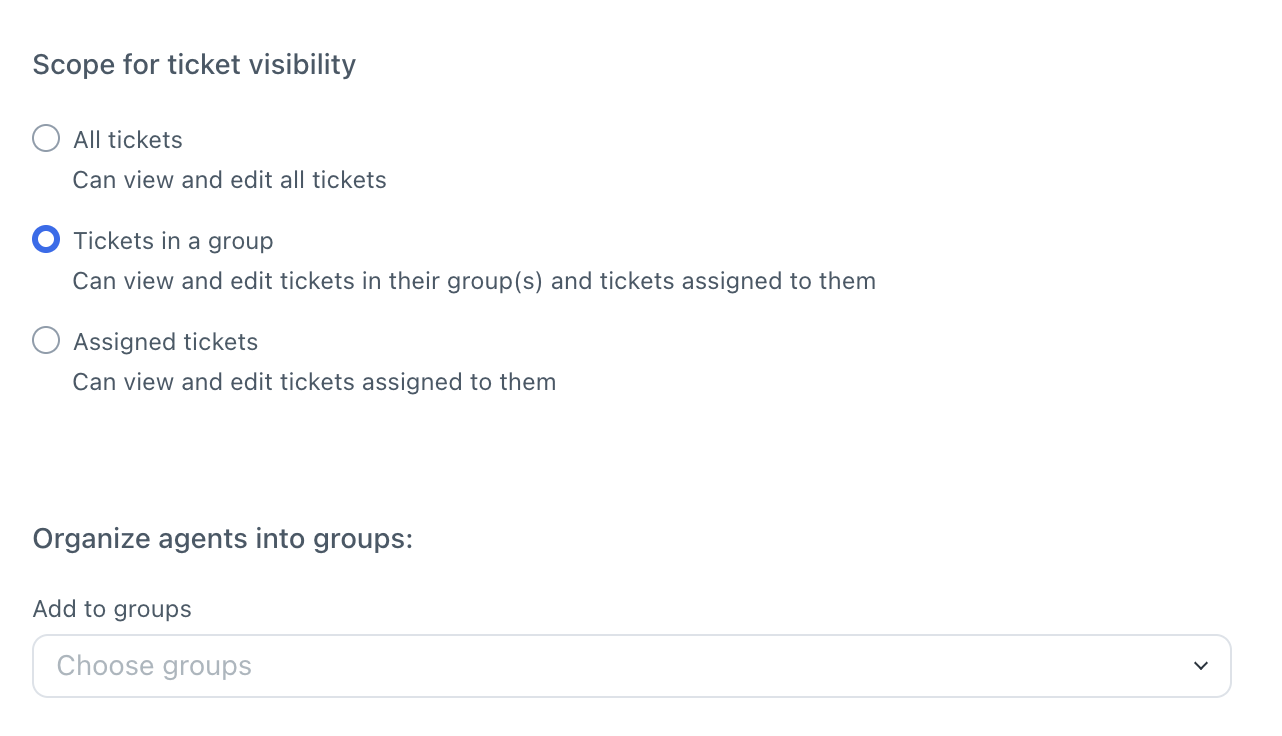
Understanding agent role and ticket scope
Ticket scope controls what users can see, while roles control what users can do within the tickets.
Example:
A user can be given access only to assigned tickets, while still having administrative permissions through their role. Another user can have visibility into all tickets, but their role permissions may restrict them to only adding private notes.
Using roles and ticket scope together helps you create flexible access controls that align with your team structure and security requirements.
If you are unable to access any ticket and see the following message, “The ticket is either not there or you don't have permission", it could be due to one of the following reasons:
- The ticket may have been permanently deleted from the helpdesk.
- The ticket may fall outside your assigned visibility scope.
- Your role permissions may restrict access to certain ticket actions or views.
Contact your account admin to verify your assigned role and ticket visibility scope.