This article provides instructions for implementing JWT authentication to ensure secure, verified user interactions in Web Chat.
TABLE OF CONTENTS
Overview
JSON Web Token (JWT) authentication securely verifies a user’s identity before a conversation begins in the Freshdesk web chat widget. Your application server generates a digitally signed token that confirms the user’s identity. This mechanism prevents impersonation and ensures that support agents view verified customer information.
Prerequisites:
- Ensure you have Freshdesk admin access.
- An application server capable of generating signed JWT tokens using the HS256 algorithm.
Use cases
JWT authentication supports scenarios that require strong identity verification and data protection. For example:
- Authenticated user portals - Users log in to access accounts, order history, or past support interactions. JWT links each conversation to a verified identity.
- SaaS applications - JWT securely enforces subscription details, usage limits, and account types, ensuring they are tied to the correct user.
- Financial services - Compliance requirements demand strict identity validation to protect sensitive financial information.
- Healthcare - Access to patient or protected health data requires authenticated interactions to maintain data privacy.
- Enterprise B2B - Multi-tenant environments require strong user isolation to prevent cross-organization data access.
Alternatively, guest access (non-JWT method) is sufficient in environments that do not require verified identities:
- Public knowledge base - Anonymous visitors can search and read articles without signing in.
- Marketing websites - Visitors can submit inquiries or provide contact details without account authentication.
- Community support - Public support communities and open-source projects allow participation without a verified login.
- Pre-sales inquiries - Visitors ask questions before creating accounts
JWT user authentication workflow
The JWT authentication sequence includes the following steps:
- A user logs in to your application.
- The application server creates a signed JWT token.
- The application passes the JWT token to the Freshdesk web chat widget during initialization.
- The widget validates the token and starts the session with verified user details.
Note: The JWT secret key remains on your application server. The browser receives only the signed token.
JWT authentication process
The JWT user authentication process includes the following steps:
- Generate JWT secret key
- Generate the JWT token
- Add the JWT token to the widget initialization
- Test your Widget with JWT integration
- Enforce JWT user authentication
Generate JWT secret key
The secret key is used to sign the JWT token. The key configured in Freshdesk must exactly match the key used by your application server. Any mismatch causes authentication failure.
To generate the secret key:
- Log in to your account as an admin.
- Go to Admin Settings > Channels > Web Chat > Widgets.
- Click Configure next to the widget for which you want to enable JWT authentication.
- Click User authentication tab.
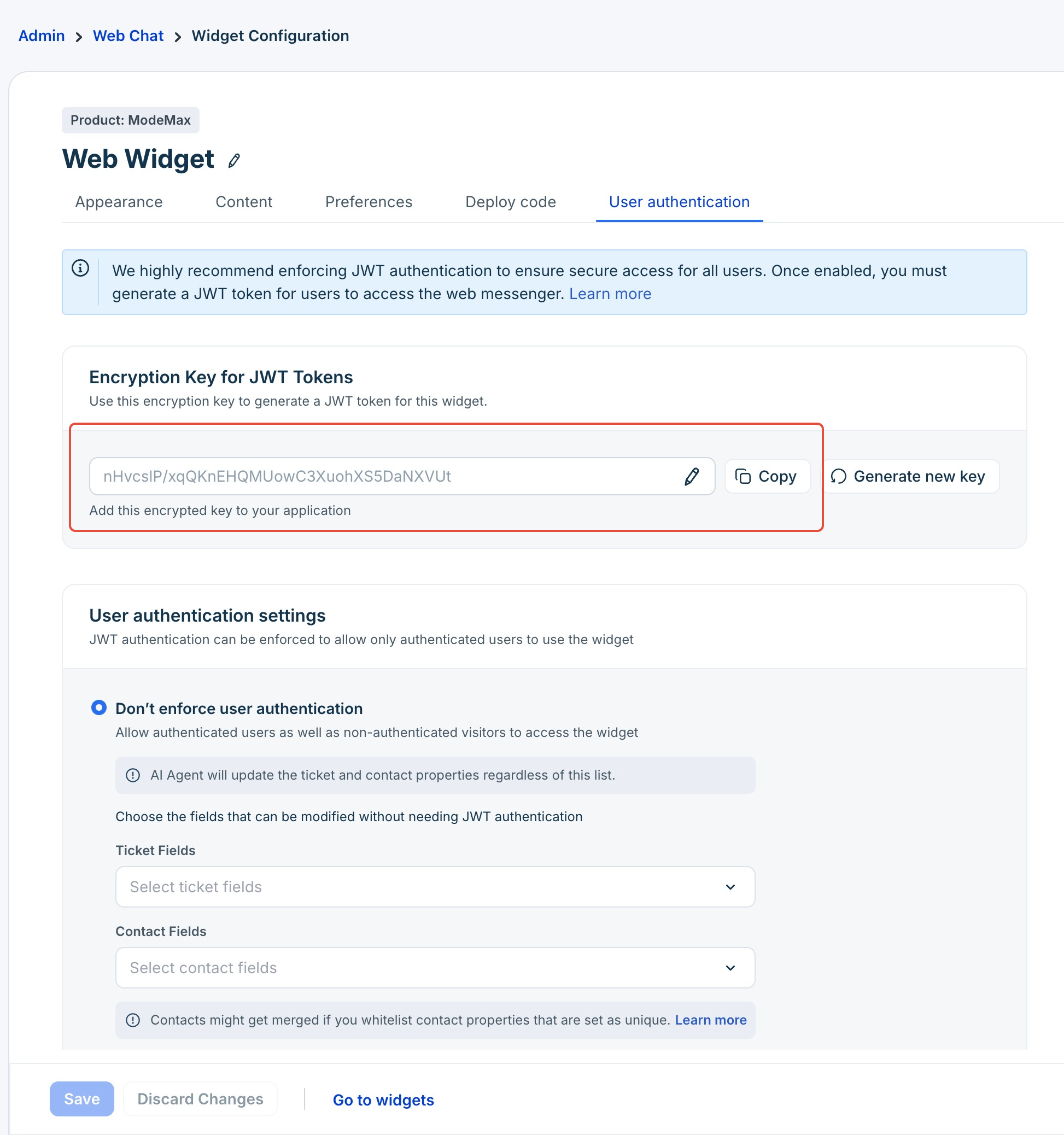
- Copy the existing secret key or generate a new key if required.
Note: The generated key is valid and applies to all configured widgets in your account.
Generate the JWT token
A JWT consists of the following parts:
- Header
- Payload
Note:  You don't need to manually create JWT tokens. You can use one of the available JWT libraries in languages such as Node.js, Ruby, or Python. Alternatively, you can use jwt.io to generate tokens through a web-based form. However, it is recommended to avoid exposing JWT tokens to third-party sites.

If you are unsure about generating JWT tokens, contact your Engineering or Support teams for assistance.
Header
Specifies the token type and the signing algorithm used. It includes two fields:
alg: The algorithm used to sign the token. For example, HS256 for Freshdesk.
typ: The type of token, which is JWT.
Example:
{
  "alg": "HS256",
  "typ": "JWT"
}
Payload
The payload contains the user data transferred to Freshdesk.
Note: Replace the example values with actual details from your application before generating the JWT token.
Example 1: Email-only identification
This payload identifies the user by email address and includes an expiration timestamp. Freshdesk uses the email to match the conversation to an existing contact or create a new contact if one does not exist.
{
  "email": "user@example.com",
  "exp": 1742898219
}
Example 2: Unique external ID with contact and ticket details
This payload identifies the user using a system-generated unique external ID and includes contact and ticket properties. The unique external ID is a persistent identifier in your application that represents the end user. Freshdesk uses this ID to create or update the contact record and applies the provided ticket details to the conversation.
{
  "unique_external_id": "user_12345",
  "contactProperties": {
    "name": "John Doe",
    "mobile": "15551234567",
    "phone": "15559876543",
    "job_title": "Product Manager",
    "address": "123 Main Street",
    "email": "john.doe@example.com",
    "state": "California",
    "pincode": "94016",
    "language": "en"
  },
  "ticketProperties": {
    "priority": 2,
    "type": "Question",
    "subject": "Inquiry about product pricing",
    "cf_project": "Project Alpha"
  },
  "exp": 1742898219
}
Example 3: Email-based JWT (new contact)
This payload identifies the user by email address and includes additional contact and ticket properties. Freshdesk creates or updates the contact using the email and prepopulates the ticket with the specified details.
{
  "email": "john.doe@example.com",
  "contactProperties": {
    "name": "John Doe",
    "mobile": "15551234567",
    "phone": "15559876543",
    "job_title": "Product Manager",
    "address": "123 Main Street",
    "email": "john.doe@example.com",
    "state": "California",
    "pincode": "94016",
    "language": "en"
  },
  "ticketProperties": {
    "priority": 4,
    "type": "Question",
    "subject": "Inquiry about pricing",
    "cf_project": "Project Alpha"
  },
  "exp": 1742898219
}
JWT payload field reference
The following table describes the supported payload fields.
Note: Include either email or unique_external_id. Do not include both fields in the same token. It is also recommended to include the timestamp in the payload ("exp") in UTC timestamp in UNIX format so JWT expires after a the defined time.To retrieve the correct field names for custom ticket and contact fields, refer to the following API documentation:
- Ticket fields: https://developers.freshdesk.com/api/#list_all_ticket_fields
- Contact fields: https://developers.freshdesk.com/api/#list_all_contact_fields
| Field | Type | Description | Example | Mandatory/optional |
|---|---|---|---|---|
| string | The user’s valid email address to identify the contact. | user@example.com | mandatory (if unique_external_id is not passed) | |
unique_external_id | string | A unique user ID from your system to identify the contact. | 12345 | mandatory (if email is not passed) |
| name | string | User's display name | John doe | optional |
| phone | string | User's contact number | 155552671 | optional |
| language | string | The widget language code in ISO format | en , es, fr | optional |
Note: All other fields in the examples above are optional and can be added as needed.
Add the JWT token to the widget initialization
Insert the generated token in the jwtAuthToken field in the widget payload code.
Sample code:
<script>
function initFreshdesk() {
  window.fdWidget.init({
    host: 'your_host_here',
    token: 'your_token_here',
    widgetId: 'your_widget_id_here',
    jwtAuthToken: 'yout_jwt_token_here'
  });
}
function initialize(i,t){var e;i.getElementById(t)?initFreshdesk():((e=i.createElement("script")).id=t,e.async=!0,e.src="your_host_here/webchat/js/widget.js",e.onload=initFreshdesk,i.head.appendChild(e))}function initiateCall(){initialize(document,"Freshdesk-js-sdk")}window.addEventListener?window.addEventListener("load",initiateCall,!1):window.attachEvent("load",initiateCall,!1);
</script>
Replace placeholder values with the actual host URL, widget ID, and generated JWT token.
Test your Widget with JWT integration
Test the JWT token to confirm it is successfully validated and that the user and ticket details in the payload are applied correctly.
- Open the website where the Freshdesk web chat widget is installed.
- Log in to your application to ensure a JWT token is generated.
- Start a new conversation from the widget.
- Open the created ticket in the agent portal.
Verify the following:
- The conversation starts successfully without authentication errors.
- The contact record matches the email or unique_external_id from the token.
- The contact and ticket fields included in the payload are populated correctly.
Enforce JWT user authentication
Once you have the widget payload code with the generated JWT token, you can enforce JWT authentication in Freshdesk. After enforcement is enabled, the widget will always require a valid JWT token to begin a chat. If a token is missing, invalid, or expired, the conversation will not start.
To enable enforcement:
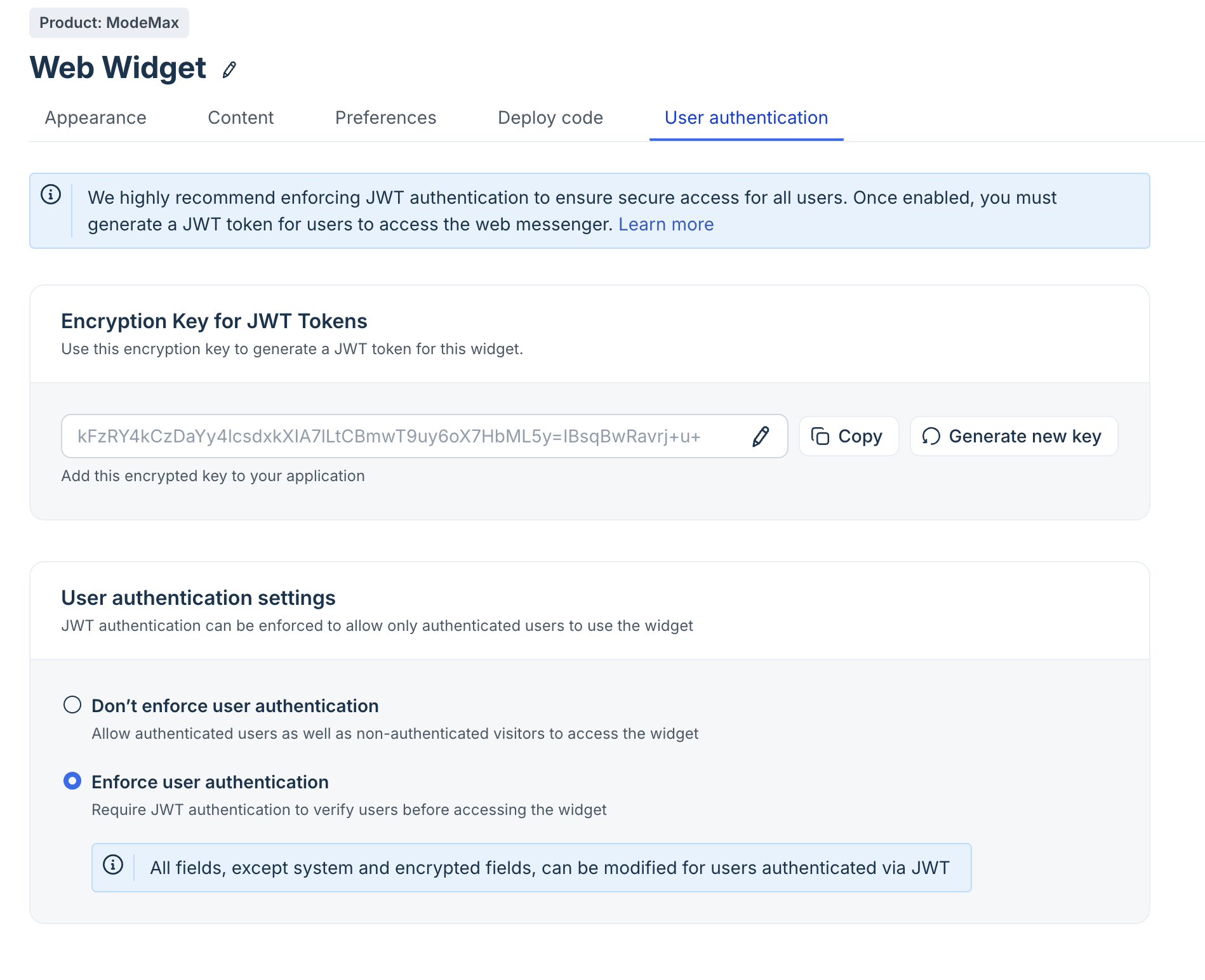
- In the User authentication Settings section, select Enforce user authentication.
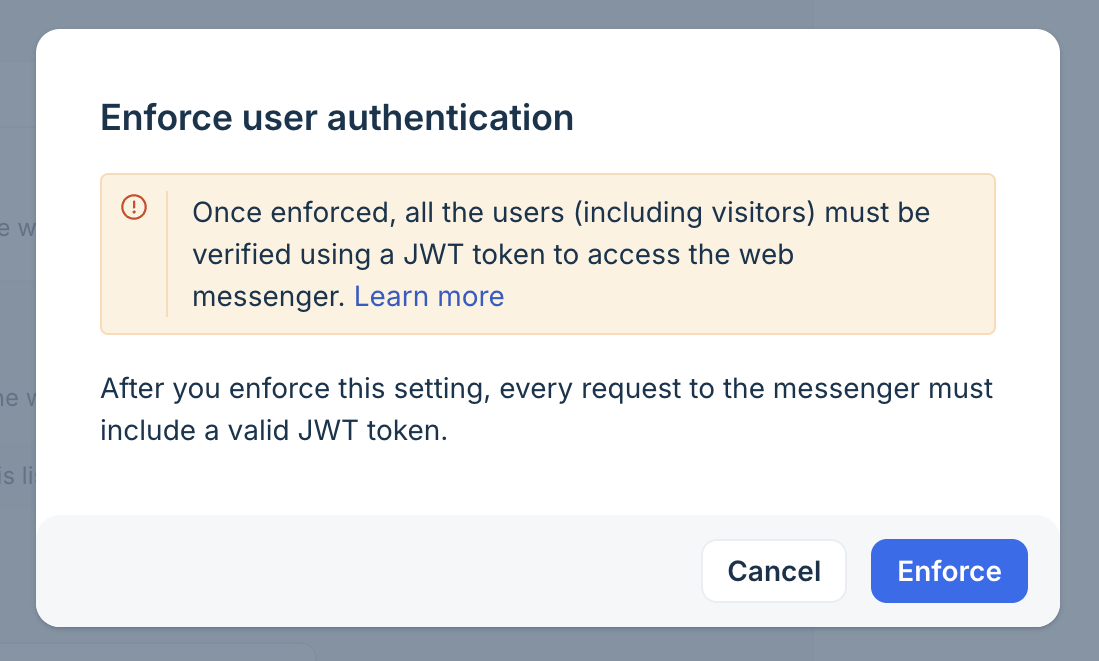
- A confirmation pop-up will appear. Click Enforce to confirm.
Disable JWT authentication
You can always disable JWT authentication and allow both authenticated and anonymous customers to contact via Web Widget.
To disable user authentication:
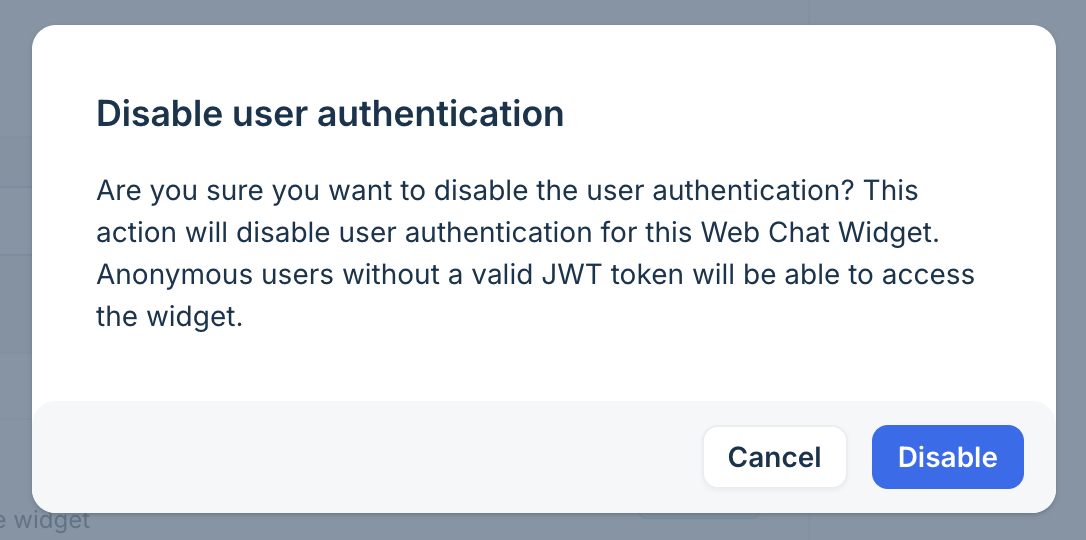
- In the User authentication Settings section, select Don't enforce user authentication.
- In the pop-up that appears, click Disable.
- Select the ticket fields and contact fields that can be modified even if JWT authentication is disabled.
Note: These restrictions do not apply to AI Agents, and they can continue to update ticket fields and contact properties, even if these fields are included in this list.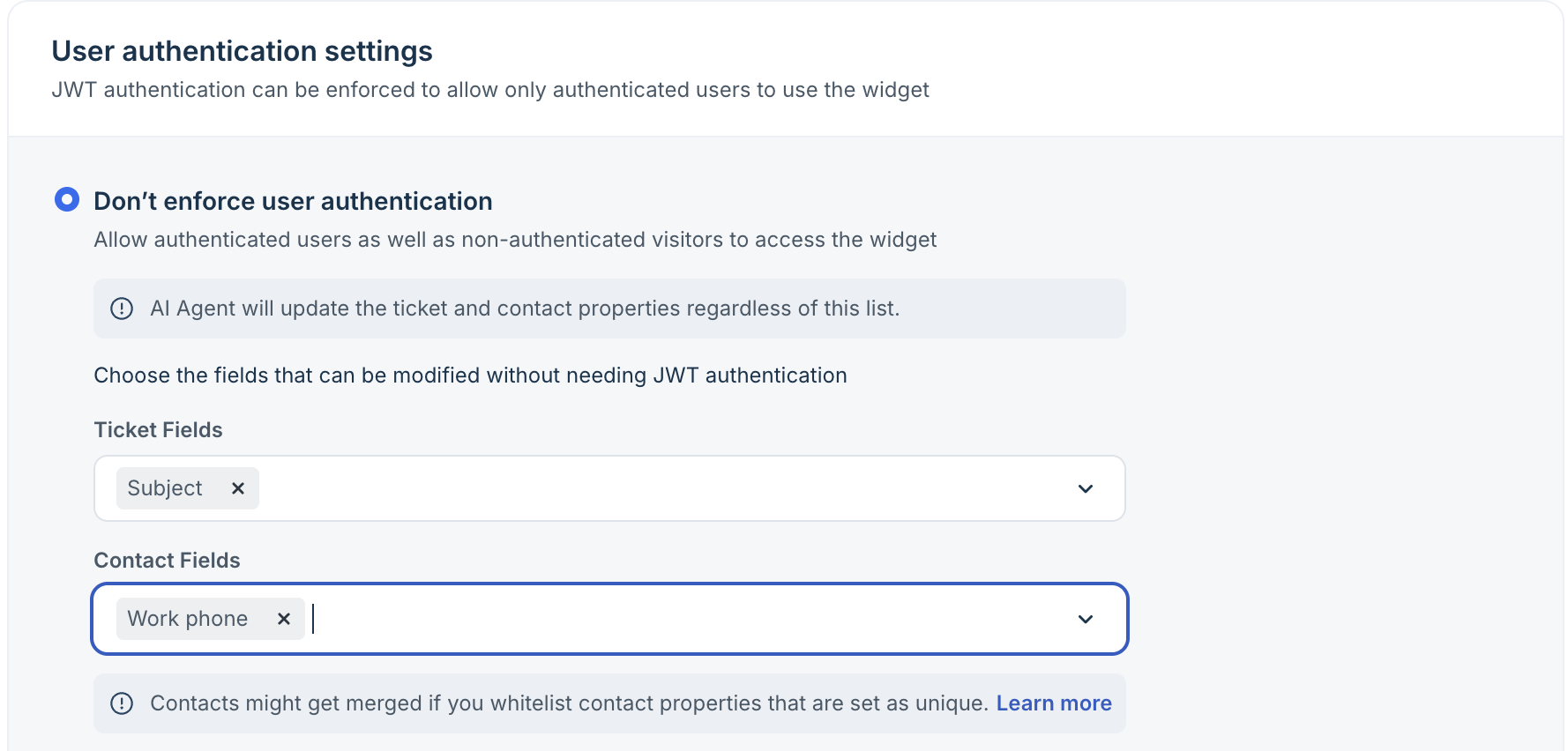
- Click Save.
Notes:
- When an existing contact is identified by the email or unique_external_id passed in the widget payload, the same contact will be associated with the ongoing session.
- If you try to update a new contact’s email address with an email that already belongs to another contact, the update is not applied. This is because the email is already associated with an existing contact.
- If a visitor’s contact information matches an existing contact, both will be merged.
- Two existing contacts created in separate sessions will not be automerged. You must manually merge such contacts from the Contacts page.
Agent experience
Once you enable JWT authentication, the ticket details page displays indicators that help agents identify whether a session is authenticated.
Unauthenticated user/visitor
If a ticket is created from a session without a valid JWT token, the agent sees the Unauthenticated session tag at the top of the ticket details pane. This tag indicates that the user’s identity has not been verified. In this case, agents should exercise caution and verify the user’s identity before sharing any sensitive or confidential information.
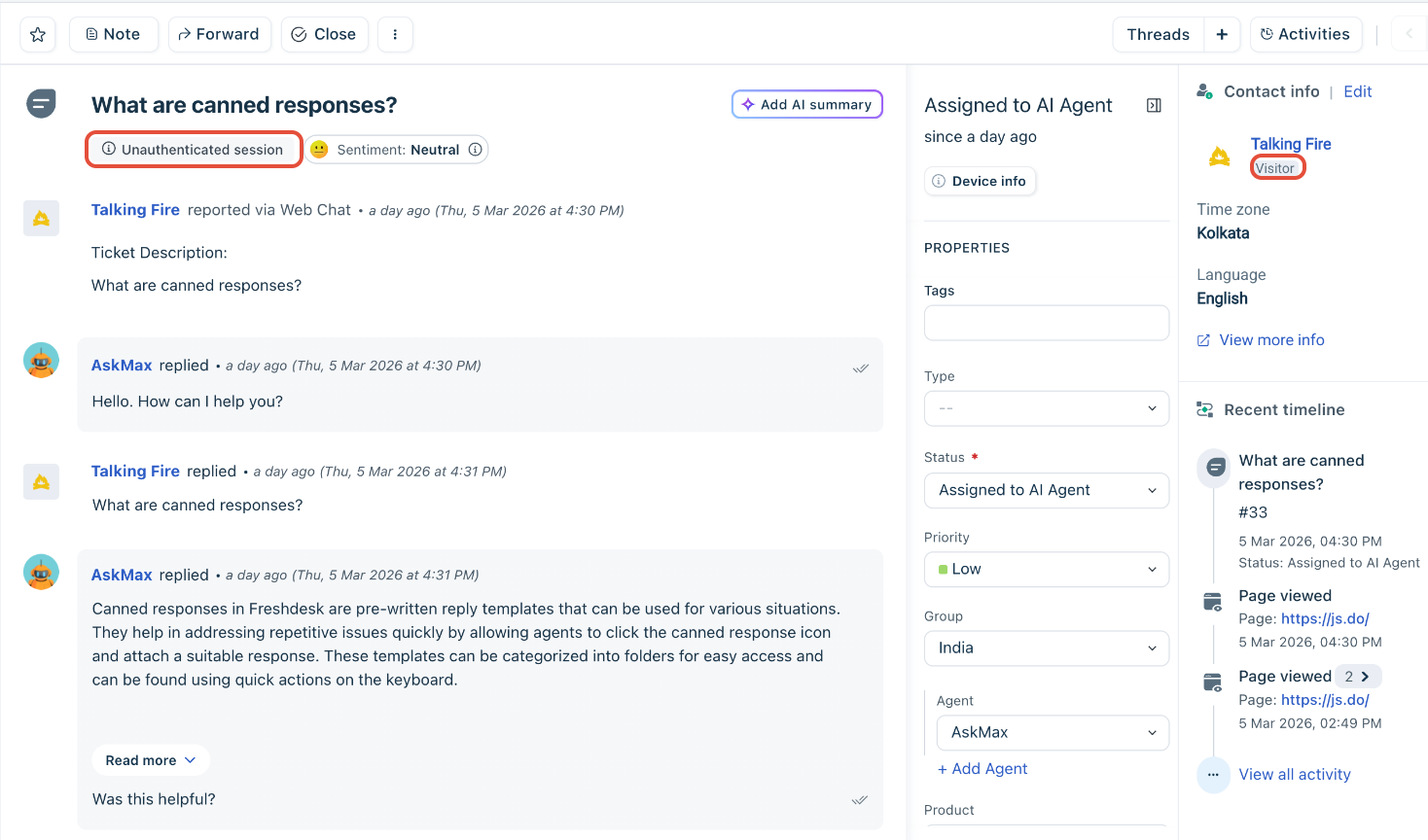
Authenticated user
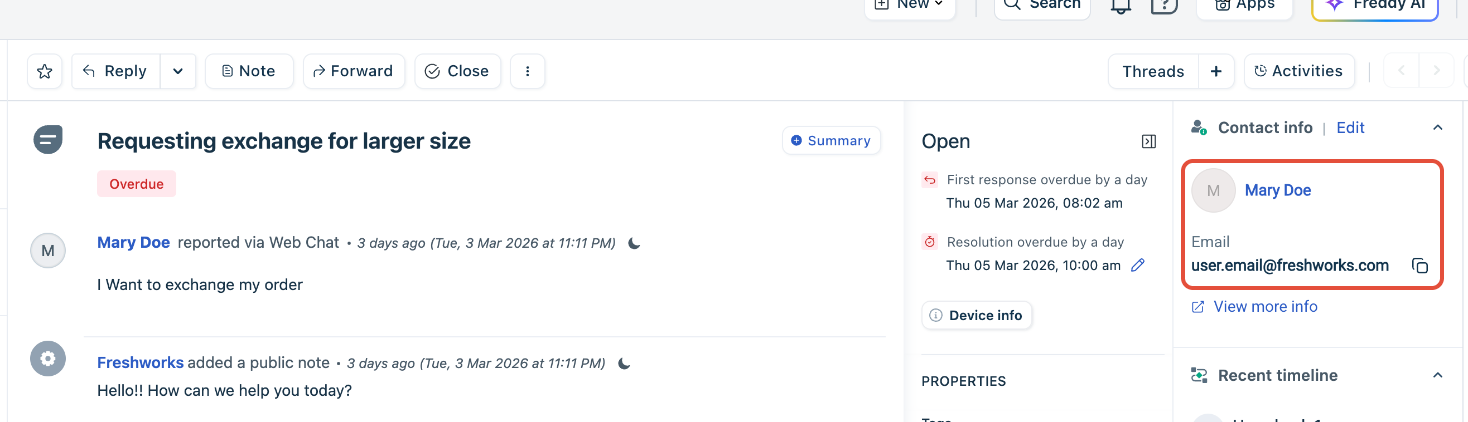
For tickets created from JWT-authenticated sessions, this tag is not displayed. In such cases, agents can trust that the user they are interacting with matches the contact shown in the contact card on the right side of the ticket details page.