
TABLE OF CONTENTS
The pre-chat form allows you to collect essential customer information when a customer starts a chat in the web chat widget or mobile SDK. This information is used to create a Web Chat ticket and provides context to the AI Agent or support agent from the first interaction.
Pre-chat forms are configured per web chat topic and are powered by ticket forms in your account.
Prerequisites:
- Ensure that you have admin permissions to configure web chat topics.
- Ensure you create the required ticket forms in advance.
For a general overview of web chat topics, see Create Web Chat Topics.
About pre-chat forms
The pre-chat form appears before a conversation begins in the web chat widget. Each form is powered by a ticket form configured in your account and can be configured at the web chat topic level. This ensures that the collected information is routed correctly to the AI Agent or support agent for faster resolution.
You can customize the pre-chat form for different support topics to capture the right information before a chat begins.
How does the pre-chat form work?
- A customer selects a web chat topic.
- The pre-chat form is displayed before the conversation begins.
Note: If your AI Agent is configured to collect data, it will be displayed to the customer after the customer submits the pre-chat form. - The customer submits the form.
- A web chat ticket is created with the collected details. The Description field in the ticket form:
- appears as the first customer message (after the topic’s welcome message) in the chat.
- is saved as the ticket description in the inbox.
Example topic: “Billing & Payments”
When a customer selects this topic, the pre-chat form can collect details such as name, email, product, and a brief issue description. This allows agents to immediately validate the information provided without asking follow-up questions.
Customer experience
The following widget flow shows the customer experience while using the pre-chat form.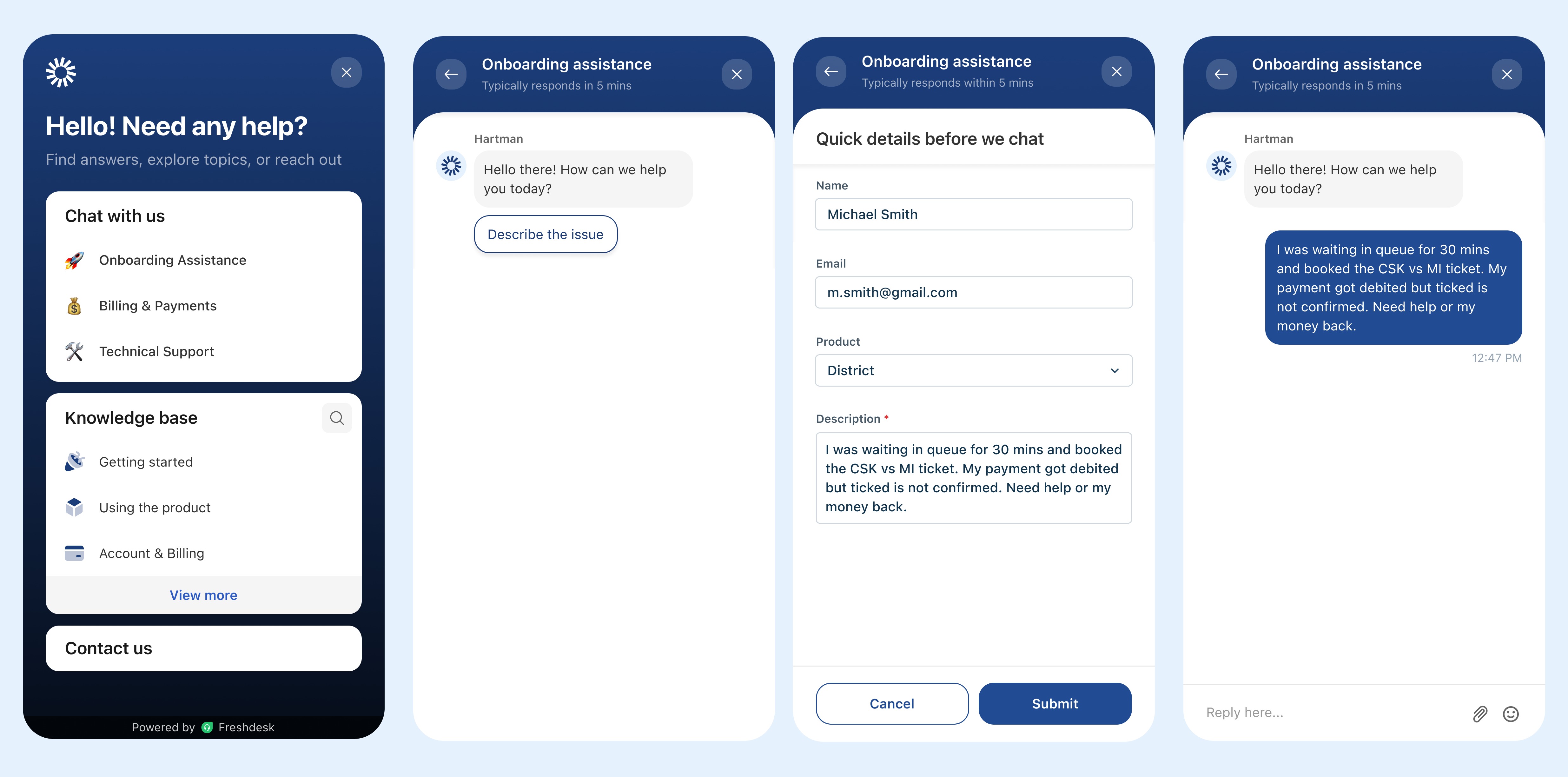
Agent experience
Once the form is submitted, the agents can see the web chat ticket in the inbox: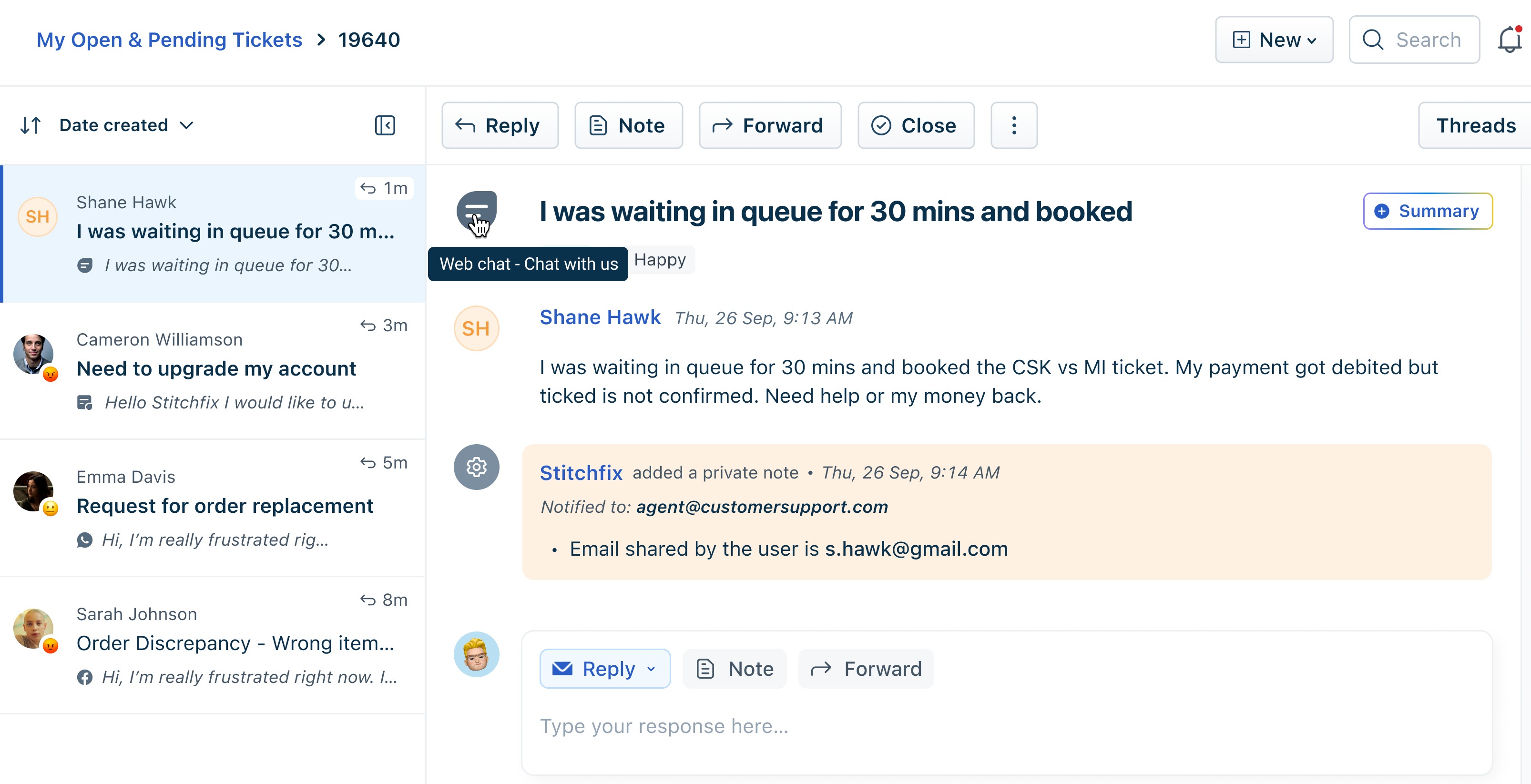
Control the visibility of pre-filled customer information in pre-chat forms
Additionally, with pre-chat forms, you can control the visibility of pre-filled customer details, such as contact name and email address, that are automatically populated for logged-in users through a JWT token or widget deploy code (payload).
Note: The visibility settings apply only to pre-filled fields. You cannot control the visibility of fields that are not pre-filled.
The visibility options are:
- Editable: Customers can view and update the prefilled fields (contact and email address). The updated information will be added as a private note to the created ticket.
- Read only: Customers can view the information, but cannot edit it.
- Hidden: Details are pre-filled and sent to the agent, but not visible to the customer
Example: How visibility settings change the pre-chat experience
In this example, the customer’s name and email addresses are passed through the widget deploy code (or JWT token).
<script>
function initFreshdesk() {
 window.fdWidget.init({
 token: "01KF2MBB3FV3FXJ5E2FSS0QKQG",
 host: "https://johndoe5.freshdesk.com",
 widgetId: "01KF2MBD2JPBX5MP980H8JQSM4",
 //jwtAuthToken: "eyJhbGciOiJIUzI1NiIsInR5cCI6IkpXVCJ9.eyJ1bmlxdWVfZXh0ZXJuYWxfaWQiOiIxMjMiLCJjb250YWN0UHJvcGVydGllcyI6eyJuYW1lIjoiUHJlY2hhdCB0ZXN0IiwiZW1haWwiOiJwcmVjaGF0QGZyZXNoLmNvbSJ9LCJ0aWNrZXRQcm9wZXJ0aWVzIjp7ImNmX2NvbXBhbnlfbnVtYmVyIjoiMjIyMjIifSwiZXhwIjoxNzgyMTMxNDQ4fQ.RQPGl9gVwqbbuybewV1TP-OsGkqq4bpVoQd-MwTnV8c",
 "contactProperties": {
 "name": "Editable info",
 "email": "editable@fresh.com"
 },
 "ticketProperties": {
 "cf_company_number": "444444"
 },
 });
}
function initialize(i,t){var e;i.getElementById(t)?initFreshdesk():((e=i.createElement("script")).id=t,e.async=!0,e.src="https:/johndoe205.freshdesk.com/webchat/js/widget.js",e.onload=initFreshdesk,i.head.appendChild(e))}function initiateCall(){initialize(document,"Freshdesk-js-sdk")}window.addEventListener?window.addEventListener("load",initiateCall,!1):window.attachEvent("load",initiateCall,!1);
</script>
Based on the visibility setting selected for pre-filled information, the customer and agent experience changes.
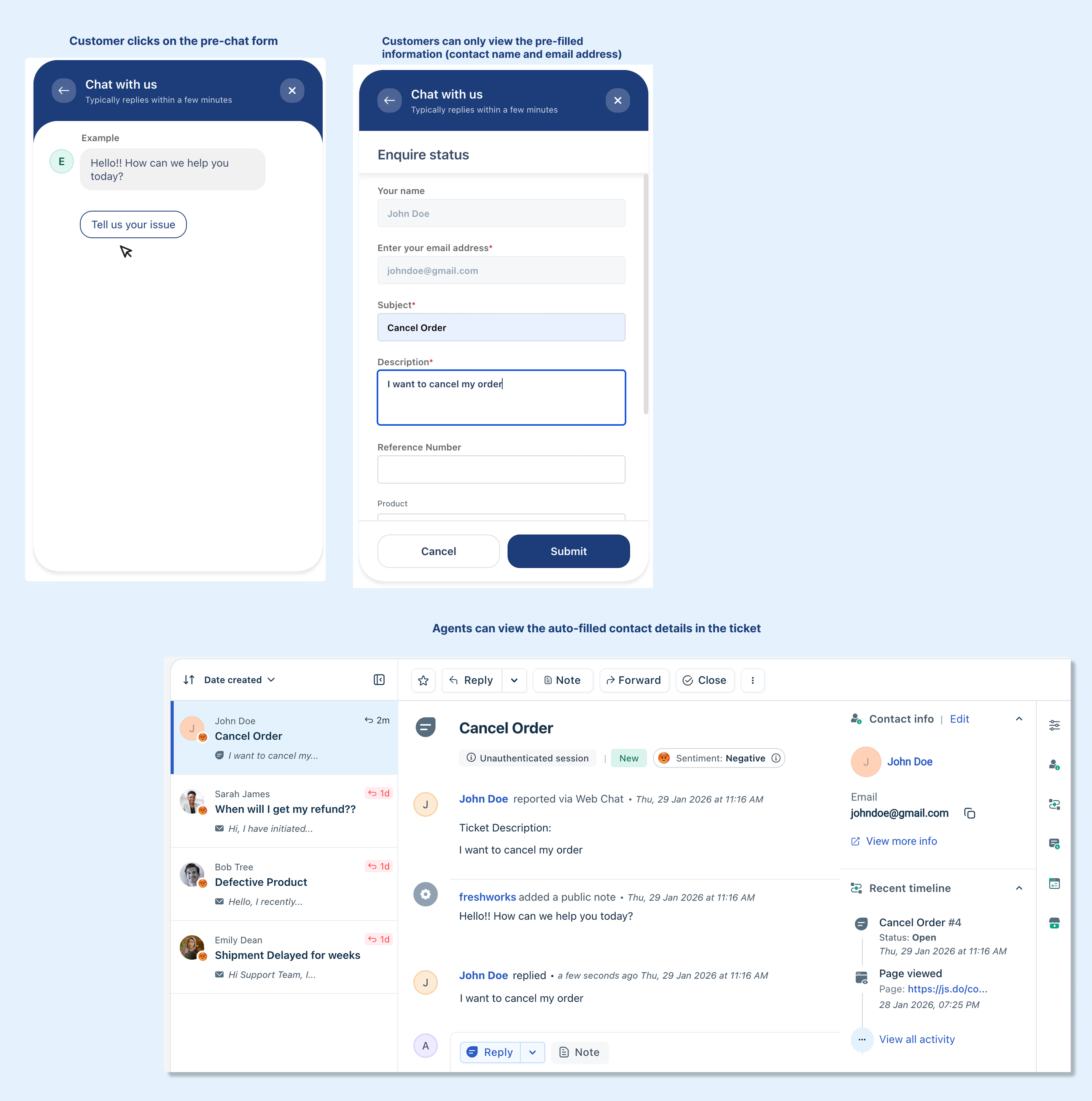
When pre-filled information is read-only
In this case, customers can only view their pre-filled contact details but cannot edit them. After the form is submitted:
- A web chat ticket is created
- The contact name and email address are automatically updated in the ticket
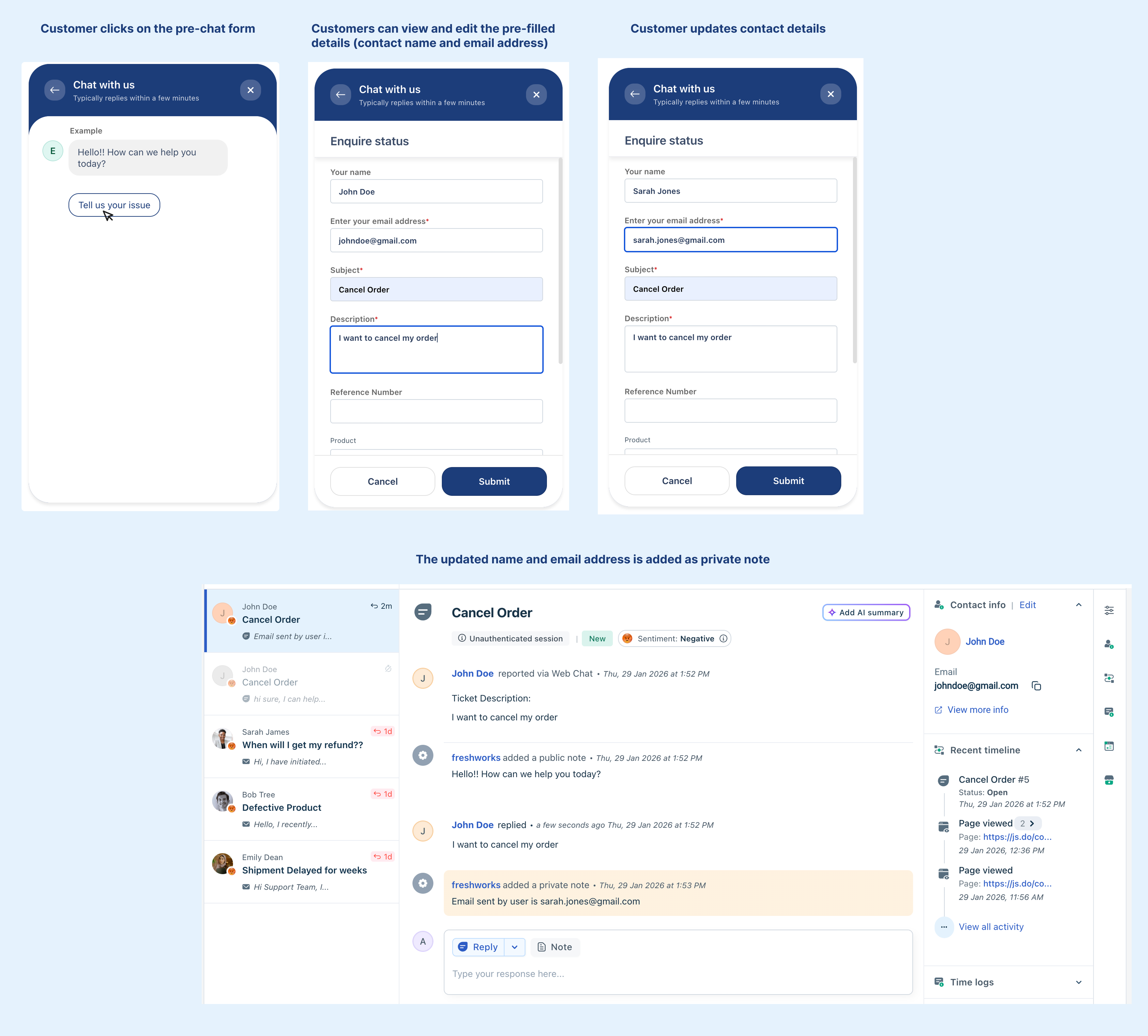
When pre-filled information is editable
In this scenario, customers can update their name and email address before submitting the form. After submission:
- A web chat ticket is created
- The updated name or email address is added as a private note to the ticket
Note: Editing pre-filled fields does not automatically update the customer’s contact record.
When pre-filled information is hidden
In this case, the pre-filled name and email address are not displayed to customers in the pre-chat form. However, the information is still included in the ticket and visible to agents.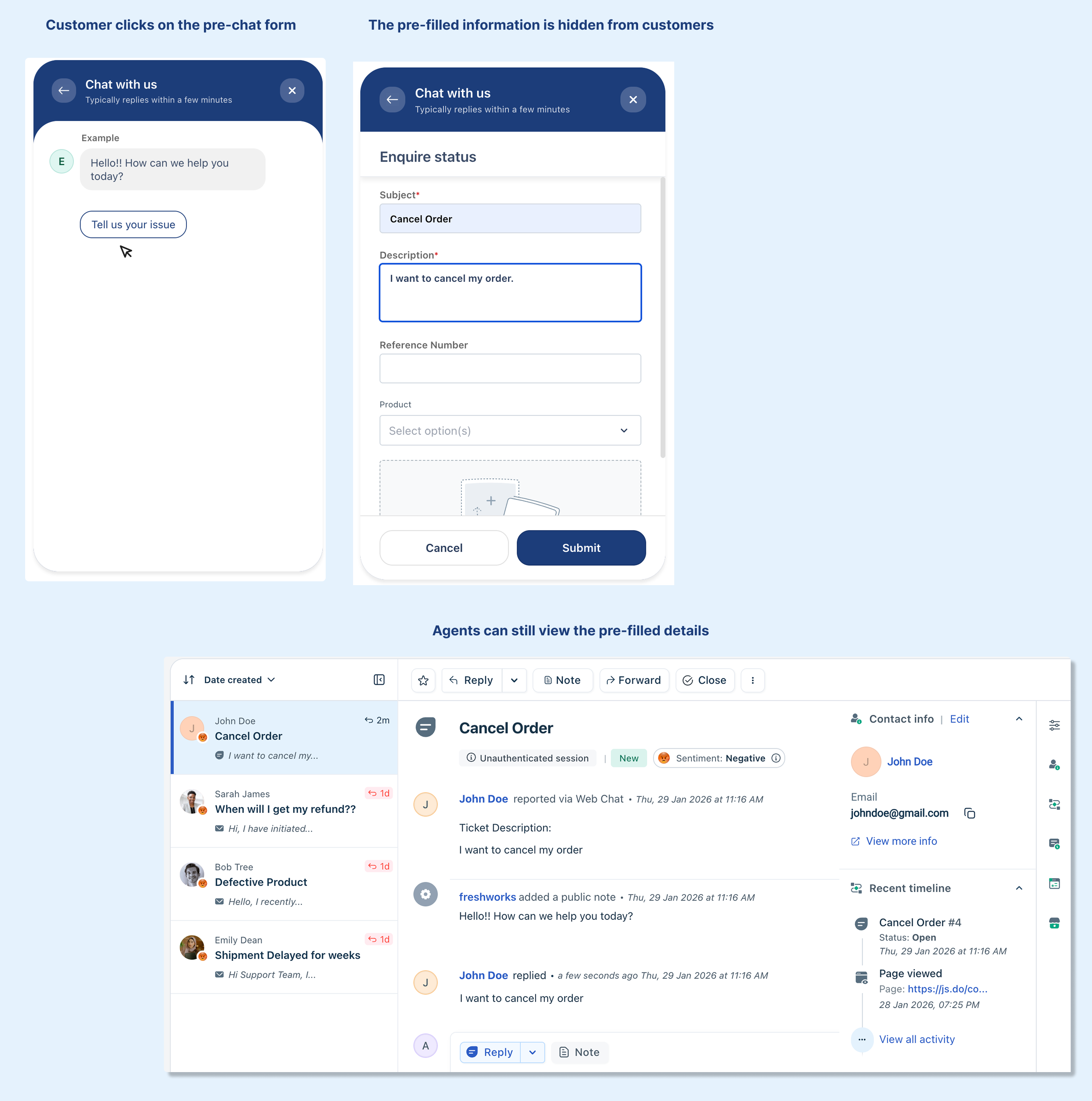
Configure pre-chat form
To configure the pre-chat form:
- Log in as admin and go to Admin > Channels > Web Chat > Web Chat Topics.
- Click Configure next to the topic for which you want to enable the pre-chat form.
- Click Pre-chat form to enable.
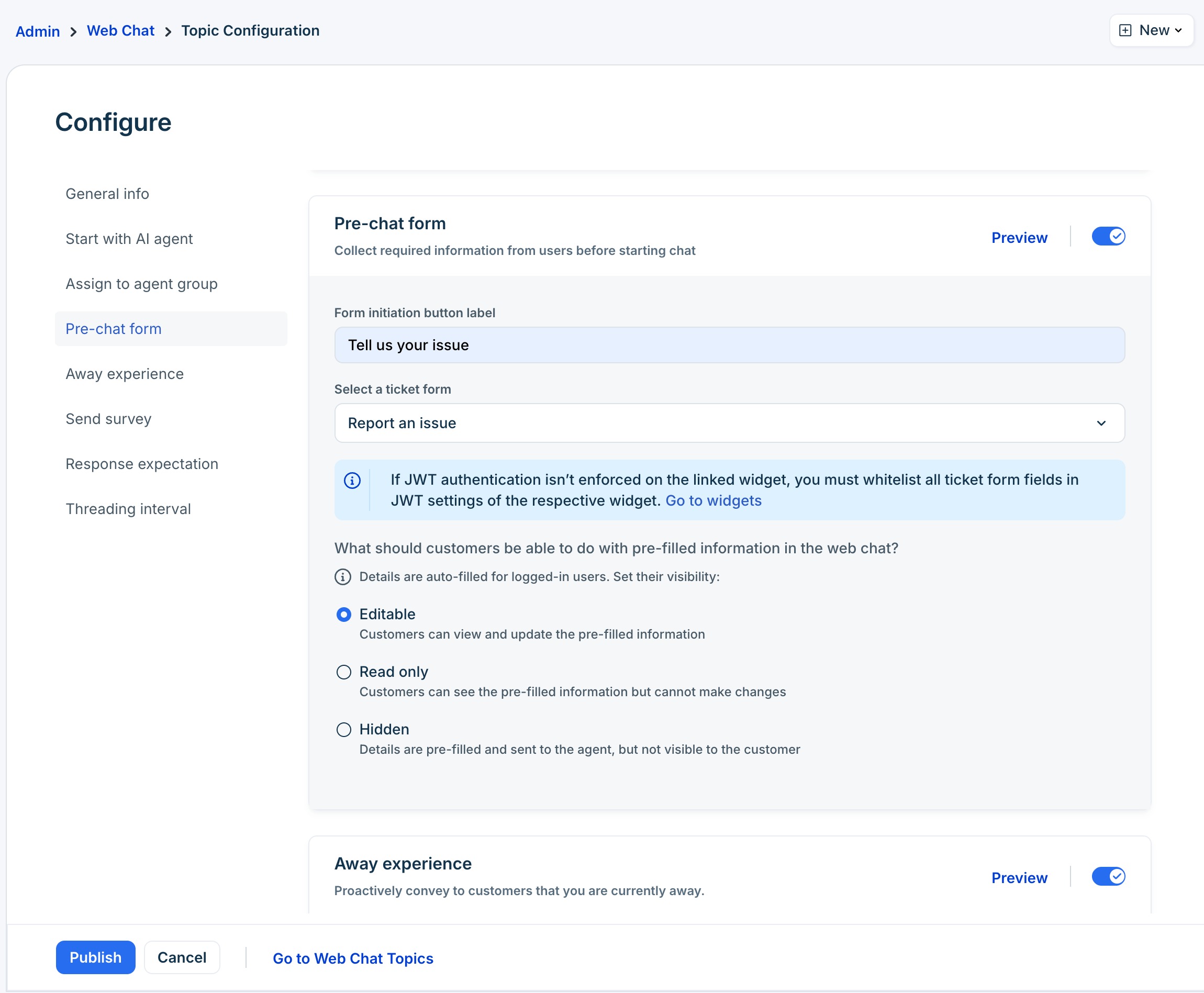
- In the Form initiation button label, enter the label for the button that triggers the form.
Example: “Start Chat” or “Describe the issue” - Select a ticket form you want to use as your Pre-chat Form.
- Set visibility for pre-filled information in the web chat. The options are Editable, Read only, Hidden. For more details, see Control the visibility of pre-filled customer information in pre-chat forms.
- Click Publish.
Tip: You can click Preview to view the pre-chat form as it appears to customers.
Pre-chat form behavior across scenarios
- Threading interval
- The pre-chat form only appears when creating a new ticket and does not appear for existing tickets within the specified threading interval.
For example, if a customer’s ticket is still open or within the threading window, they’ll continue in the same chat without seeing the pre-chat form again. - If the threading interval is breached while on the chat screen, the pre-chat form appears below the last conversation history, and the reply editor is hidden until the form is completed.
- The pre-chat form only appears when creating a new ticket and does not appear for existing tickets within the specified threading interval.
- Away experience and pre-chat form
If both the Pre-chat form and Away experience (via Email route) are enabled, the Away experience takes precedence during off-hours. Customers will see the away flow instead of the pre-chat form when reaching out after hours. However, for Away Experience (via Web Chat route), the pre-chat form will take precedence and create a web chat ticket which agents can respond to when they log back in the next business day.