
This article covers how to access and manage your Twilio phone numbers after the initial SMS setup in Freshdesk Omni.
TABLE OF CONTENTS
Prerequisites
Ensure that the following prerequisites are met:
- You have connected at least one Twilio account to Freshdesk Omni. For instructions, refer to Connect your SMS channel with Twilio.
- You have admin access to add and manage Twilio numbers.
Access Twilio numbers
After connecting your Twilio account to Freshdesk, you can manage your phone numbers directly from the SMS page, edit account details, enable or disable numbers, configure routing and automation settings, and remove numbers.
You can also configure advanced settings for each number to enhance customer interactions on SMS. For example, you can assign agent groups, set up CSAT surveys, threading intervals, opt-in and opt-out preferences, and more.
To access your Twilio numbers:
- Log in as an admin and go to Admin > Channels > SMS.
- Click Twilio.
The page lists all phone numbers added from your Twilio account.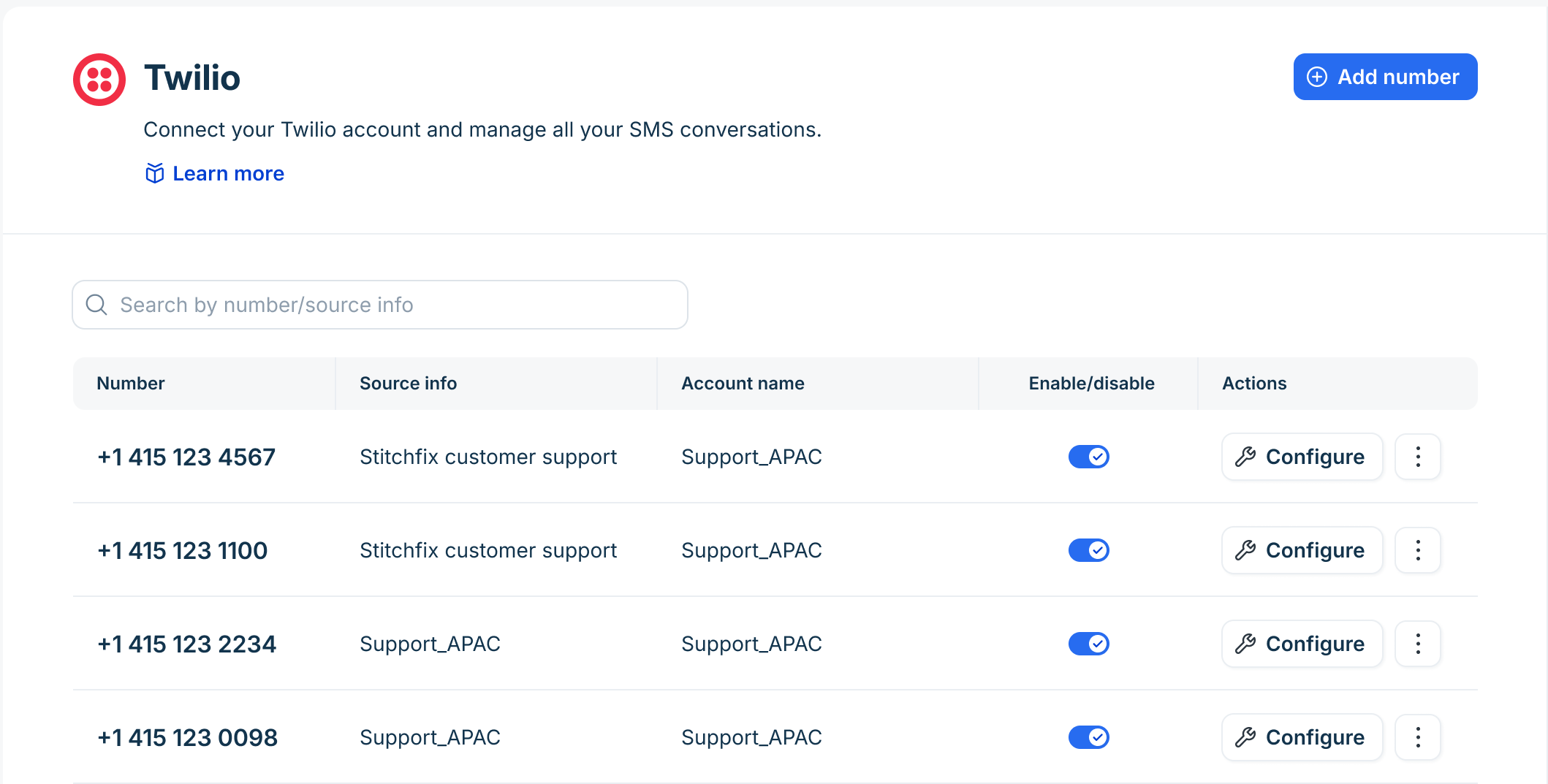
Edit Twilio account details
Update the account name or auth token for a connected Twilio account at any time.
To edit account details:
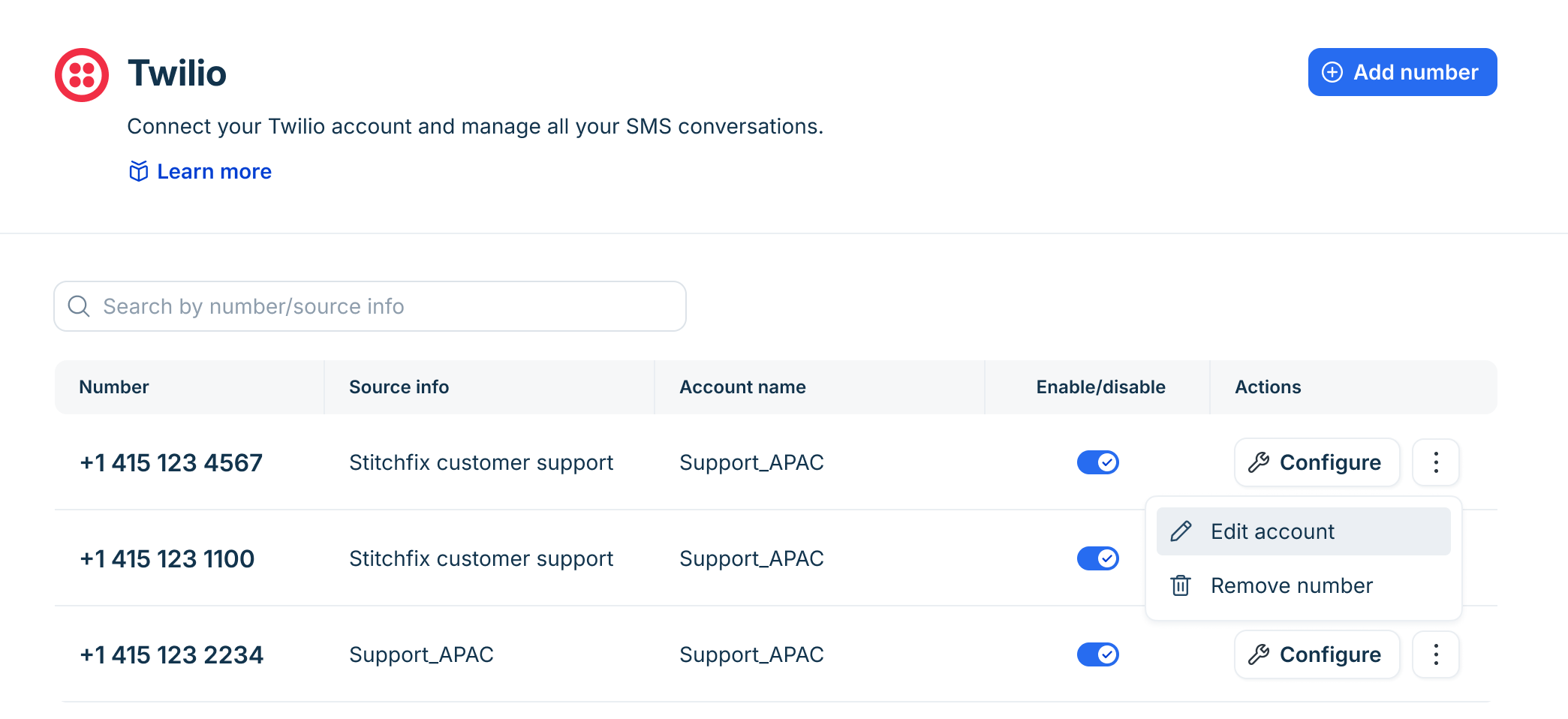
- On the Twilio page, click the three dots next to any number you want to edit.
- Select Edit account.
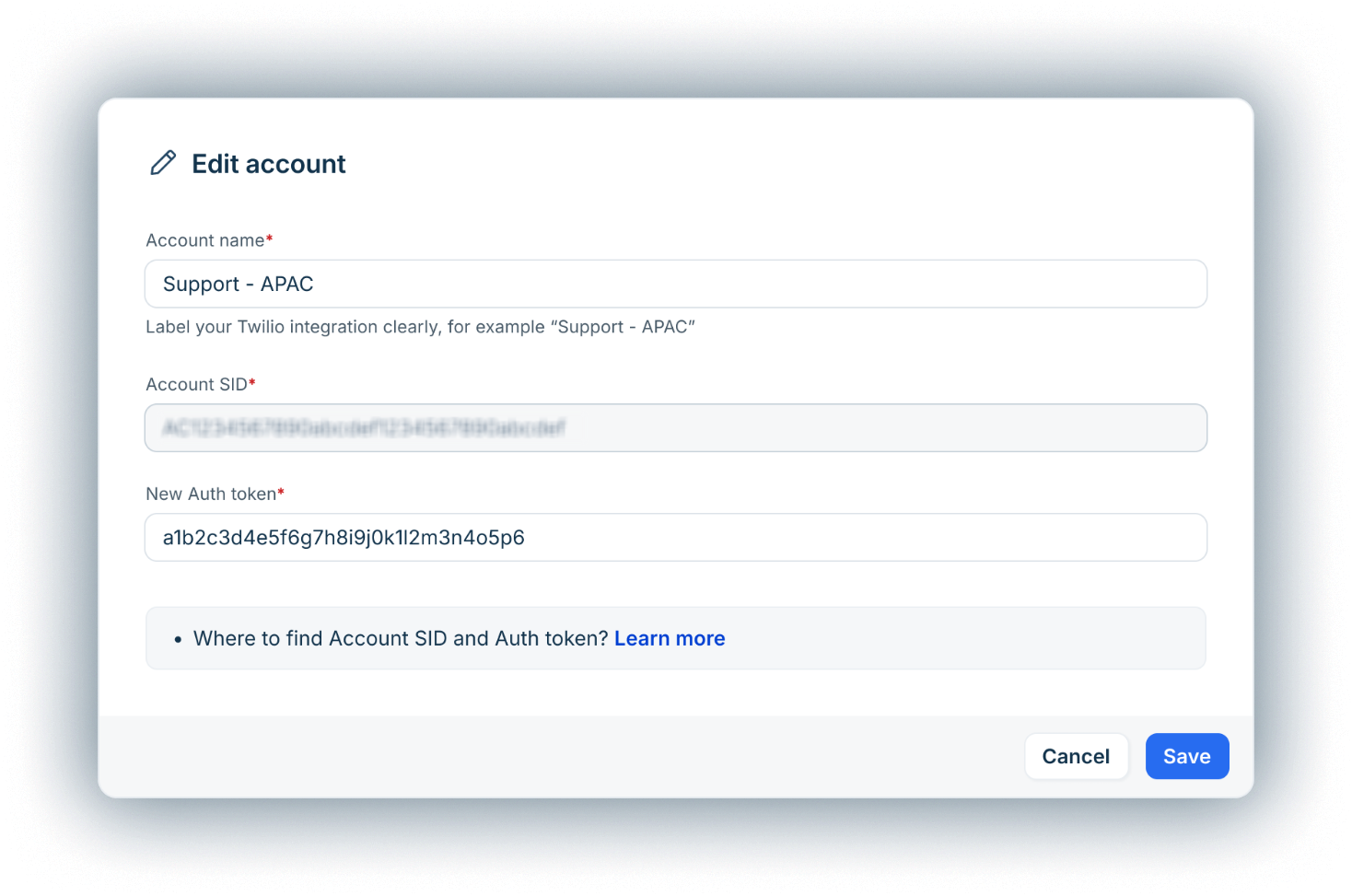
- Update the following fields as needed:
- Account name: Enter a new display name for the Twilio account.
- Auth token: Click Update Auth Token to add a new token.
Note: For instructions on finding your Twilio auth token, see Find Twilio Account SID and Auth token.
- Click Save.
Enable or disable a number
By default, when you add a Twilio number, it is automatically enabled. However, you can activate or deactivate the phone numbers without removing them from your account.
When a number is disabled, it stops receiving inbound messages, and agents cannot use it to send messages. The number remains in your account and can be re-enabled at any time.
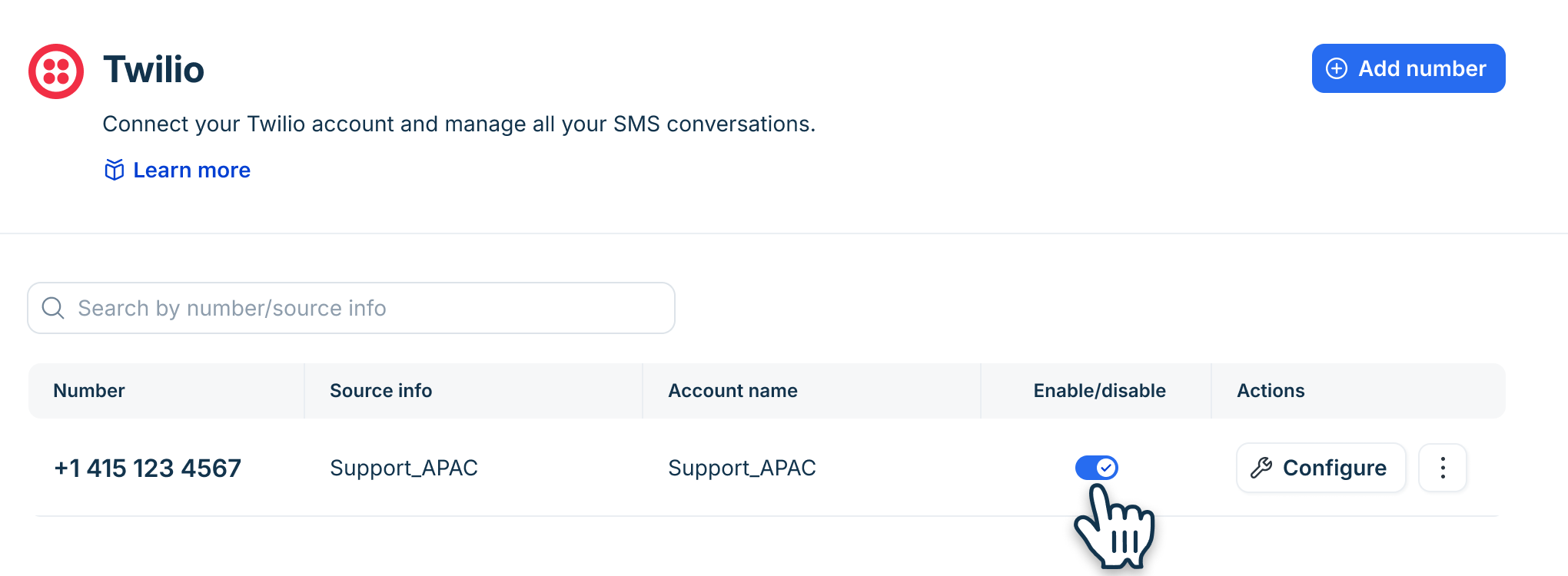
- On the Twilio page, locate the phone number you want to enable/disable.
- Use the toggle to turn the number on or off.
Remove a number
To remove a phone number:
- On the Twilio page, click the three dots next to any number you want to edit.
- Select Remove number.
- Confirm the action when prompted.
Note: Removing a number from Freshdesk does not delete it from your Twilio account. You can add it again any time by clicking Add number on the Twilio page.
Configure settings for numbers
Each Twilio phone number you add has its own configuration page where you can set up routing, automation, and messaging preferences.
To configure additional settings:
- On the Twilio page, click Configure next to the required number.
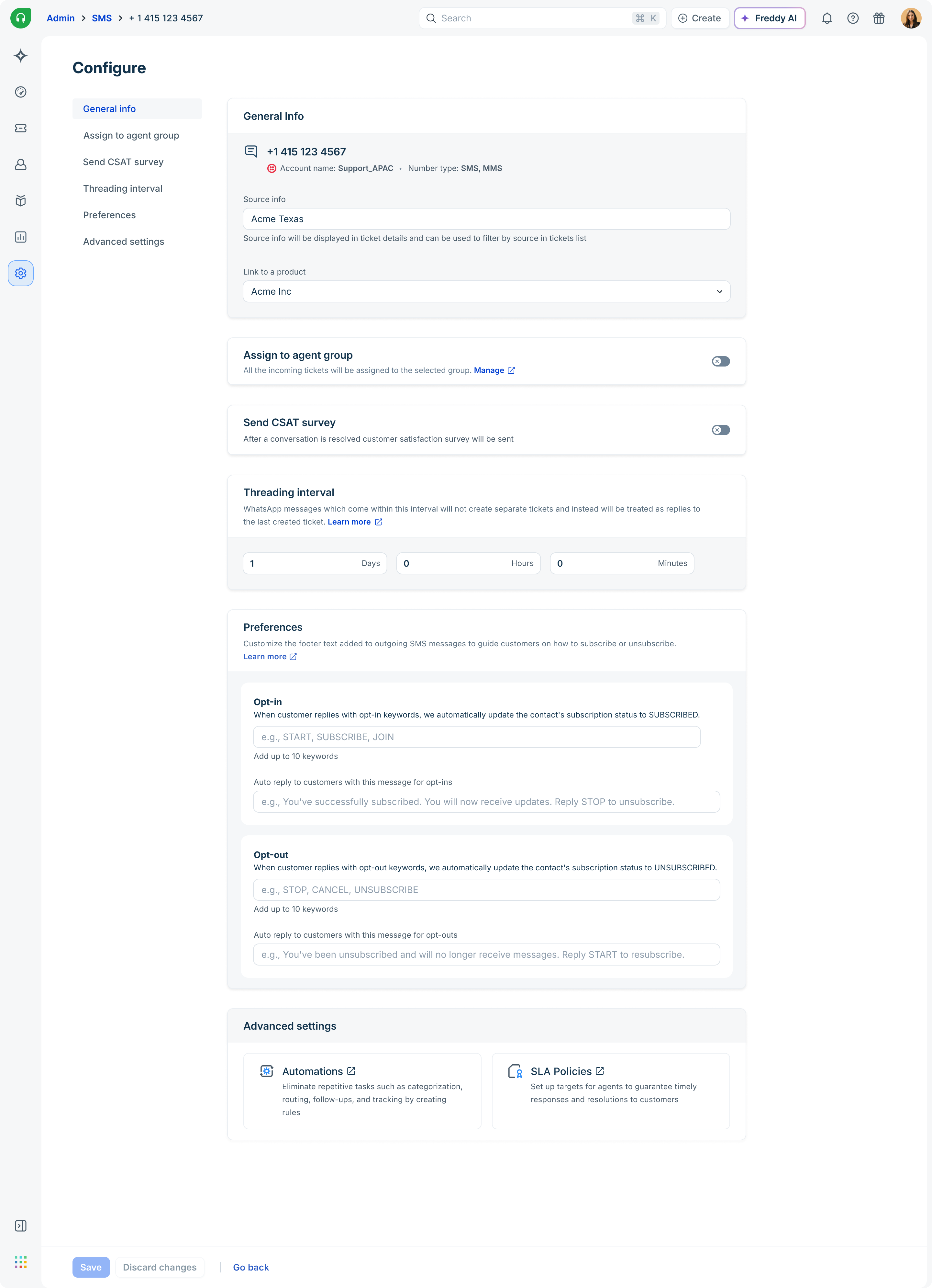
- Once you finish adding the required configuration settings, click Save.
The following table provides different settings you can configure:
Setting | Description |
General Info |
|
Preferences | Customize the footer text added to outgoing SMS messages to help customers subscribe or unsubscribe. For more details, see Customize text for outgoing SMS messages. |
Assign to agent group | Enable this option to route all your SMS conversations to specific groups in your account. For details, see Groups. |
Threading interval | Enter the time interval after which you want to start a new SMS conversation thread with customers. You can set the interval in days, hours, and minutes.
|
Send CSAT | Trigger CSAT survey to get customer feedback once the ticket is resolved. For details, see Send CSAT. |
Advanced Settings | |
Automations | Eliminate repetitive tasks such as categorization, routing, follow-ups, and tracking by creating rules. For details, see Automations. |
SLA policies | Set targets for agents to ensure timely responses and customer resolutions. For details, see SLA Policies. |
Customize text for outgoing SMS messages (opt-in/opt-out)
The Preferences section lets you manage how customers subscribe to or unsubscribe from SMS messages sent from your Twilio number. You can define the keywords that trigger each action and set the automatic reply to send to customers.
You can customize the following messages:
- Opt-in: When a customer replies with an opt-in keyword, Freshdesk automatically updates the contact's subscription status to Subscribed. This allows the contact to receive messages from your number going forward.
- Opt-out: When a customer replies with an opt-out keyword, Freshdesk automatically updates the contact's subscription status to Unsubscribed. The contact will no longer receive outbound messages from your number.
To configure opt-in/opt-out preferences:
- On the Configure page, click Advanced Settings > Preferences.
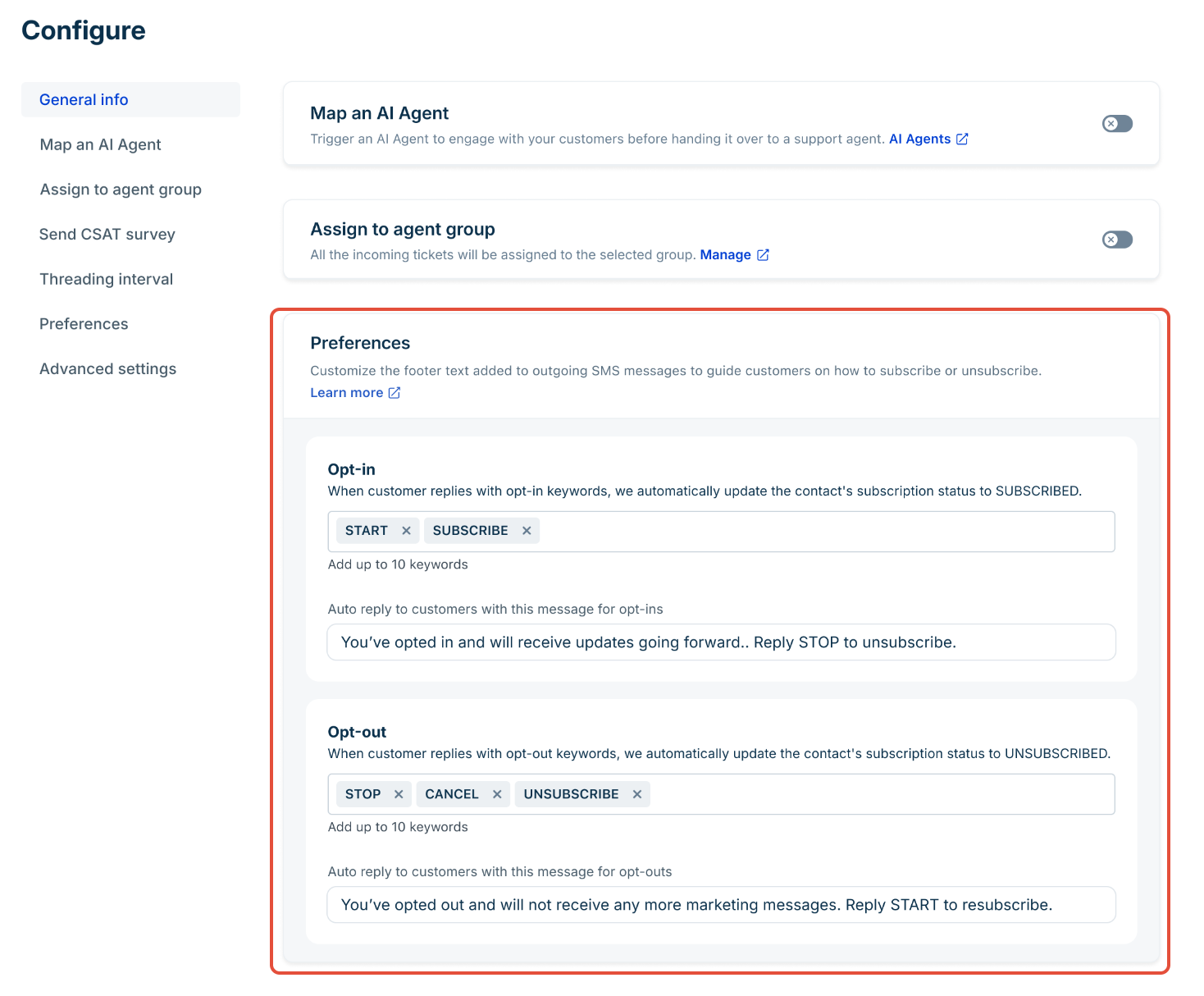
- In the opt-in section, enter the following details:
- Opt-in keywords: Enter the keywords that trigger opt-in when a customer replies with them. You can add up to 10 keywords. For example, add START, SUBSCRIBE, and JOIN.
- Auto reply message: Enter the confirmation message sent to the customer when they opt in. This message should acknowledge the subscription and explain how to opt out. For example, “You've successfully subscribed. You will now receive updates. Reply STOP to unsubscribe.”
- Opt-in keywords: Enter the keywords that trigger opt-in when a customer replies with them. You can add up to 10 keywords. For example, add START, SUBSCRIBE, and JOIN.
- In the opt-out section, enter the following details:
- Opt-out keywords: Enter the keywords that trigger opt-out when a customer replies with them. You can add up to 10 keywords. For example, you can add STOP, CANCEL, and UNSUBSCRIBE.
- Auto reply message: Enter the confirmation message sent to the customer when they opt out. This message should confirm the unsubscription and provide instructions for resubscribing, if required. For example, “You've been unsubscribed and will no longer receive messages. Reply START to resubscribe.”
- Opt-out keywords: Enter the keywords that trigger opt-out when a customer replies with them. You can add up to 10 keywords. For example, you can add STOP, CANCEL, and UNSUBSCRIBE.
- Click Save.