
TABLE OF CONTENTS
- Overview
- Enable and set up the voice channel
- Configure call settings
- Use Voice as an agent
- Convert calls to tickets
This article introduces Voice as a channel in Freshdesk Omni, explains how it supports customers and agents, and provides an overview of the capabilities available in the channel.
Prerequisites:
Before using the Voice channel in Freshdesk Omni, ensure that:
- Your account has the Voice add-on enabled.
- Voice seats are available for the agents who need to use the channel.
- You have sufficient voice credits for voice-related usage.
- You have the required permissions to configure the Voice add-on settings.
For information about purchasing and enabling the Voice add-on, see Purchase and enable the Voice add-on.
Overview
The Voice channel in Freshdesk Omni brings voice conversations into the same inbox where your agents manage customer tickets. With Voice channel, agents can handle customer calls while managing tickets, maintain conversation context, and convert calls into tickets for continued follow-up and resolution - all from the Inbox.
Voice capabilities
The Voice channel includes the following features to help your agents manage customer calls and conversations from the Inbox:
Capability | How it helps your team |
Make and receive calls | Let agents handle inbound and outbound customer calls from Freshdesk while keeping the customer conversation within the Inbox. |
Convert calls into tickets | Convert customer calls into tickets so agents can continue the conversation and follow up directly from the inbox. |
View call context in tickets | Agents can access call details from the inbox, including recordings and transcripts, so they can review the conversation while working on the ticket. |
| Manage agent availability | Manage agent availability across all channels in Freshdesk Omni. |
| View cross-channel analytics | View metrics across all channels in Freshdesk Omni to monitor performance. |
| Configure Omniroute | Manage ticket routing across channels in Freshdesk Omni to direct tickets to the appropriate teams or agents. |
Manage phone numbers | Purchase and manage the phone numbers your customers use to reach your support team. Learn more. |
Configure call workflows | Control how incoming calls are handled using IVR, call queues, and other routing options. This helps direct customers to the appropriate team or flow. Learn more. |
Manage voice resources | Monitor Voice seats and credits and manage the resources required to run your Voice channel. Learn more. |
| Manage call tags | Create and manage tags that help your team categorize calls and capture relevant information about customer interactions. Learn more. |
| Configure SIP phones | Configure SIP phones for agents who use SIP-based telephony to make and receive calls. Learn more. |
| Connect your own carrier (BYOC) | Connect a supported telephony carrier to your Voice channel setup, subject to configuration requirements. Learn more. |
| Configure call messages and greetings | Configure the messages and greetings that customers hear at different stages of a call. You can use standard messages or customize them for your support experience. Learn more. |
| Configure service levels | Define service-level targets for answering calls within a specified time. You can configure targets globally or for individual call queues. Learn more. |
Enable and set up the Voice channel
Before agents can handle customer calls, enable the Voice add-on and set up the required configurations.
- To access the Voice channel, go to Admin > Channels > Voice.
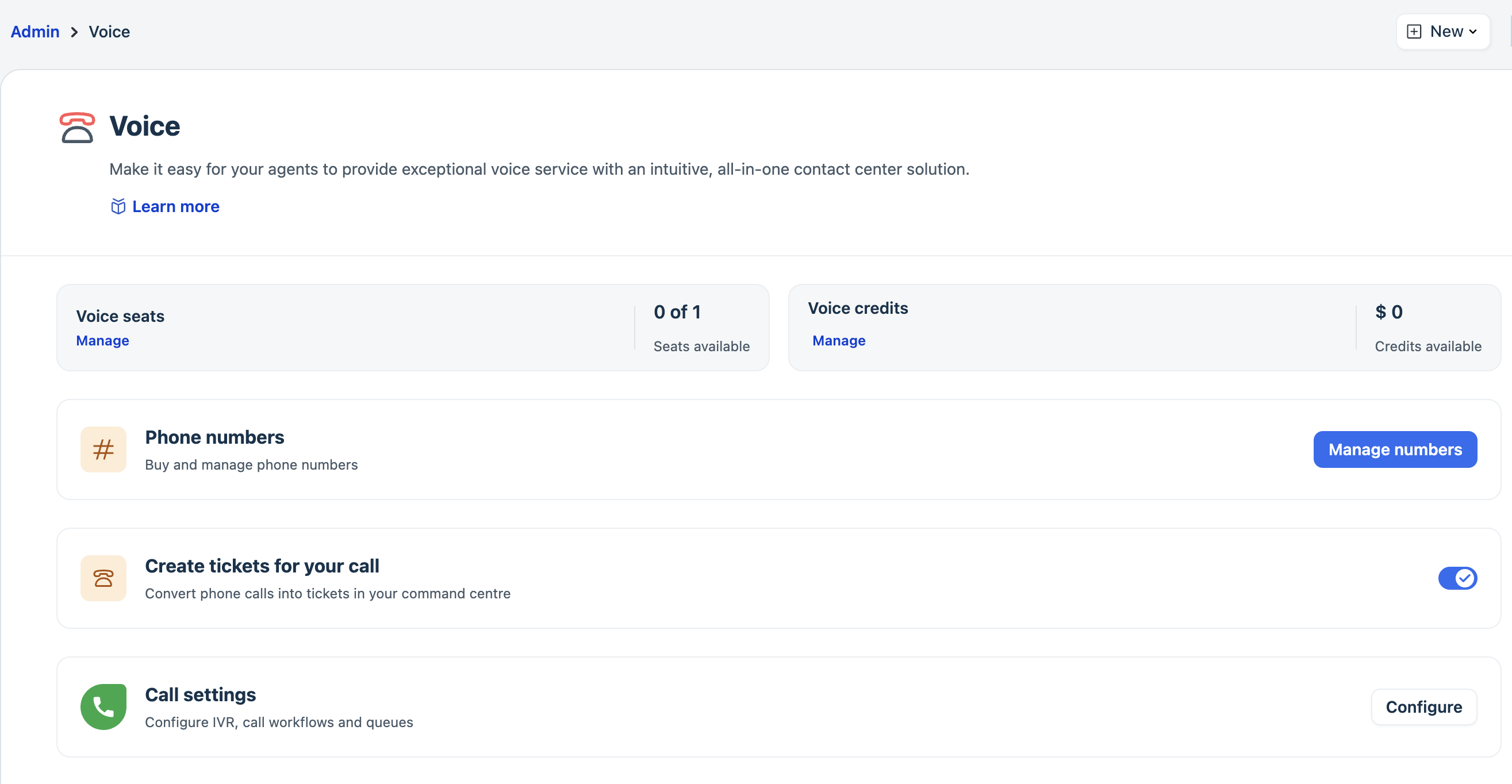
- Complete the following tasks:
- Enable the Voice add-on:
The Voice add-on provides the voice capabilities for your Freshdesk Omni account. Enable the add-on before configuring the other Voice resources. For detailed instructions, see Manage voice add-on. - Purchase voice credits:
Voice credits are required for the Voice channel usage, including calls and other Voice-related services. Purchase sufficient credits before agents start handling calls. For detailed instructions, Purchase phone credits. - Buy voice seats:
Voice seats determine the agents who can use the Voice channel. Purchase the required number of seats and assign them to the agents who handle customer calls. For detailed instructions, see Manage Voice channel add-on. - Set up phone numbers:
Phone numbers provide the entry point for customers to contact your support team through voice. Purchase and configure the numbers that your team will use to make and receive calls. For details, see Buy a phone number.
- Enable the Voice add-on:
Configure call settings
After setting up the Voice channel, configure your call settings to determine how incoming calls are handled. You can use call workflows, IVR, and call queues to route customers based on your support requirements.
To configure your call settings:
- Go to Admin > Voice.
- Under Call settings, click Configure.

- Configure the required IVR, call workflows, and queues.
For more information, see Introduction to call workflows.
Use the phone widget
Once you set up the Voice channel and configure call settings, agents can manage customer calls directly from the Inbox using the phone widget. The widget gives agents the tools to handle the conversation from start to finish, from making or answering a call to managing the active conversation and capturing information for follow-up.
Before using the widget channel, ensure that:
- You have completed the setup steps described in Enable and set up the voice channel.
- You have tested your network connection to identify and troubleshoot potential network or audio issues. When you use the Phone widget for the first time, you are prompted to run a network test. Click Start Test to begin. For details, see Test your network connection.
- You are using the latest version of Chrome or Firefox.
To use the widget:
- Click on the phone widget from the left pane.
- Set your availability status to All channels.
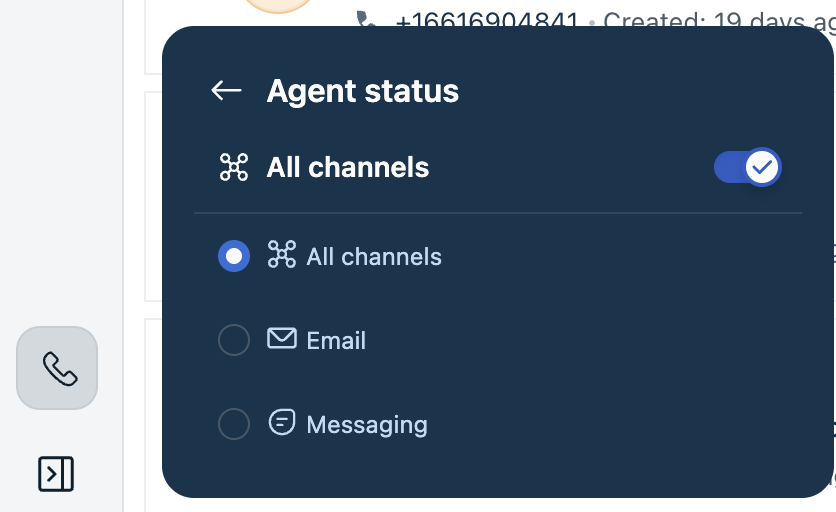
The Phone widget provides the following features to help you manage customer calls.
Agent task | Description |
Make and receive calls | Make outbound calls or answer incoming calls by searching for a contact, selecting a contact from Recent Calls, or entering a phone number using the Keypad. |
Manage the call | Place a call on hold, mute the call, and pause or resume call recording while speaking with the customer. Learn more. |
Transfer calls | Transfer a customer to another agent or destination when another team member needs to handle the conversation. Learn more. |
Start a conference call | Agents can add another participant to an active call and continue the conversation as a conference call. Learn more. |
Handle parallel calls | Agents can handle another call while keeping the current call active. Learn more. |
Route a call to a queue | Agents can push a call to a queue when another team needs to handle the customer's request. Learn more. |
Use the dialpad | Agents can use the dialpad to enter numbers during a call, such as when navigating an IVR. |
Leave a voicemail | Agents can use Voicemail Drop to leave a pre-recorded message when an outbound call is not answered. |
Add notes | Agents can add notes during the call to capture important information for follow-up. Learn more. |
Convert calls to tickets
You can capture customer calls as tickets in Freshdesk. When Create tickets for your call option is enabled, calls are automatically captured as tickets so agents can access the interaction from the Inbox and continue working on the customer's request after the call.
This is useful when a phone conversation requires follow-up, documentation, or additional action. The ticket keeps the call details with the customer’s request, giving agents the context they need to continue the resolution.
To automatically capture calls as tickets:
- Go to Admin > Voice.
- Under Create tickets for your call, enable the toggle.

- Keep the setting enabled to capture calls as tickets.
When a call is captured as a ticket, agents can perform the following:
- Access the call from the Inbox: The call appears as a ticket that agents can open and manage along with other customer requests.
- View call details: The ticket retains information about the call, such as the customer, agent, and queue involved in the interaction.
- Listen to the call recording: When call recording is available, agents can access the recording from the ticket to review the conversation.
- View the call transcript: When transcription is available, agents can view the transcript from the ticket to review what was discussed during the call.
- Continue the resolution: Agents can use the ticket to add information, document the interaction, and continue working on the customer's request after the call.
- Maintain conversation context: Keeping the call with the ticket gives agents a single place to understand the interaction and its follow-up.
Note: Call recordings and transcripts are available when the corresponding voice capabilities are configured for your account.