
This article provides instructions on purchasing phone credits and enabling the auto-recharge method.
Prerequisites:
Before you recharge phone credits, ensure that:
- You have admin privileges.
- For online recharge, you have a valid credit card or a saved payment method.
- For offline recharge, you have the required billing information available.
Overview of phone credits
Phone credits are prepaid cash that you add to your account in advance. The credits are used for the following:
- Phone number purchases
- Inbound and outbound calls based on the applicable call charges
- Voicemail transcripts
- Additional features used during calls
Call charges can include additional charges for features such as call recording, call barging, call transfers, conference calls, and calls attended on a SIP phone. For the latest call charges, see Call rates.
Note: Call rates and applicable charges can vary by country and by the feature used.
What happens when you run out of phone credits
You need sufficient phone credits to make and receive calls and purchase phone numbers. Phone credits are deducted based on usage, so it is important to recharge your account when your balance drops below $5 to help avoid service interruptions.
If your account does not have sufficient credits:
- You cannot make or receive calls.
- You cannot purchase phone numbers.
- Attempts to make a call display an insufficient-credit message in the caller widget.
- Attempts to purchase a phone number display an insufficient-credit message.
Understand the credit allocation
Phone credits are automatically allocated across three credit types:
- Inbound credits: Used for inbound calls.
- Outbound credits: Used for outbound calls.
- Number credits: Used for phone number purchases.
The allocation is based on your previous usage. For example, if your account has historically used more credits for outbound calls, a larger portion of a new recharge is allocated to outbound credits. If previous usage data is unavailable, the recharge is divided equally between inbound and outbound credits. Number credits start at zero.
How phone number credits are allocated
Phone number credits can have a negative balance when you purchase a phone number. When you recharge your account, Freshdesk first resets any negative credit balances to zero. It then distributes the remaining recharge amount between incoming and outgoing call credits based on your past usage. The same allocation logic applies to automatic recharge.
Example:
Assume your current credit balance is $5, with the following distribution:
| Credit type | Balance |
|---|---|
| Incoming calls | -$1 |
| Outgoing calls | $10 |
| Phone numbers | -$4 |
| Total balance | $5 |
If you recharge your account with $25, the credits will be allocated as follows:
The negative balances will be reset to zero.
$4 is used to bring phone number credits from -$4 to $0.
$1 is used to bring incoming call credits from -$1 to $0.
The remaining balance will be distributed. In the above example, after correcting the negative balances, $20 remains from the recharge.
The balance amount will be split based on past usage. If your historical usage is 60% for incoming calls and 40% for outgoing calls, the credits will be adjusted as:
$12 to incoming call credits.
$8 to outgoing call credits.
The final credit balances are:
| Credit type | Final balance |
|---|---|
| Incoming calls | $12 |
| Outgoing calls | $18 |
| Phone numbers | $0 |
| Total balance | $30 |
Recharge phone credits
You can recharge phone credits online using a credit card or recharge them offline through the billing team.
Recharge credits online
To manually recharge your phone credits:
- Go to Admin > Plans and Billing.
- Under Voice add-on, click Buy Phone Credits.
- Select the amount you want to recharge.
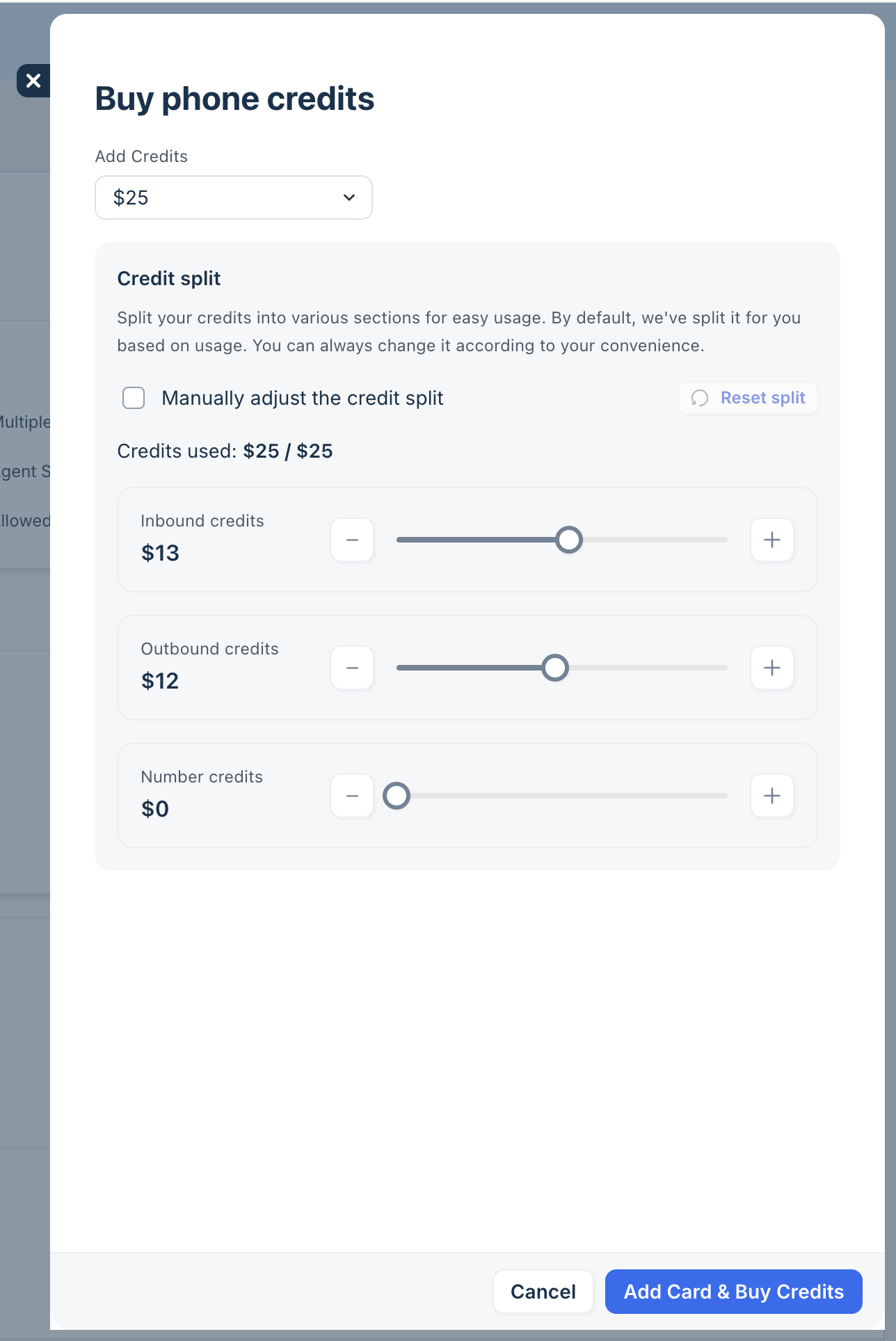
- Review the automatic credit allocation.
The recharge amount is automatically distributed between inbound, outbound, and phone number credits based on your previous usage. - To distribute the credits yourself, enable Manually adjust the credit split.
- Use the sliders to adjust the allocation.
Note: The manually allocated amounts must not exceed the total recharge amount. - Enter your card details and complete the payment.
If you have a saved card, the recharge amount is charged to the saved payment method.
Set up automatic online recharge
You can enable automatic recharge to recharge your phone credits automatically. Automatic recharge is disabled by default. Once enabled, your account is automatically recharged when the credit balance reaches the configured threshold.
To enable automatic recharge:
- Go to Admin > Plans and Billing.
- Under Voice add-on, click Configure next to Auto-recharge.

- Enable Auto-recharge.
- Select the amount to recharge each time.
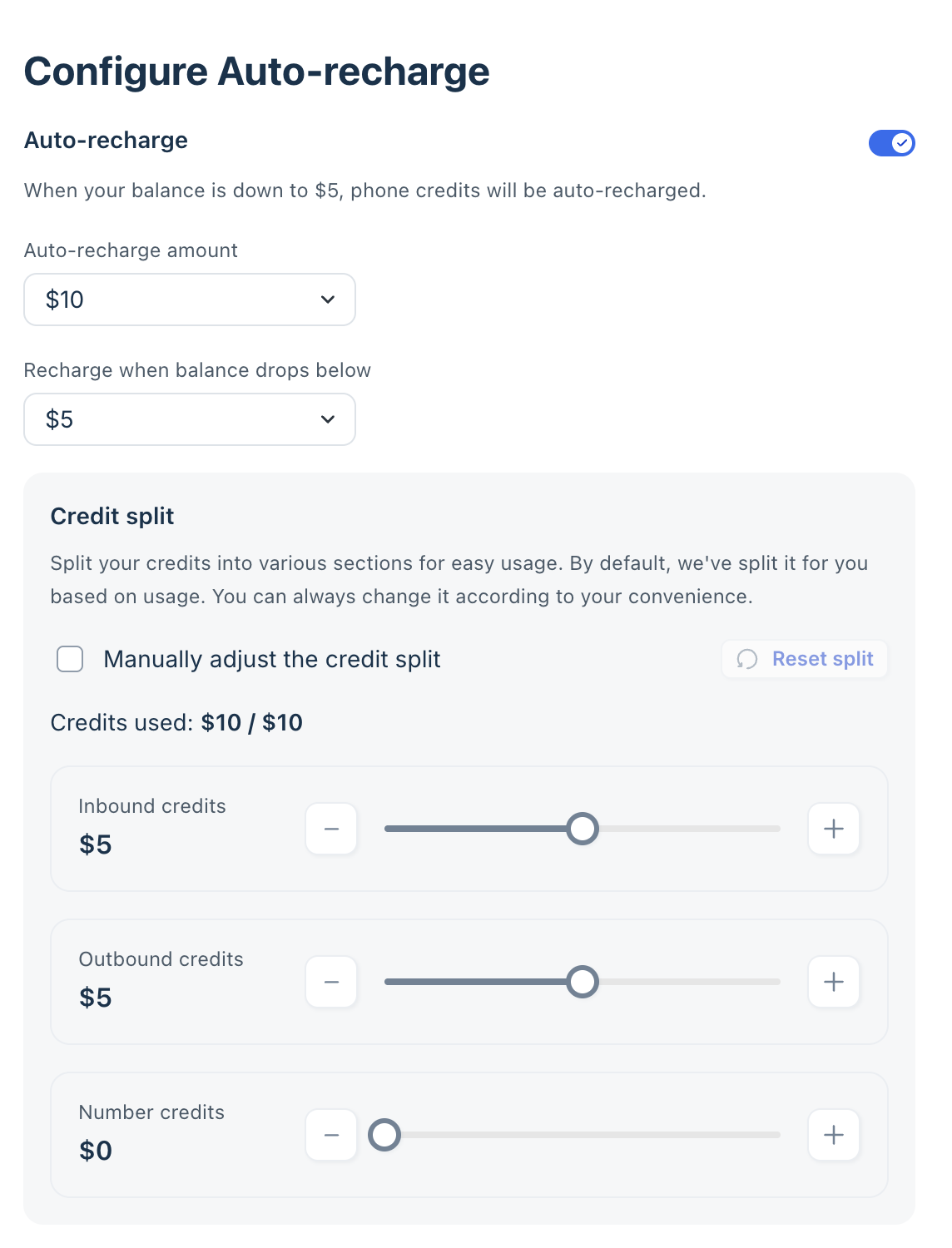
- Click Update.
Note:
- You can auto-recharge your account for any amount between $5 and $25.
- The auto-recharge option is not available during trial period. You can write to billing@freshworks.com to procure the invoice.
Recharge credits offline via email
If you do not want to keep a credit card on file, you can recharge your phone credits through the billing team.
When your credit balance falls below $5, you receive an email notification. You can then contact the billing team with the amount you want to add. The billing team adds the credits and generates the applicable invoice.
Note: When you use offline recharge, you cannot manually split the credit allocation from the Billing page. The credits are allocated offline based on your previous usage.
Set up offline auto-recharge
If you wish to auto-recharge your credits offline, send a mail to the billing team at billing@freshworks.com with the following details:
When contacting the billing team, provide:
- The amount you want to add with each recharge.
- The credit balance threshold at which you want the recharge to occur.
- The maximum amount of phone credits you expect to use each month.
For offline invoicing, you may also need to complete a Statement of Facts (SOF). Your account manager can use this information to raise the offline invoice and add phone credits to your account.
Note: When you use offline auto-recharge, you cannot manually split the credit allocation from the Billing page. The credits are allocated offline based on your previous usage.